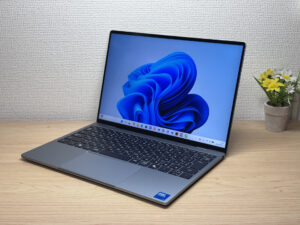
ZippyScore
ZippyScore is a proprietary rating based on 6 criteria: performance, portability, display, battery, value, and connectivity.
See rating criteria
- Performance: CPU / GPU performance
- Portability: Screen size & weight
- Display: Panel type, aspect ratio & refresh rate
- Battery: Rated battery life
- Value: Specs-to-price balance
- Connectivity: Port types & count
Pros & Cons
Pros
- At 1045 g (~2.3 lbs), it's genuinely easy to carry around every day
- Thin InfinityEdge bezels plus a 2.5K, 120Hz panel make for shockingly vivid colors
- Practically silent at idle, so it's easy to use in quiet spaces without feeling self-conscious
- The clicky, backlit keyboard makes long writing sessions comfortable
- The 2.07-megapixel webcam keeps video calls looking sharp
Cons
- Only one USB-C port on each side → grab a hub and you're covered
- 8GB of RAM struggles with heavy multitasking → go with the 16GB config if you can
- With Function Lock on, the up/down arrow keys get stuck acting as Page Up/Page Down
Specs Summary
| OS | Windows 11 Home |
|---|---|
| CPU | Intel Core 5 320 (PassMark: 15,482) Intel Core Ultra 7 355 (PassMark: 20,954) |
| RAM | 8GB / 16GB / 32GB |
| Storage | 256GB / 512GB / 1TB |
| Display | 13.4" IPS (Touchscreen, 120Hz) 2560x1600 (16:10) |
| Weight | 1.00 kg (2.20 lbs) |
| Ports | USB-C × 2 (10Gbps/PD/Video out) |
| GPU | Intel Graphics (G3D Mark: 3,183) |
| Biometrics | Face Recognition |
| Battery | Up to 17 h (Capacity: 52 Wh) |
| Camera | 2.1 MP |
| Dimensions | Approx. 296.9 × 200.66 × 12.7 mm (W × D × H) |
| Wi-Fi | Wi-Fi 7 |
| Bluetooth | Bluetooth 6.0 |
| Color | Sky / Storm |
Configurations vary by retailer, region, and availability.
Hands-on Review
Alright, let's get into my hands-on review of the XPS 13 (DX13260, 2026). Here's the exact configuration I tested:
| Item | Test Unit Configuration |
|---|---|
| CPU | Intel Core 5 320 |
| Memory | 8GB |
| Storage | 512GB SSD |
| Display | 13.4-inch IPS (2560x1600, 120Hz) |
| Graphics | Intel Graphics |
| Color | Sky |
Note: configurations may vary depending on when and where you buy it.
Design
Let's start with design. My first impression looking at it head-on: the bezels are impossibly thin. InfinityEdge shaves the display frame down to almost nothing, so even at 13.4 inches, the screen feels bigger than the spec sheet suggests.
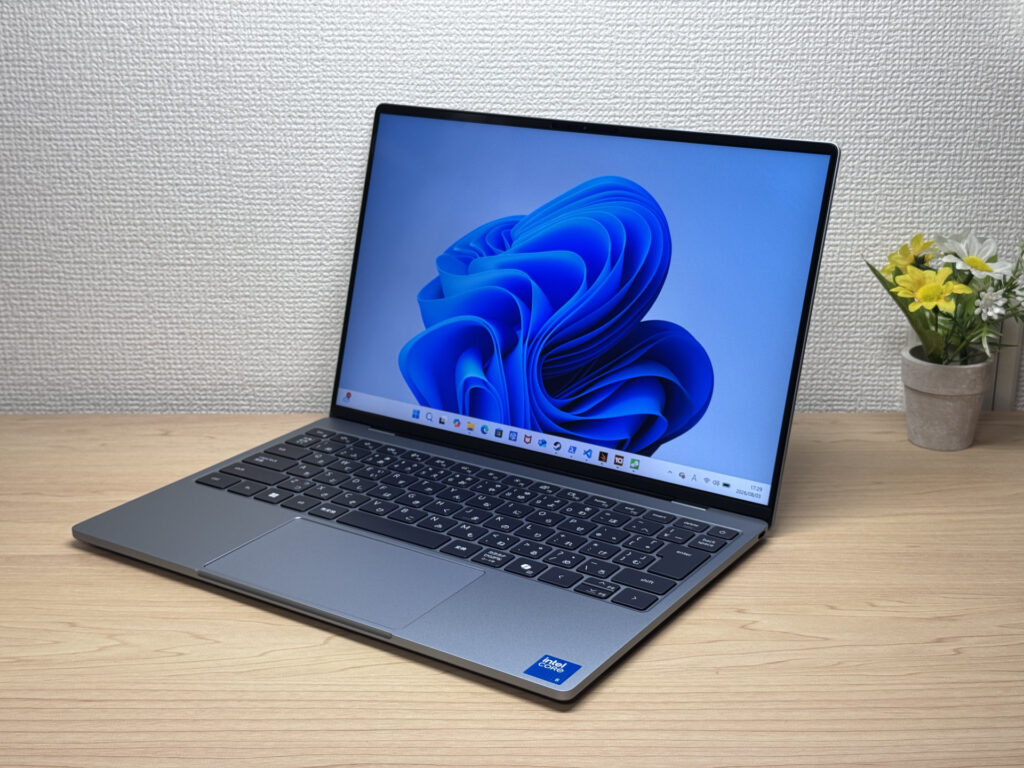 Those InfinityEdge bezels are borderline unfair — this thing looks gorgeous
Because it's a machined unibody, the overall build quality feels seriously high-end, with that signature XPS polish. For a laptop in this price range, it's put together way better than I expected.
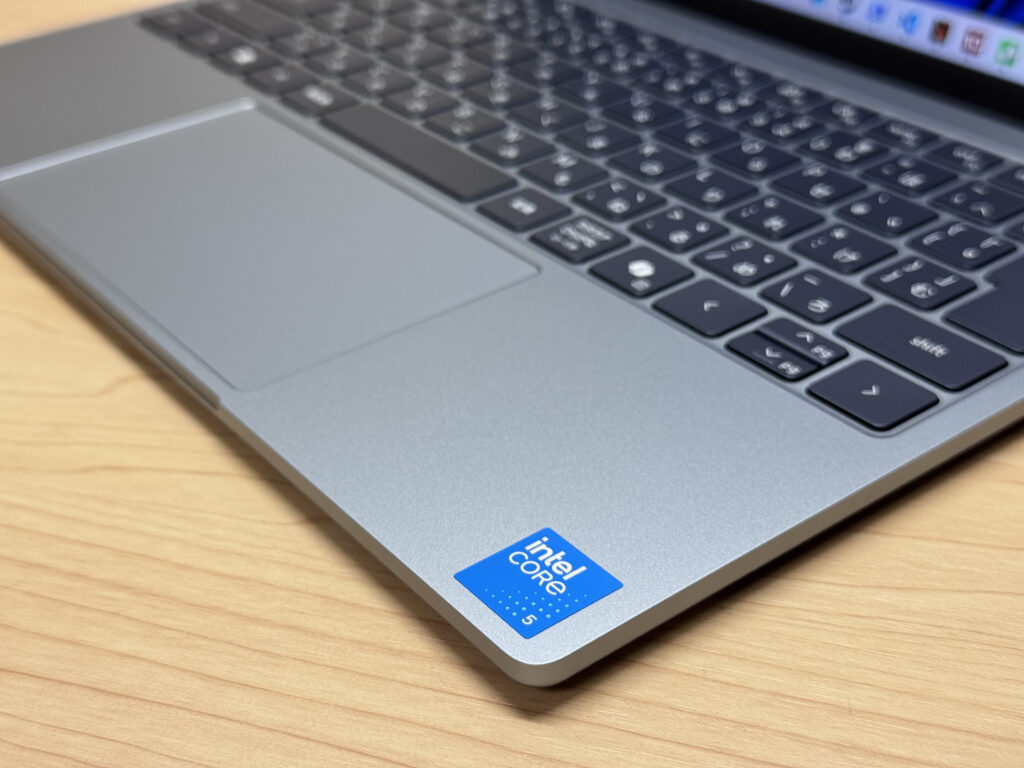 The palm rest has a smooth, matte finish that resists fingerprints
Set the lid next to a MacBook Neo and the size is nearly identical — kind of startling, honestly. You can tell Dell built this with that comparison in mind.
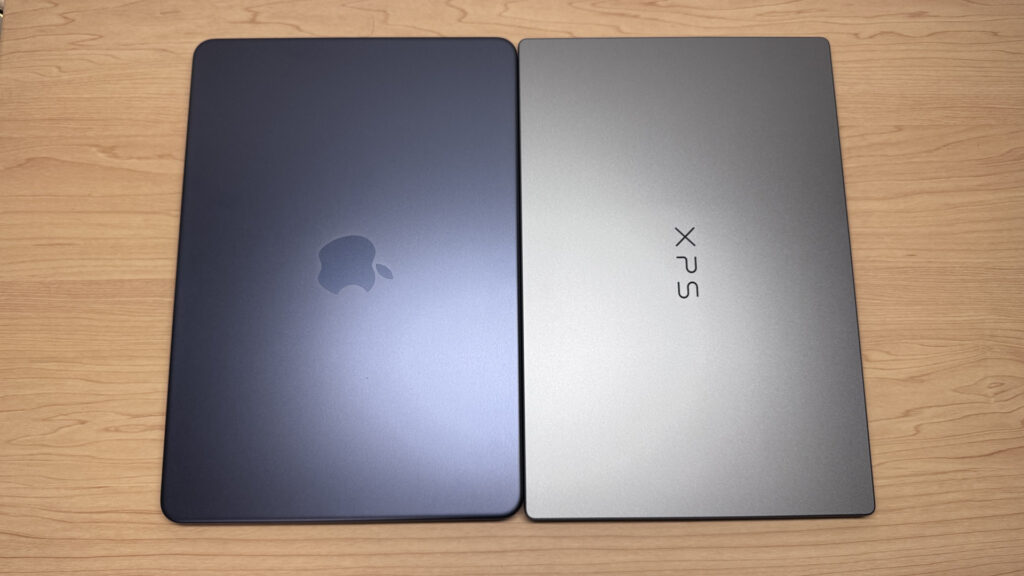 Sits right next to the MacBook Neo without looking out of place
Flip it over and the lid has a simple XPS logo, understated enough that it doesn't look out of place pulling it out at the office.
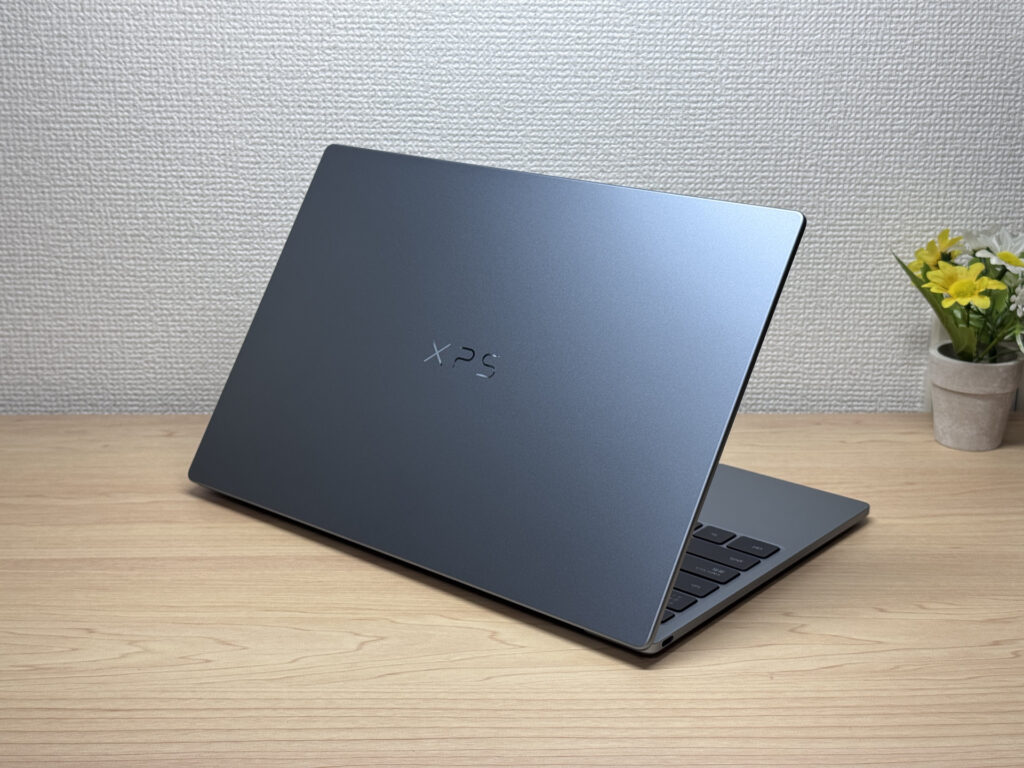 Even at an angle, you can see how nice the finish is
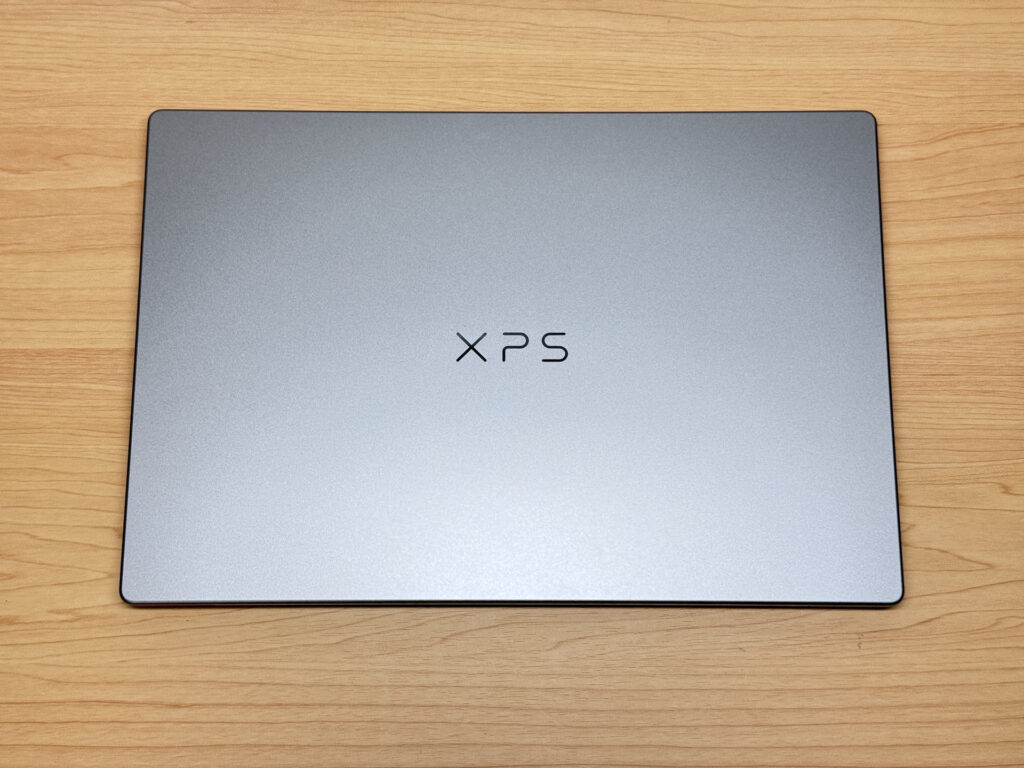 The low-key XPS logo actually looks pretty sharp
At 12.7 mm thick, it's seriously slim. Pick it up and you can feel how little space it'll eat up in a bag.
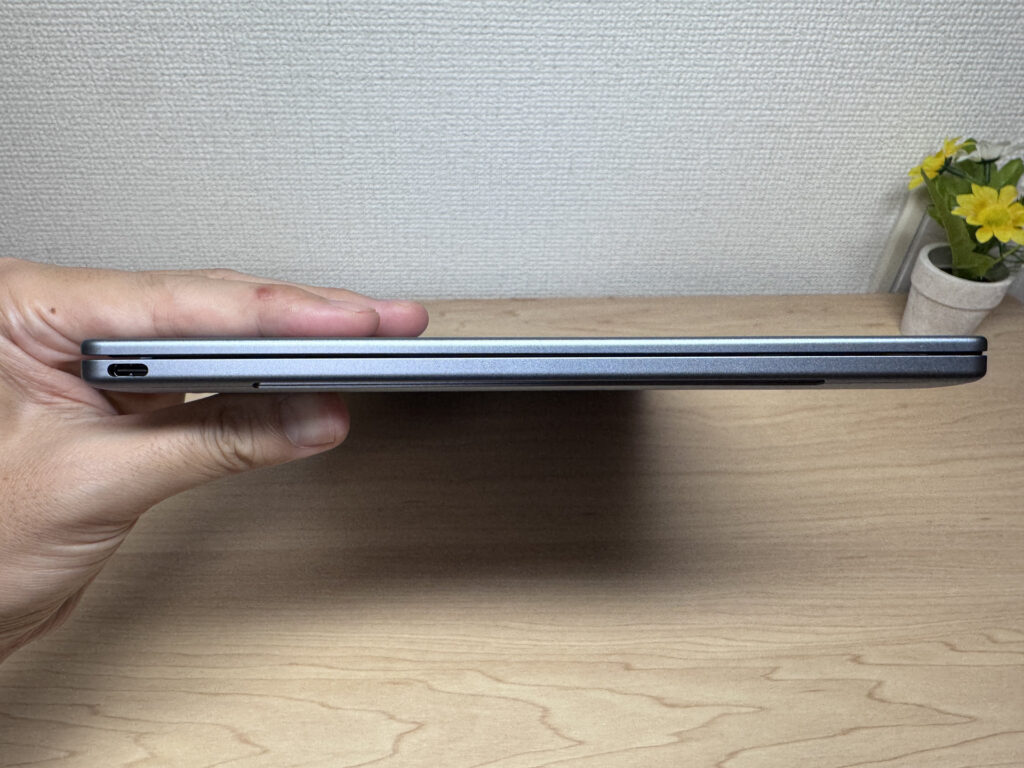 That 12.7 mm profile is surprisingly thin once you hold it
Lined up next to a MacBook Neo, the thickness is nearly a wash. Dell clearly wasn't messing around here.
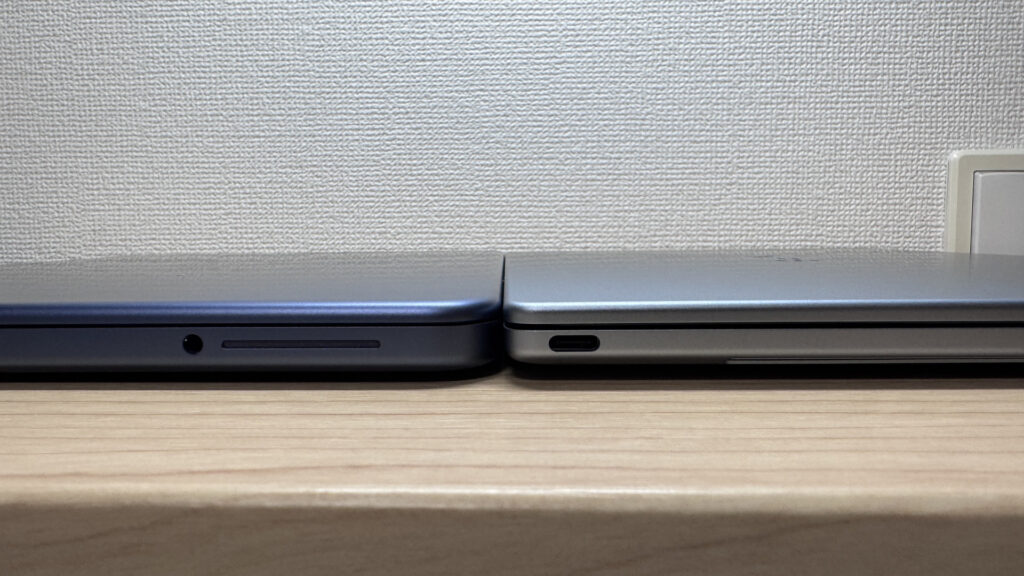 Nearly identical thickness next to the MacBook Neo
The bottom panel keeps things minimal with just four screws. The rubber feet are grippy enough that the laptop won't slide around while you type.
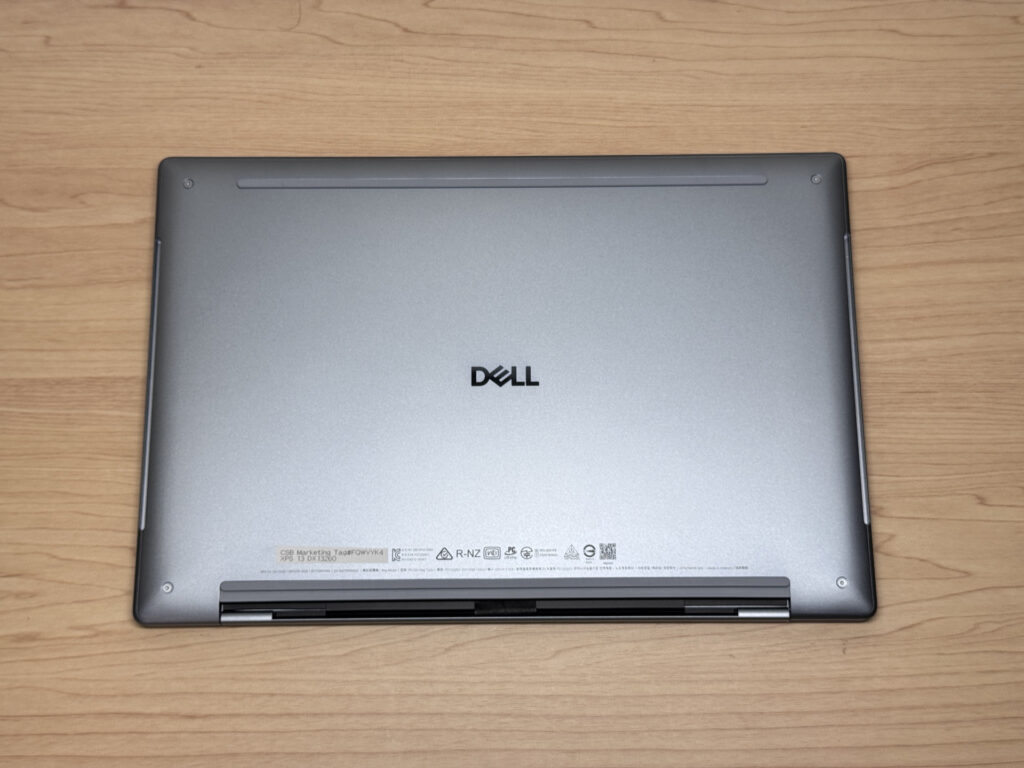 A clean bottom panel with just four screws, and the rubber feet hold firm
The hinge quality is impressive too — you can pop the lid open with a single finger, no fighting for grip. Like most MacBooks, it doesn't open all the way to 180 degrees.
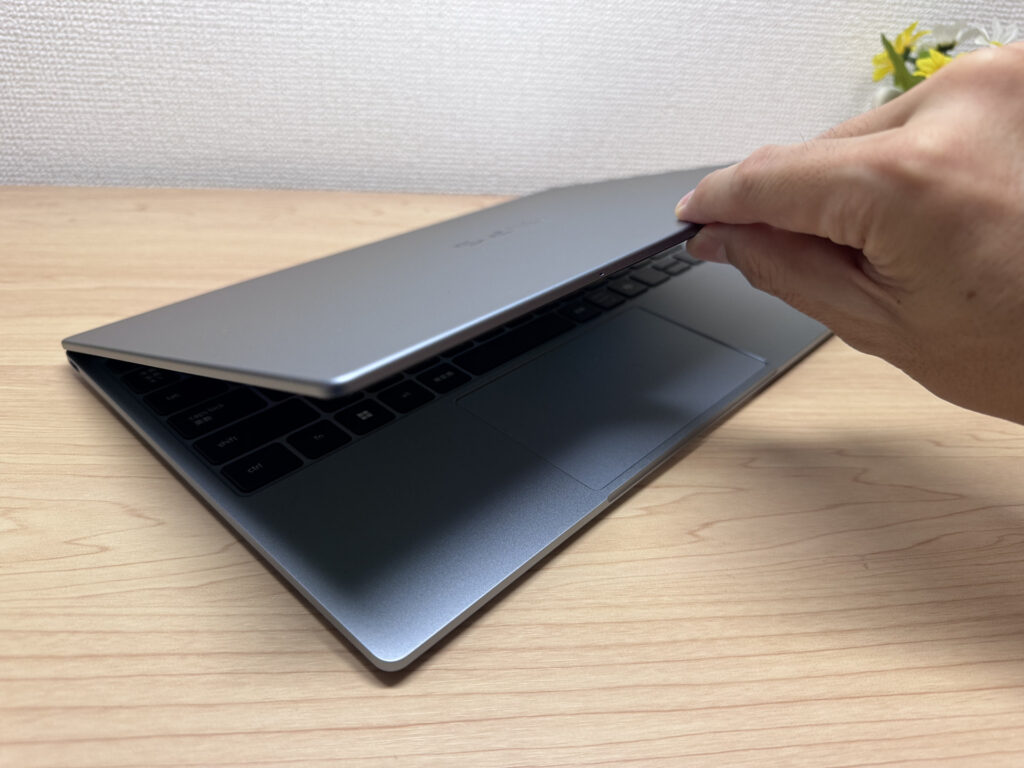 Opens smoothly with just one finger — the hinge feels great
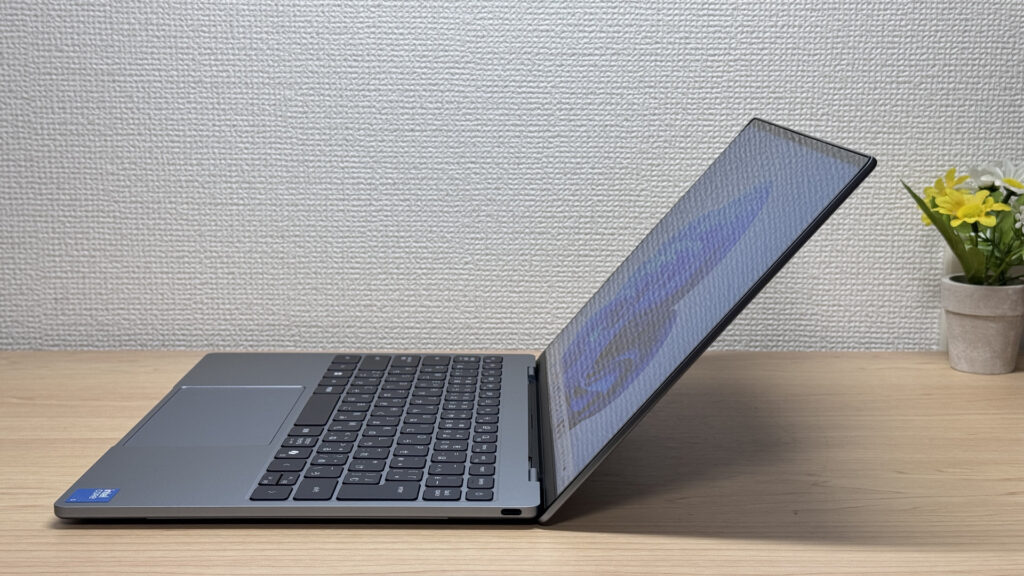 The opening angle is limited, but it never gets in the way in daily use
Portability
Next up, portability. Dell lists it at around 1 kg (2.2 lbs), and my scale came back at 1045 g (~2.3 lbs) — right in that ballpark and genuinely light.
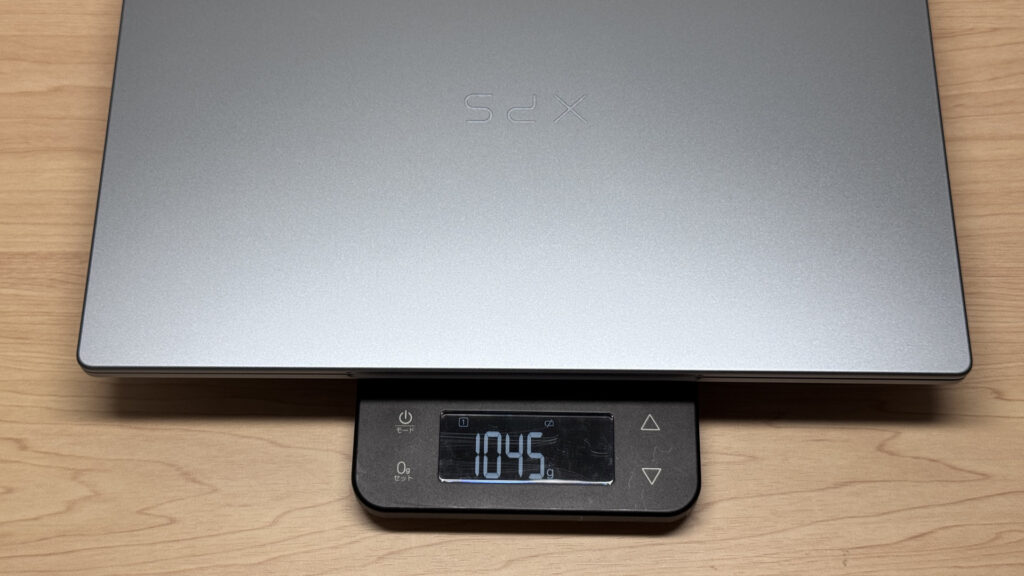 1045 g (~2.3 lbs) on my scale — that's impressively light
The included charger is ridiculously light too — it weighed in at just 170 g (~0.4 lbs) on my scale, and it still pushes a full 65W.
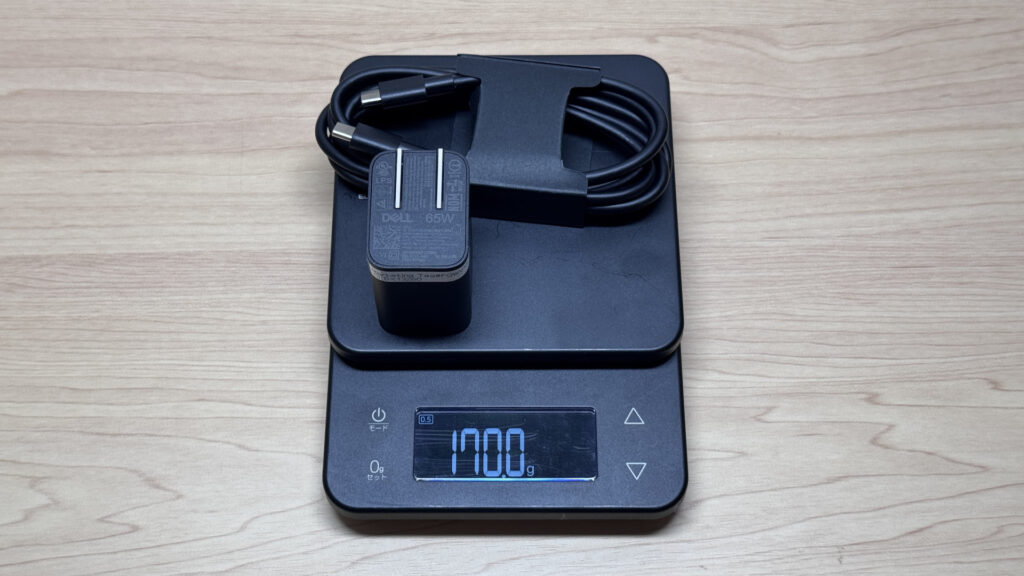 65W of output at just 170 g (~0.4 lbs) — that's genuinely impressive
It's light enough that you don't need to swap it out for a smaller USB-C charger, so you can skip buying an extra travel charger from Anker or similar brands.
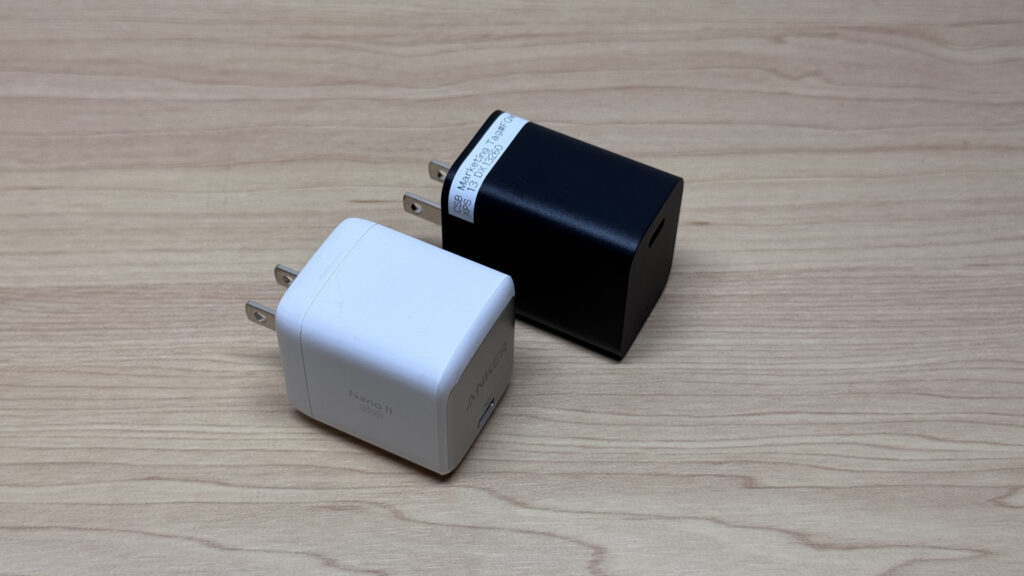 At this size, you don't need to replace it with a compact charger like this Anker one (left)
Picking it up one-handed, it barely registers. Moving between meeting rooms or just relocating around the house is completely stress-free.
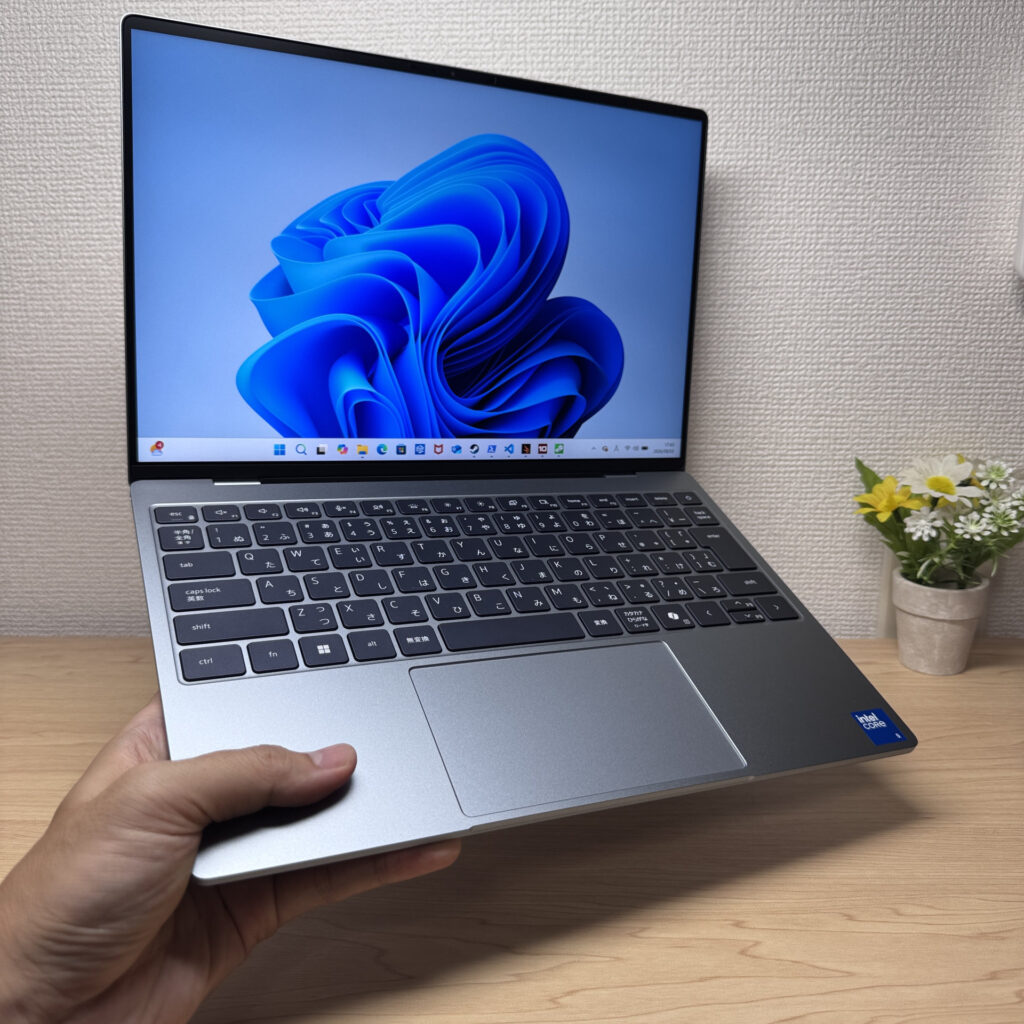 Easy to pick up one-handed — this kind of weight is a win
Display Quality
On to the display. It's a 13.4-inch IPS panel at 2560×1600 (2.5K resolution), and honestly, I wasn't expecting colors this good out of IPS.
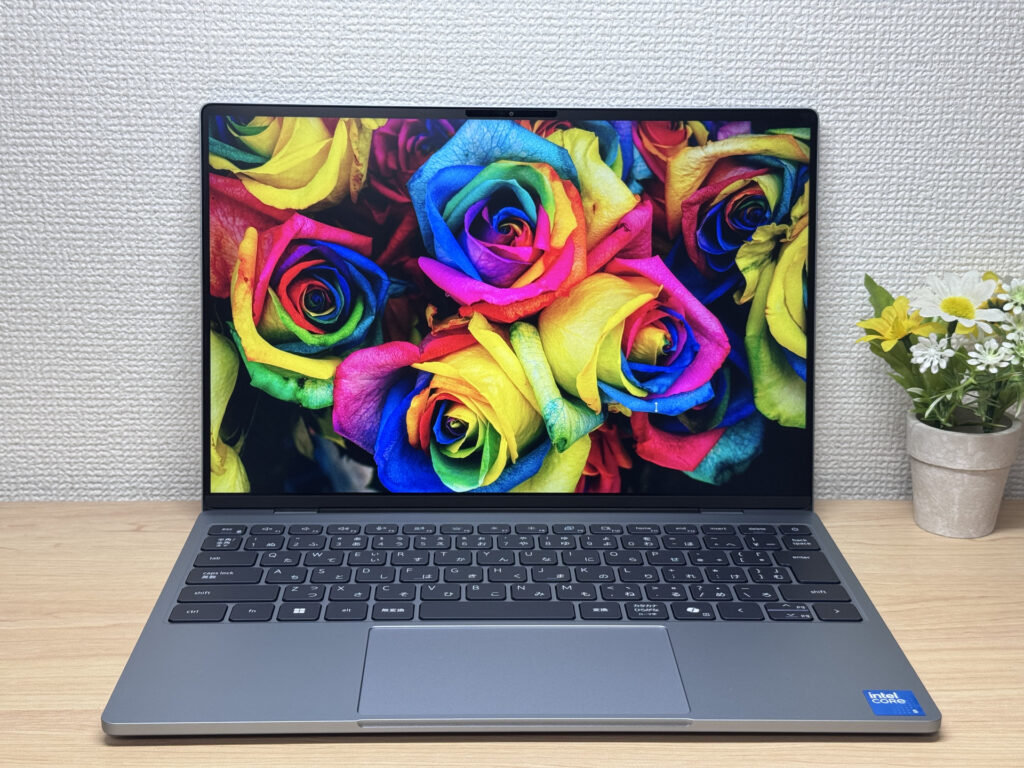 Color output good enough to make me double-check it wasn't OLED
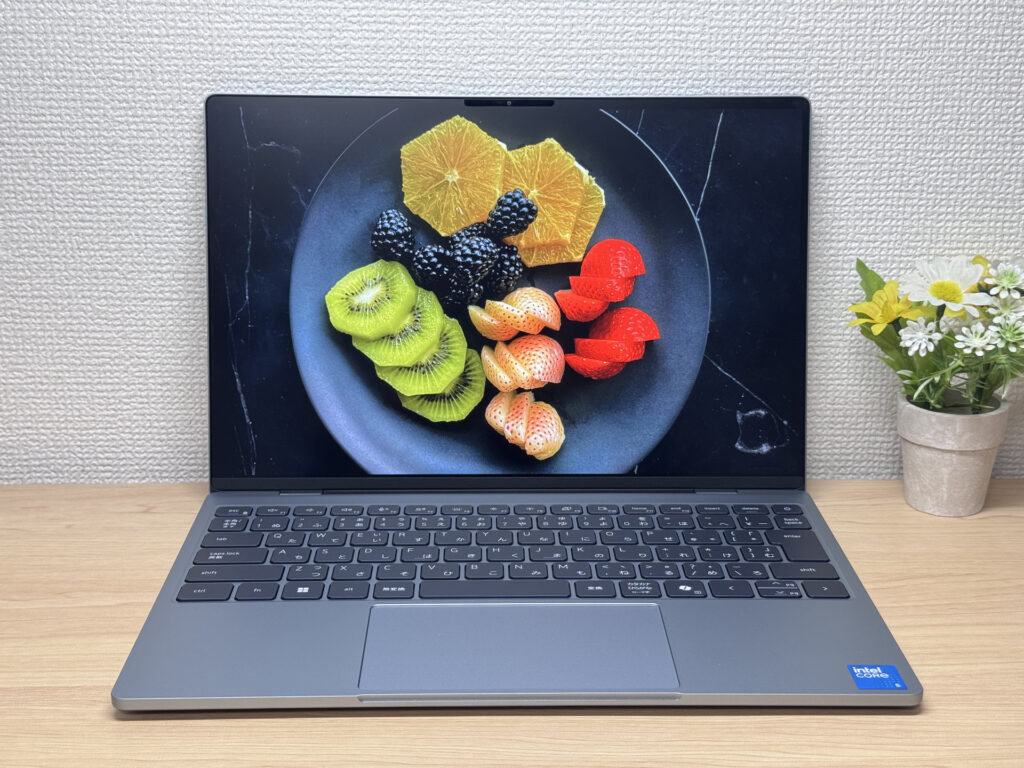 You can practically feel how fresh the fruit looks
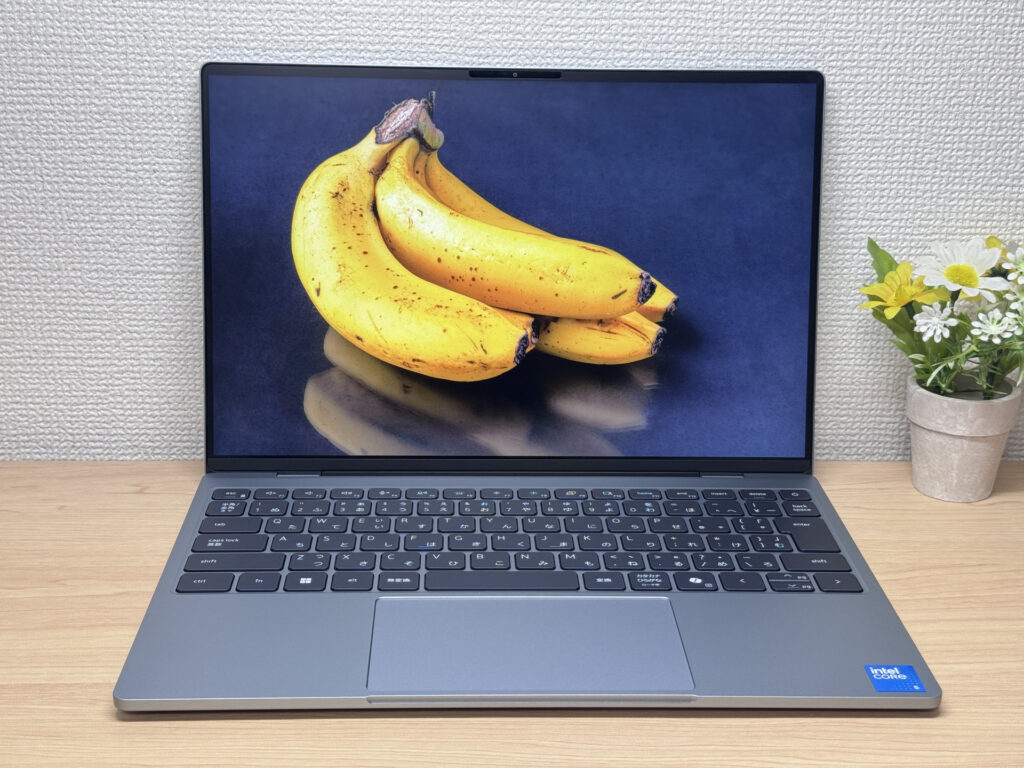 Blacks hold up well too, which helps textures look more true to life
The refresh rate tops out at a variable 120Hz, so scrolling feels really smooth. And since the MacBook Neo sits at exactly 13 inches while this one's 13.4, you get a bit more screen real estate here too — that InfinityEdge design is doing its job.
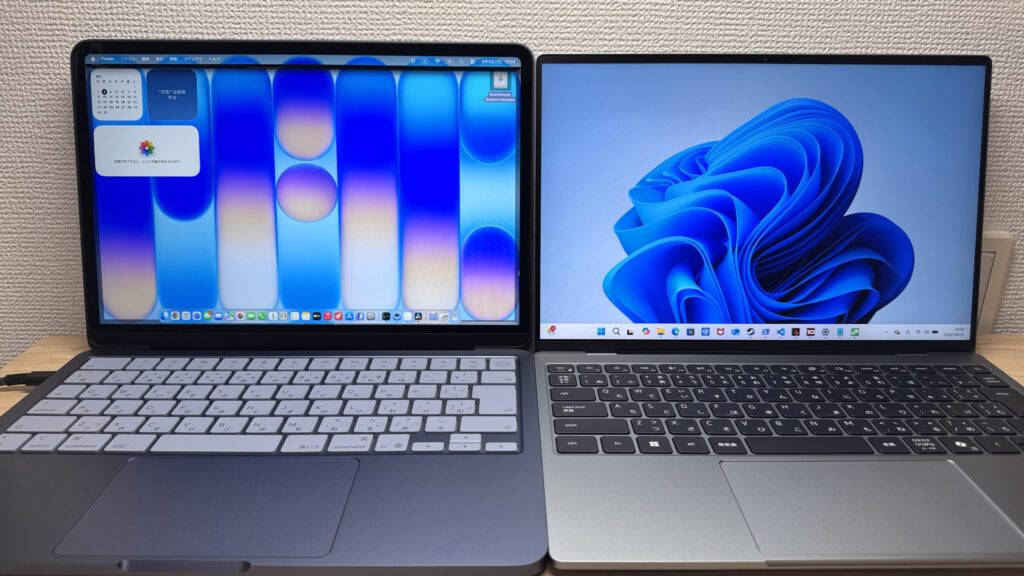 The Dell is physically a touch smaller, but you can clearly see the extra 0.4 inches of screen next to the MacBook Neo
Viewing angles are solid too — colors hold up even when you're looking at the screen from a pretty sharp angle.
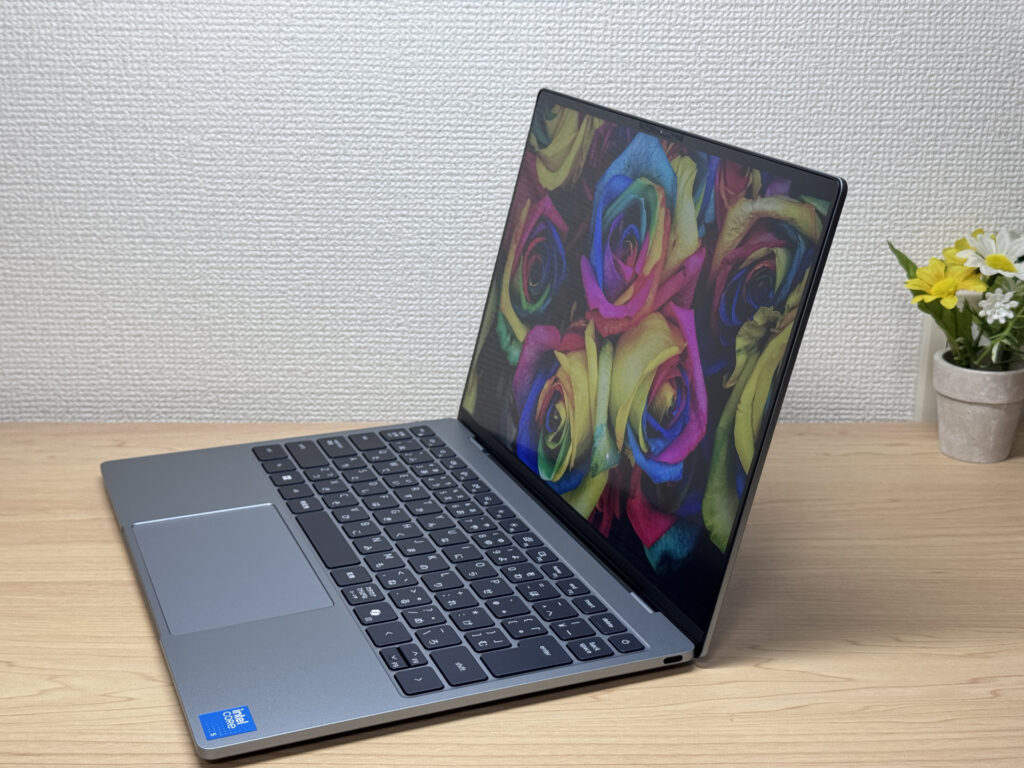 Still clear and accurate even from an angle
It also supports touch, so you can tap around like you would on a phone — something the MacBook Neo can't do. That's a real plus if you're new to laptops.
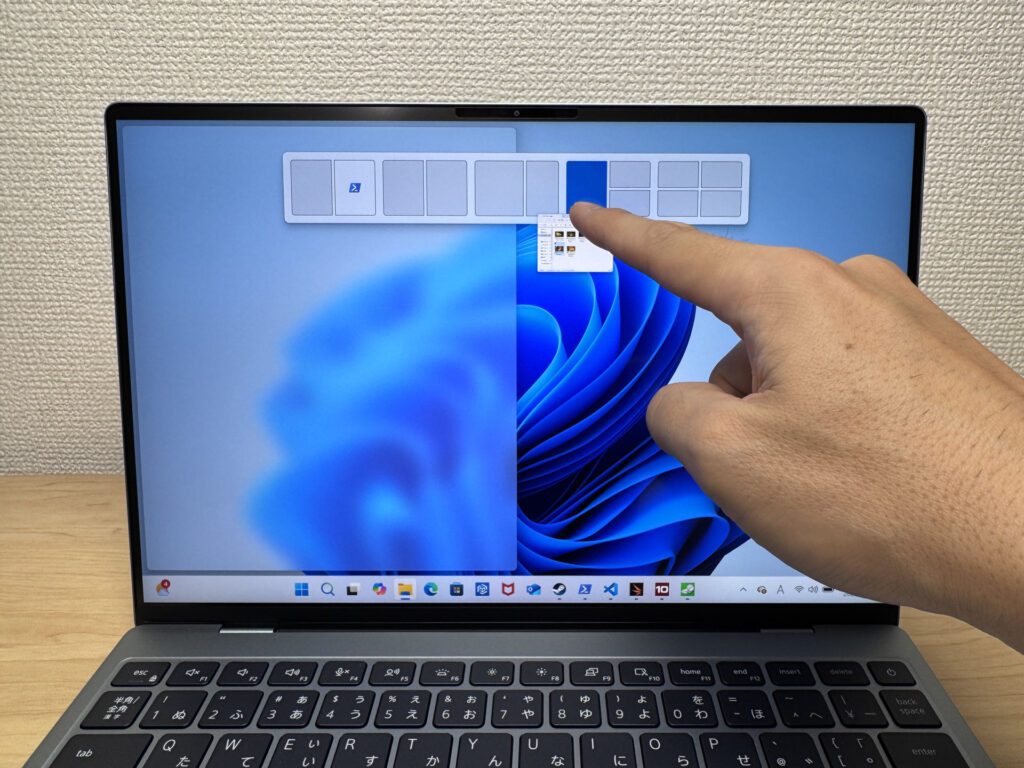 Tapping the screen directly feels intuitive and just works
The 16:10 aspect ratio gives you more vertical space than a typical 16:9 laptop, so you'll scroll through web pages less often.
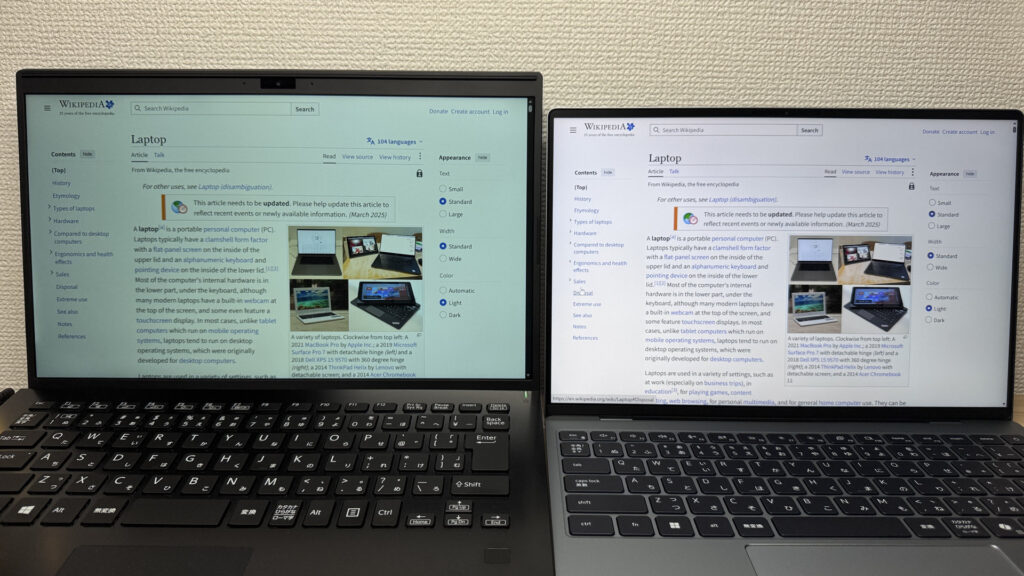 That tall 16:10 screen gives you enough room to read Wikipedia pages comfortably
Brightness tops out around 500 nits, so it gets plenty bright, and the matte, non-glare finish means office fluorescent lighting won't wash it out.
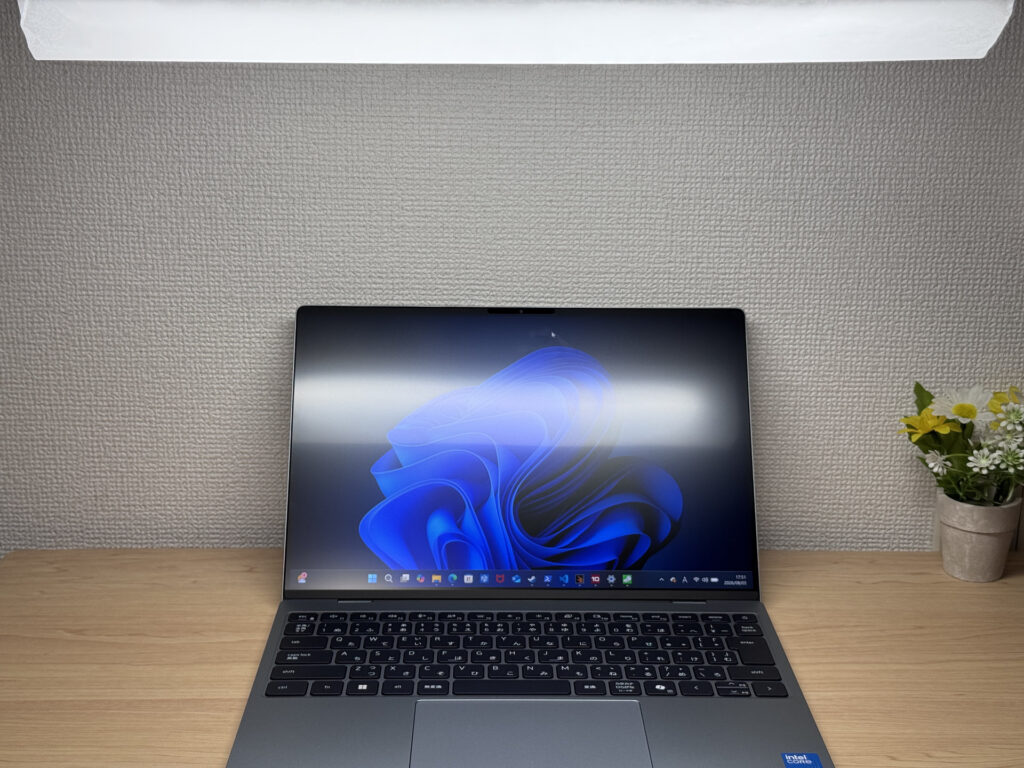 The matte finish keeps glare down even under fluorescent lighting — a glossy panel would reflect a lot more
Keyboard Comfort
Next, the keyboard. My review unit has a Japanese keyboard with isolated, well-spaced keys — each key is easy to see and easy to hit.
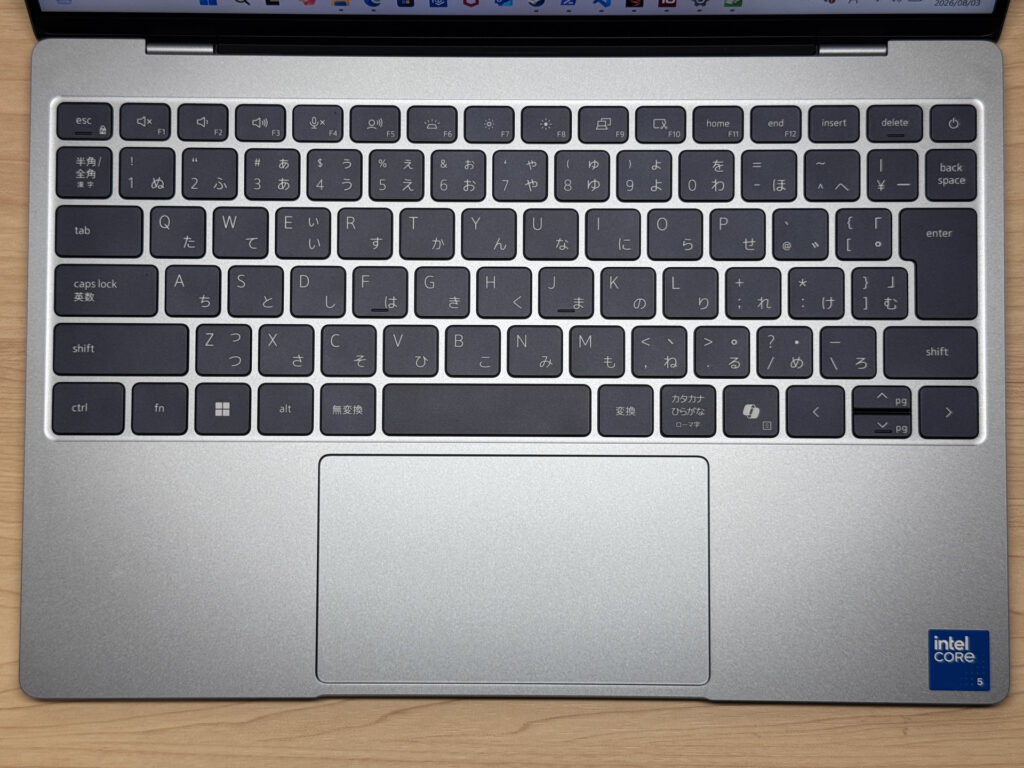 Impressively refined for something this compact — genuinely caught me off guard
That said, I ran into one annoying quirk. With Function Lock turned on, pressing the up/down arrow keys triggers Page Up/Page Down instead — for some reason. That's not great. Dell, is this a bug?
 Fn + Esc toggles Function Lock
 With Function Lock on, the arrow keys turn into Page Up/Down, which is confusing
The typing feel is shallow-travel and clicky, closer to Apple's Magic Keyboard than anything else — which happens to be exactly my thing. It stays comfortable even through long typing sessions.
 Snappy, clicky feedback that works great for coding too
It also has a backlit keyboard, another thing the MacBook Neo doesn't offer. Working in a dim room is no problem.
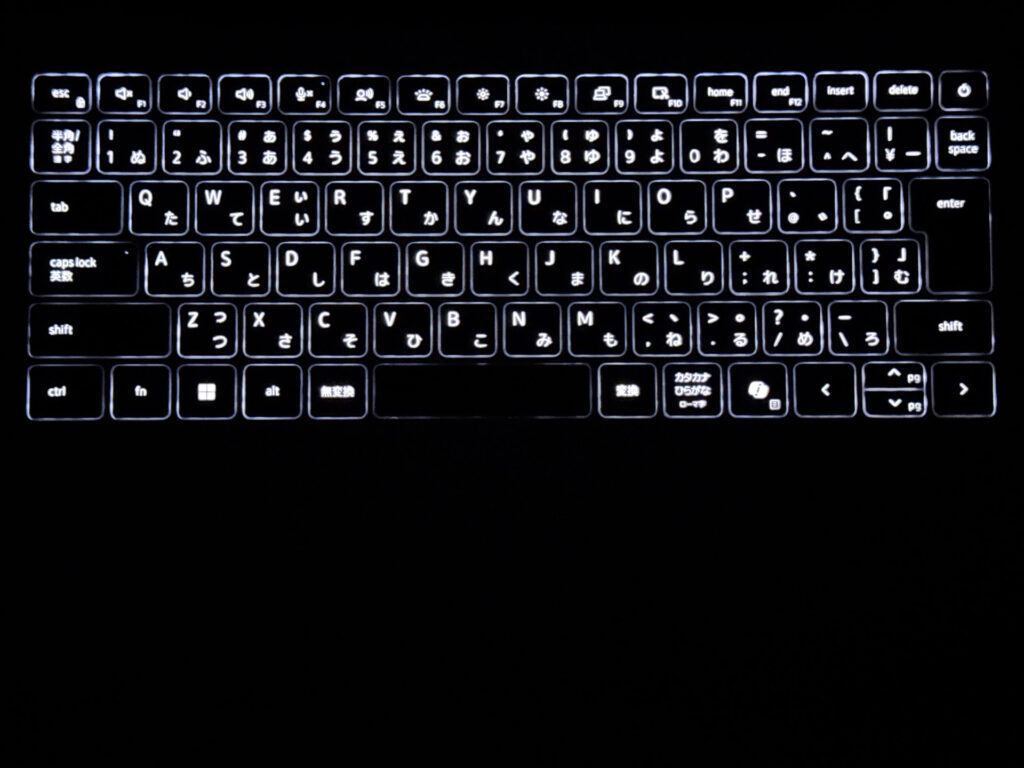 The backlight makes it easy to see the keys even in low light
Heads-up: these photos are the Japan-market unit, so the keyboard shown is the Japanese layout. US models ship with the standard US (ANSI) layout.
Touchpad
Moving on to the touchpad. It's sized generously relative to the keyboard deck, and the glass surface glides smoothly under your finger.
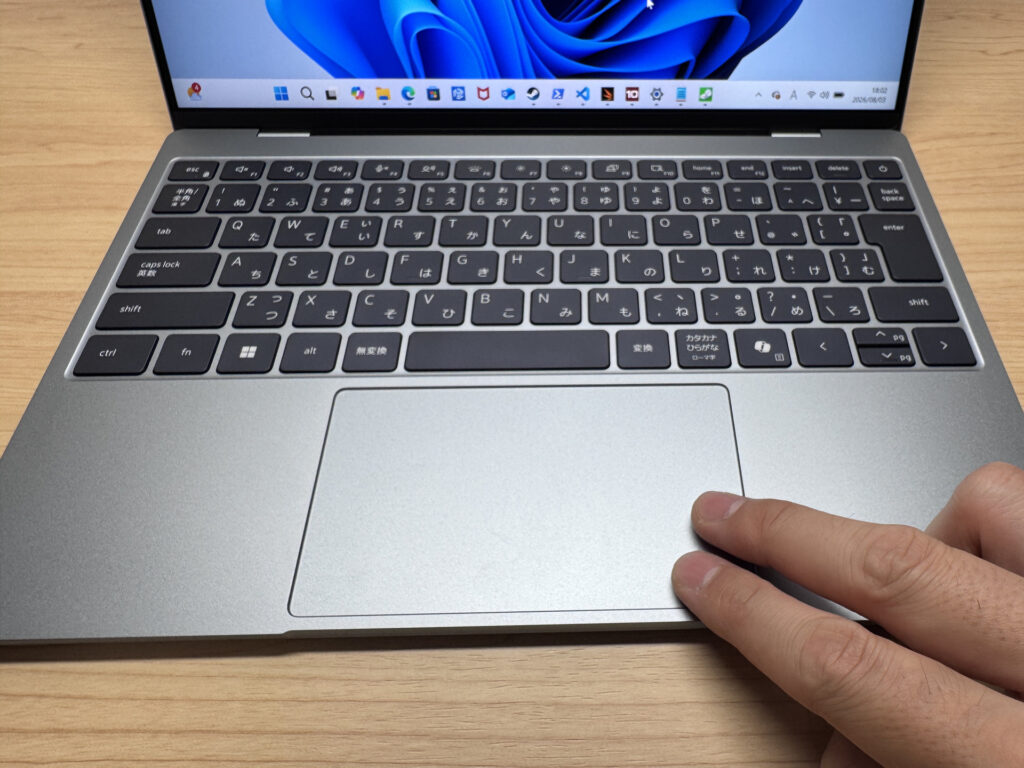 The glass surface is smooth enough that you barely need a mouse
Compared side-by-side with a MacBook Neo, the size is nearly identical.
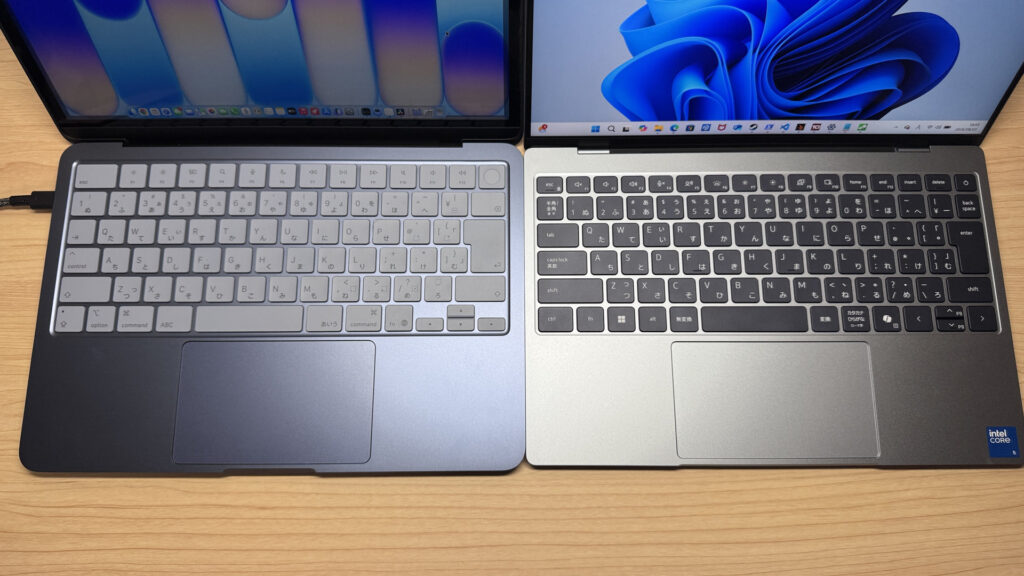 About the same size as the MacBook Neo's touchpad
Three-finger gestures feel smooth too, which makes it a solid option for spots where you can't spread out a mouse, like a coffee shop or a cramped train seat.
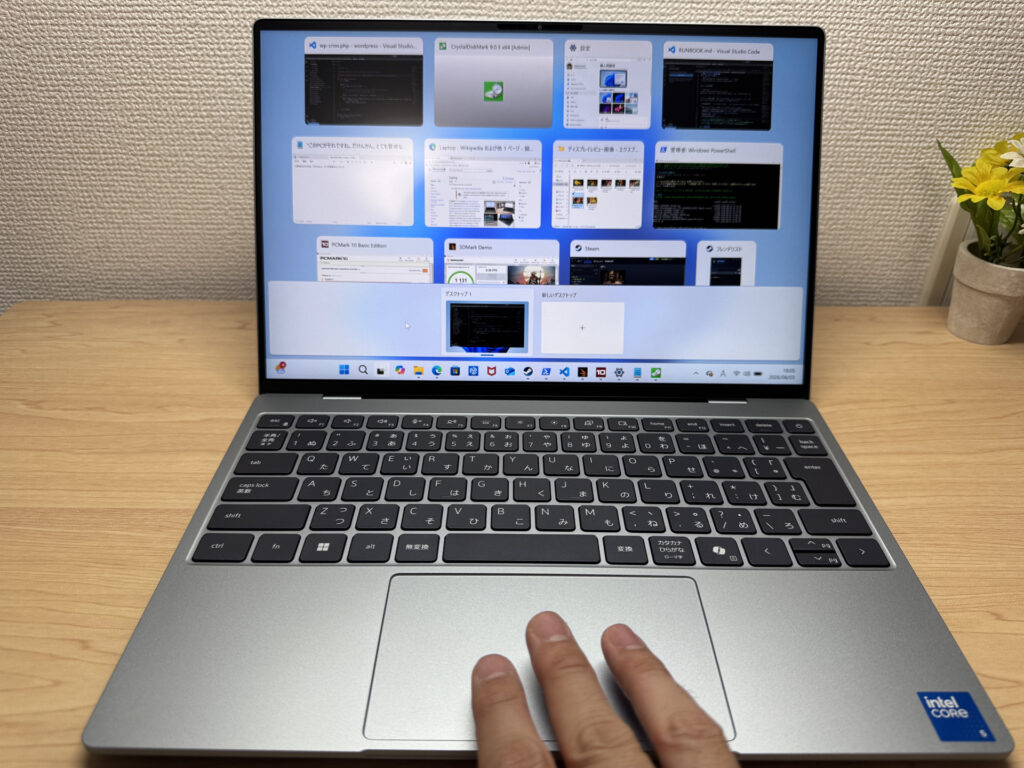 Three-finger gestures register smoothly without any hiccups
One thing it doesn't do, though, is physically click all the way at the top like the MacBook Neo's touchpad can. That's the one spot where I'd give the edge to MacBook. To be fair, that's just the industry standard — the MacBook Neo is the outlier here.
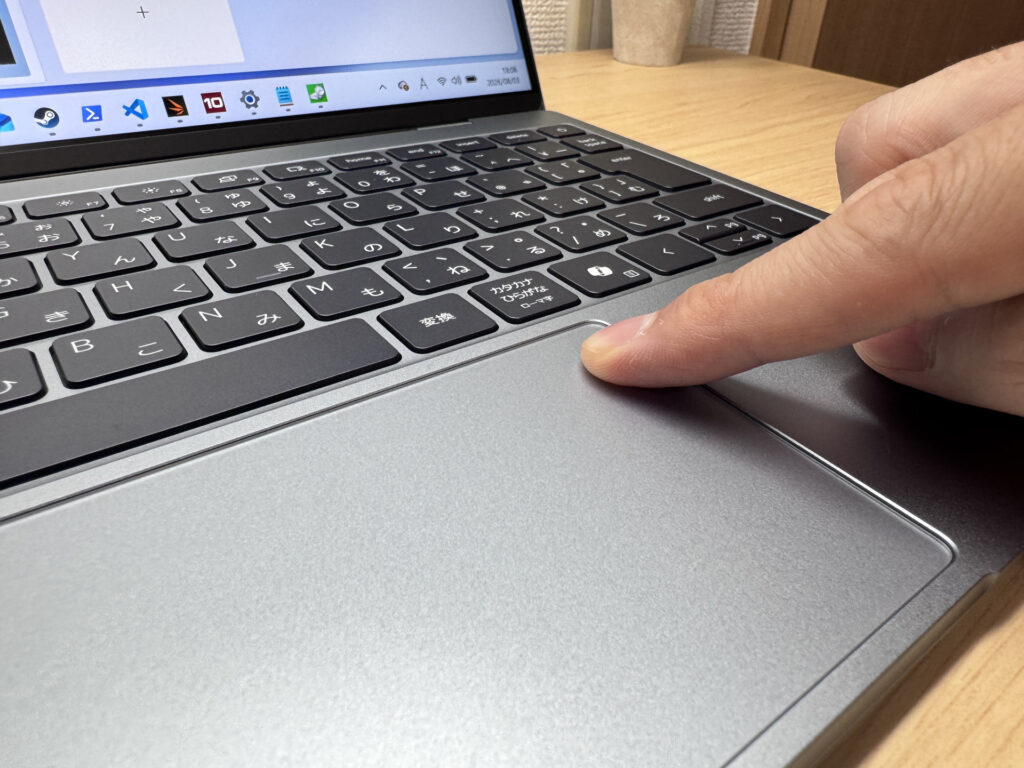 Clicking near the top of the pad is harder to pull off
Performance
Let's talk performance. It scored 6154 on PCMark 10, which means even in this thin a chassis, everyday office work and browsing feel completely effortless.
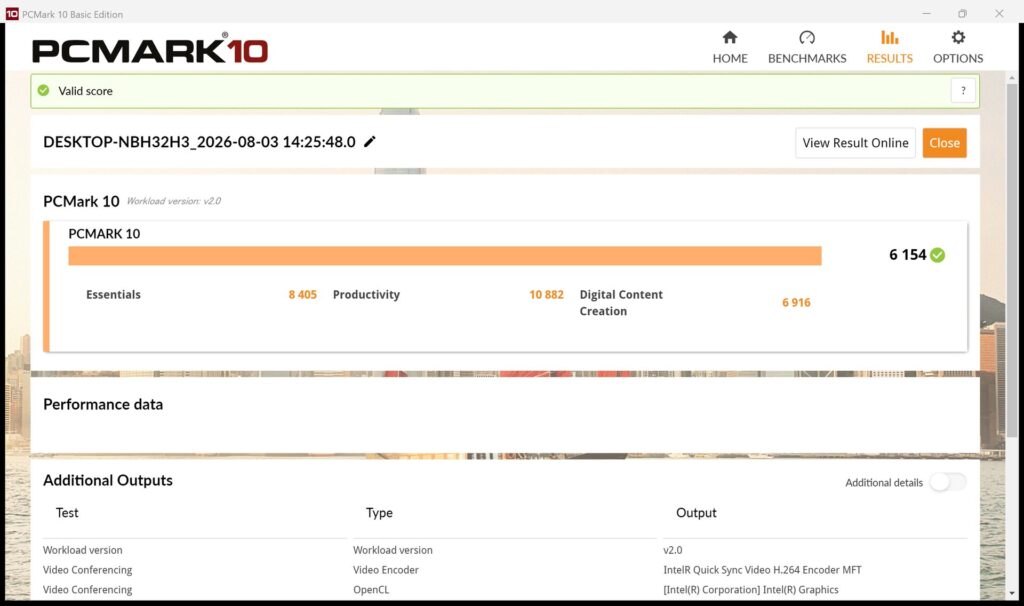 6154 on PCMark 10 — office tasks run smoothly
| Total Score | Rating | What it feels like in real use |
|---|---|---|
| ~4,000 | Bare minimum | Web browsing and simple tasks work, but multitasking or many tabs feels sluggish. |
| 4,000–5,000 | Light use | Daily tasks are doable, but running multiple apps means waiting around. |
| 5,000–6,500 | Comfortable (mainstream) This PC | Handles most work without stress — fine for office, school, video calls. |
| 6,500–8,000 | High performance | Plenty of headroom. Light photo editing and programming feel snappy. |
| 8,000+ | Very high performance | Tackles video editing and heavy workloads. Long-lasting performance. |
*PCMark 10 reflects overall comfort. Actual feel depends on CPU, RAM, and SSD speed.
Cinebench 2026's multi-core score came in at 1637, a pretty average result. Light video editing, like YouTube-style clips, is fine, but 4K editing is going to be a stretch.
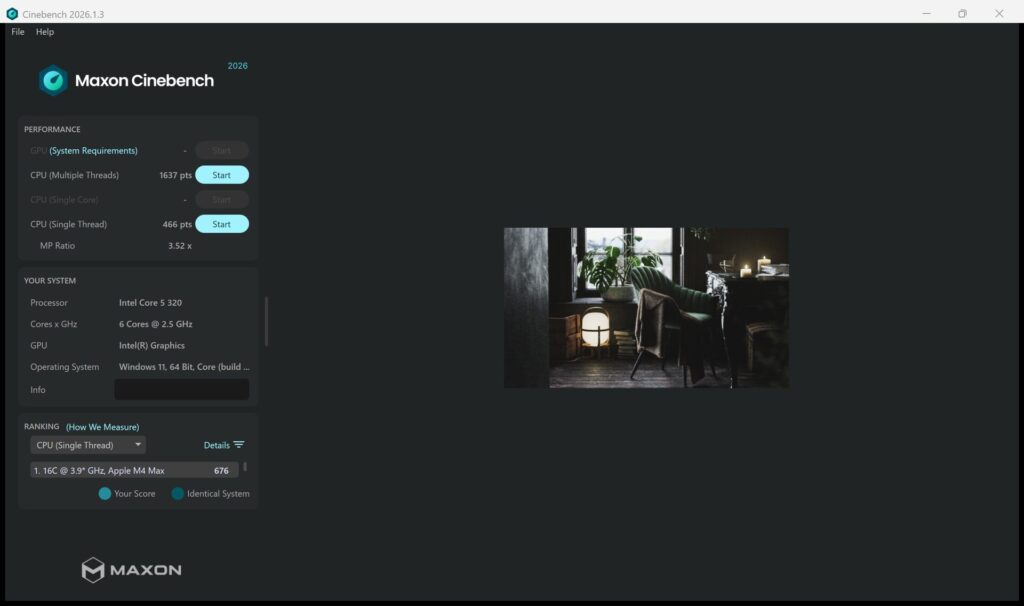 1637 in Cinebench 2026 — multitasking sits at an average level
| Score | Rating | What it feels like in real use |
|---|---|---|
| Up to 1,000 | Bare minimum | Light tasks work, but heavier processing or multitasking feels constrained. |
| 1,000–2,000 | Standard (power-efficient) This PC | Handles daily tasks, but heavier loads create waiting. |
| 2,000–3,000 | Comfortable (mainstream) | Office, school, video calls all work comfortably. Plenty for most users. |
| 3,000–4,000 | High performance | Comfortable for multitasking, light/medium editing, and dev work. |
| 4,000+ | Very high performance | Handles video editing and heavy workloads with room to spare. |
*Cinebench 2026 is the latest CPU multi-core benchmark. Scores trend lower than R23, so direct comparison isn't valid.
Keep in mind my review unit had 8GB of RAM, and I did feel some slowdown juggling multiple tasks at once. If you're buying one, I'd go with the 16GB configuration.
3DMark's Steel Nomad Light score landed at 1131. Light games are playable, but anything demanding is going to struggle.
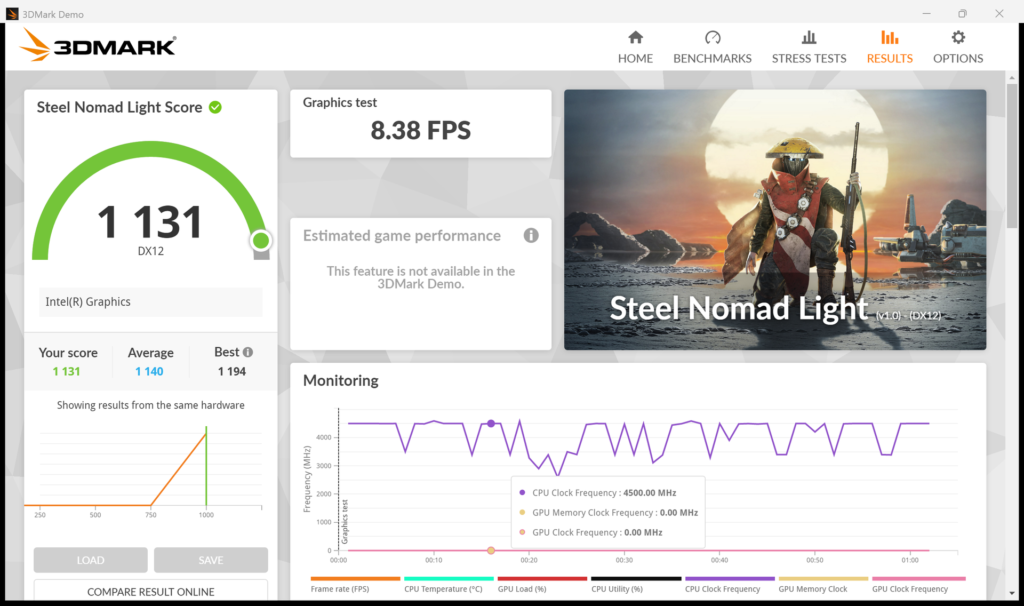 1131 on 3DMark Steel Nomad Light — realistically fine for lighter games
| Score | Rating | What it feels like in real use |
|---|---|---|
| Up to 400 | Bare minimum | 3D performance is quite limited. Not really suited for gaming. |
| 400–900 | Light 3D | Lighter games and low-load 3D processing work. |
| 900–1,500 | Average (mainstream) This PC | Standard for integrated GPUs. Light to medium games playable with right settings. |
| 1,500–2,200 | High performance | Strong for an integrated GPU. Games and 3D work feel comfortable. |
| 2,200+ | Very high performance | Top-tier 3D performance for thin laptops. Real graphics headroom. |
*3DMark Steel Nomad Light targets thin laptops and integrated GPUs. Score range differs from Time Spy, so direct comparison isn't valid.
Storage speed was genuinely fast — 7081.76 MB/s sequential read and 5832.81 MB/s write. You won't feel any lag reading or writing files.
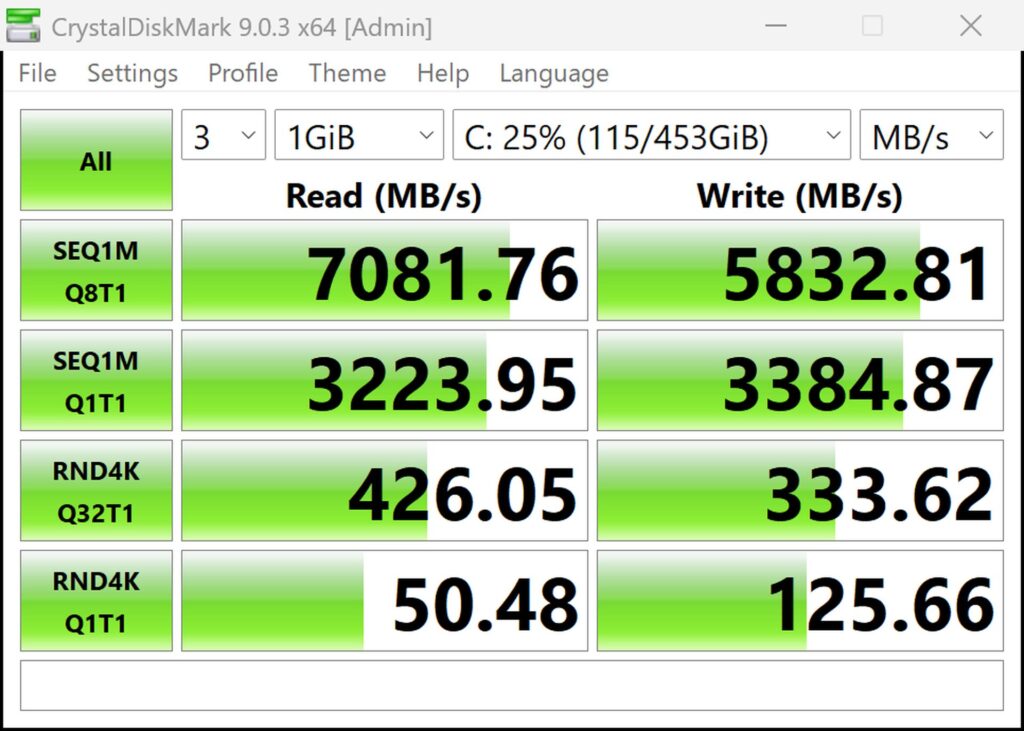 7081 MB/s read, 5832 MB/s write — shockingly fast
| Score | Rating | What it feels like in real use |
|---|---|---|
| Up to 600 MB/s | Bare minimum | Faster than HDD, but slow for modern SSDs. App launches feel slightly slow. |
| 600–1,500 MB/s | Average | Fine for daily use, though loading is noticeably slower than top-tier SSDs. |
| 1,500–3,500 MB/s | Comfortable (mainstream) | App launches and file loading feel smooth. No real complaints in daily use. |
| 3,500–5,500 MB/s | Fast | Loads large data and apps quickly. Definitely upper-tier SSD speed. |
| 5,500+ MB/s | Very fast This PC | High-end NVMe territory. Heavy data work without waiting. |
*CrystalDiskMark measures SSD speed. It mainly affects app launch and file loading speed, not overall PC performance.
Battery Life
Battery rating: Average
The battery is 52Wh, and Dell rates it for up to 17 hours. That's more capacity than the MacBook Neo's 37Wh, but being this thin means there's only so much battery Dell could pack in.
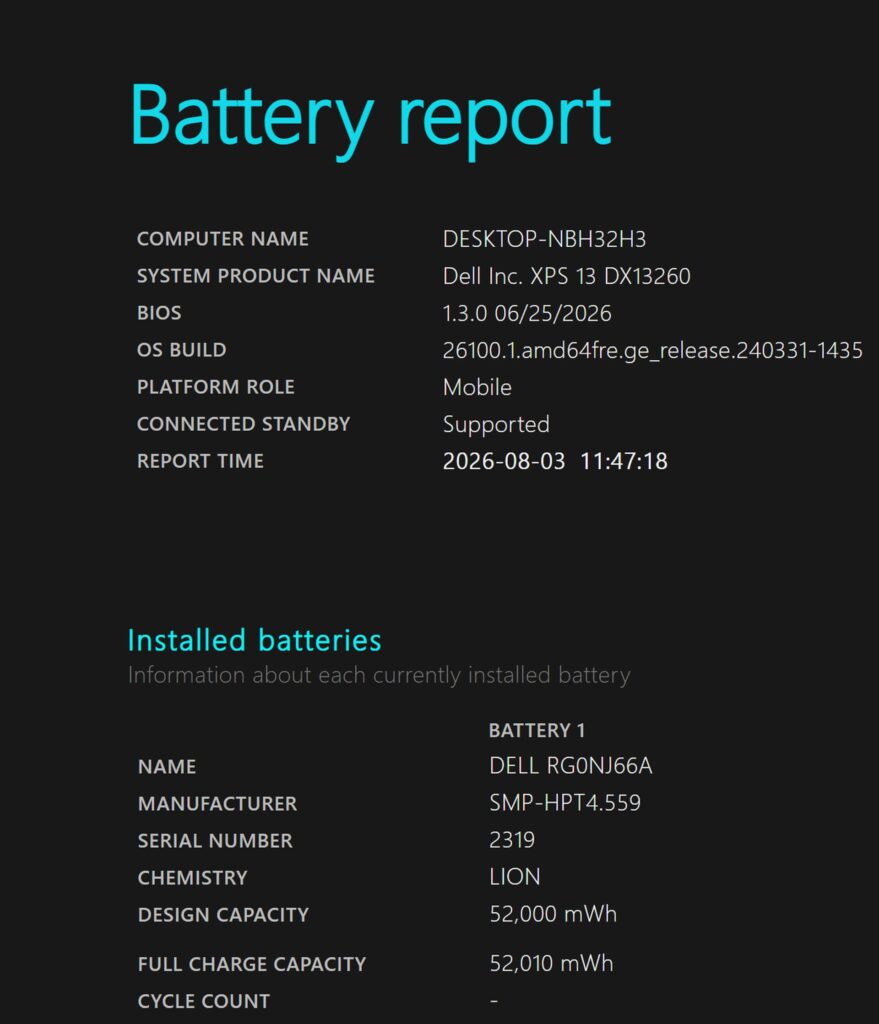 52Wh of battery capacity — pretty standard for this class
Even so, since both the laptop and charger are so light, tossing a spare compact USB-C charger in your bag means you can get through a full day without worrying about power. If you push the brightness and refresh rate higher, though, don't be surprised if it drains faster than the rated number.
Fan Noise and Heat
Let's check fan noise and heat next, since that's always a concern. At idle, it's genuinely close to silent — I couldn't hear any fan noise from the chassis at all.
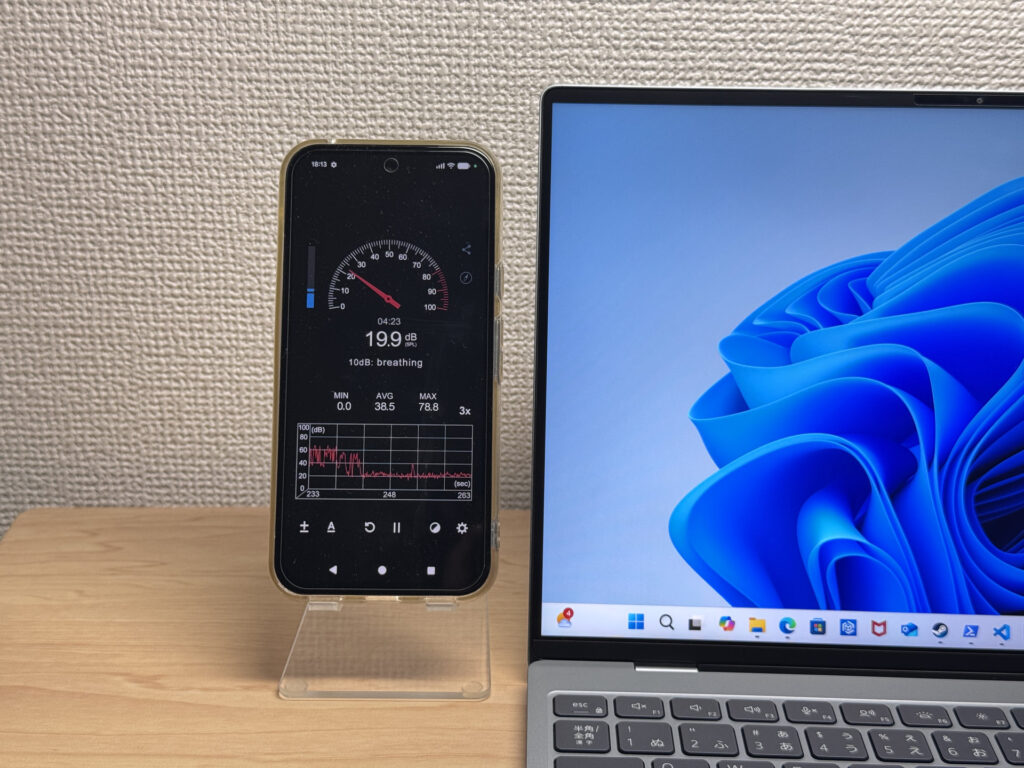 Basically silent at idle — quiet and comfortable to work with
Push the CPU to 100% load and you'll hear a soft whirring from the fan, but even under heavy load it stayed under 40dB, which isn't all that irritating. That's a nice point in its favor 👌
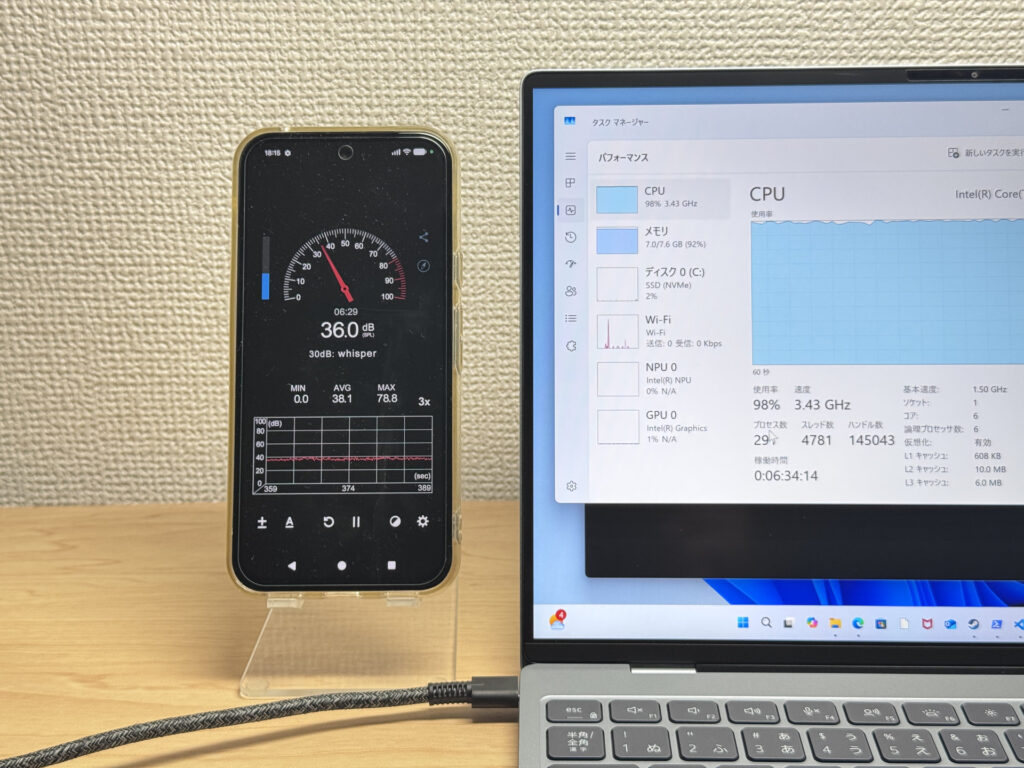 Stays around 40dB even under load — quieter than I expected
| Noise Level | Rating | Feel |
|---|---|---|
| Under 30 dB | Near-silent Idle | Fan noise is barely perceptible — library-quiet and ideal for focused work. |
| 30–35 dB | Quiet | Faintly audible but non-distracting. Easy to work in a quiet room. |
| 35–40 dB | Noticeable Load | You can tell the fan is spinning, but it rarely interrupts work. |
| 40–45 dB | Somewhat loud | Can become distracting in quiet environments. Headphones start to help. |
| 45–50 dB | Loud | Noticeable stress over extended use. Cooling is clearly prioritized. |
| 50 dB+ | Very loud | Prominent fan noise under load — gaming/high-performance thermal design. |
The exhaust vents are all clustered toward the back, so even with your mouse hand on the right, you won't feel warm air blowing on you. The cooling design feels genuinely well thought out.
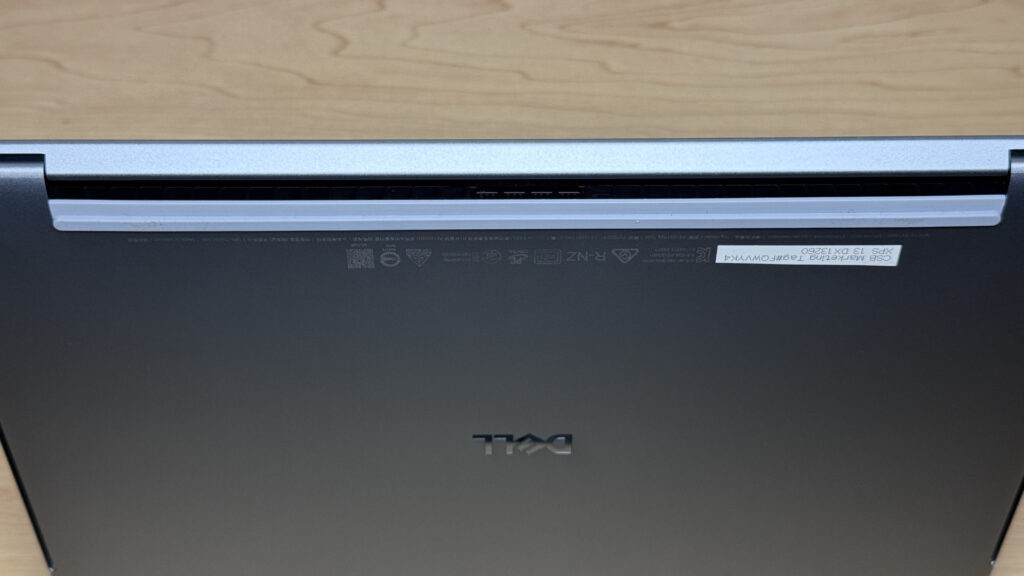 Exhaust is concentrated at the back, so you don't get hit with warm air
Ports and Expansion
Let's look at the ports. You get one USB-C on each side, which is a spot where you can feel Dell trimming costs to keep things thin.
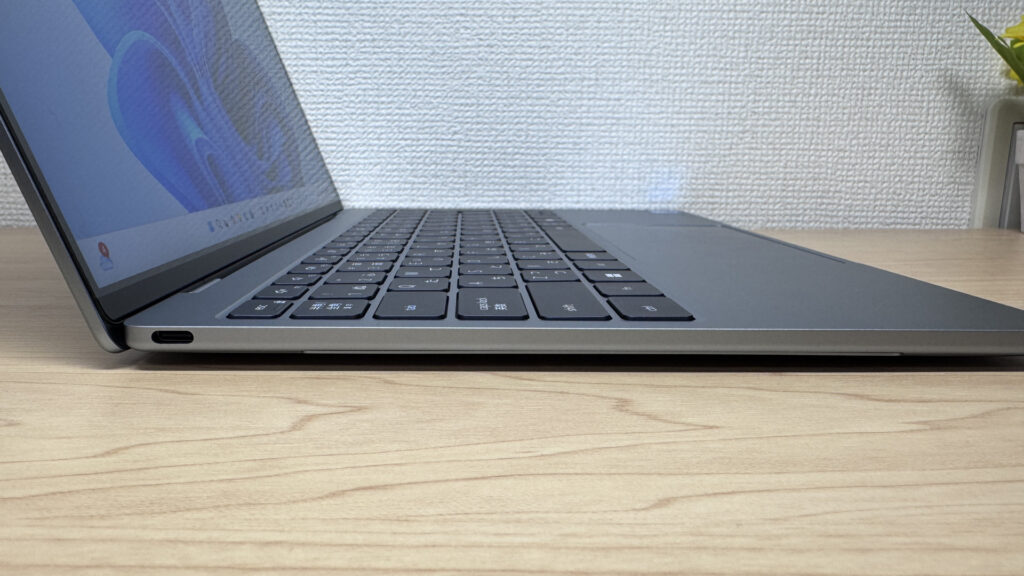 One USB-C port on the left — expansion options are limited
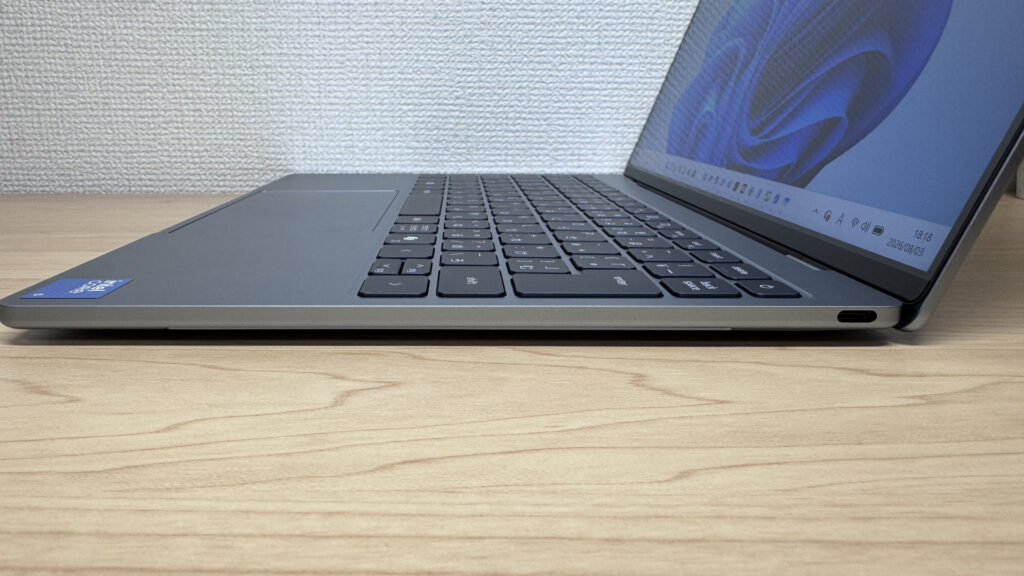 One more USB-C on the right, same connector type
The thing to watch out for especially is the lack of a headphone jack. If you want to use wired earbuds with a mic for video calls, you'll need a USB-C adapter or a pair of wireless earbuds handy.
Through a USB-C hub, external display output works reliably. Driving a single monitor over HDMI is no issue at all.
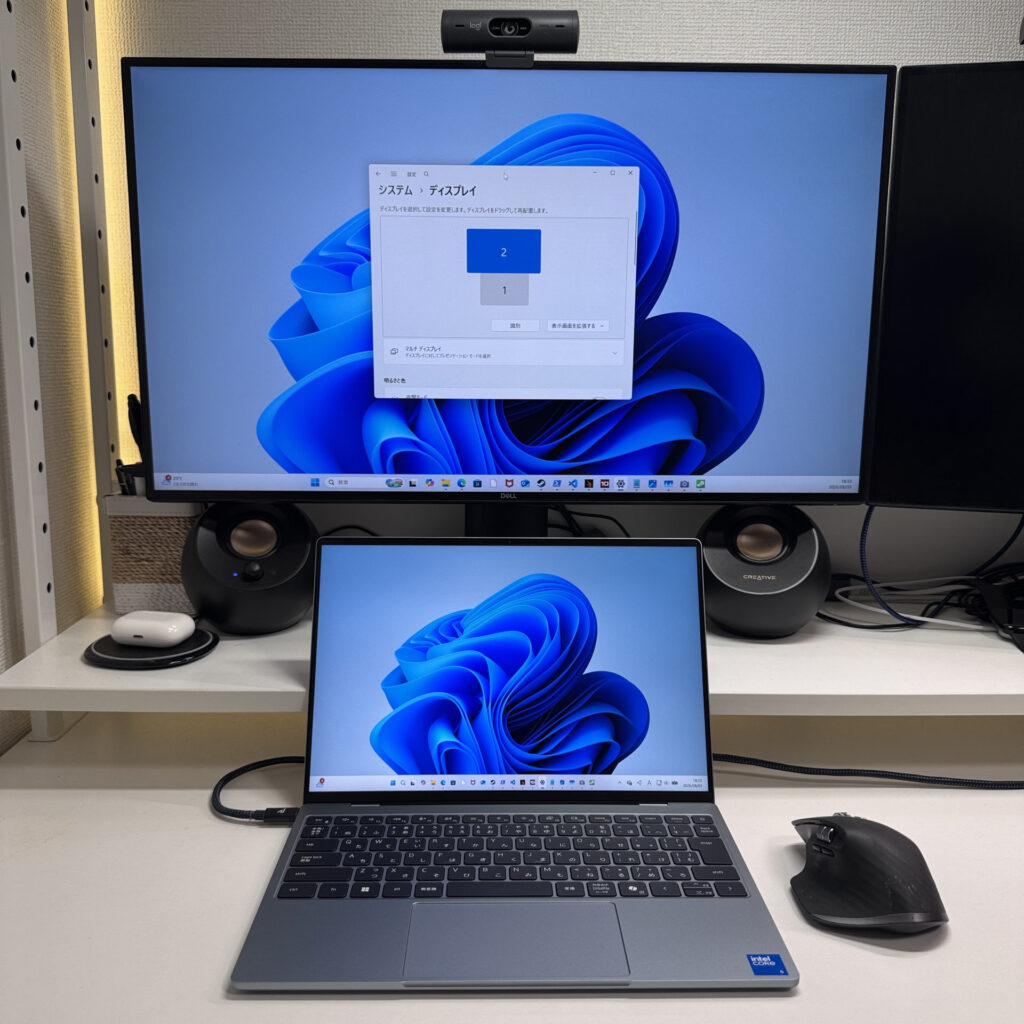 A single external display over HDMI through a hub works flawlessly
I was also able to drive two external displays at once straight from USB-C. The MacBook Neo only supports a single external display output, so that's a real point of differentiation.
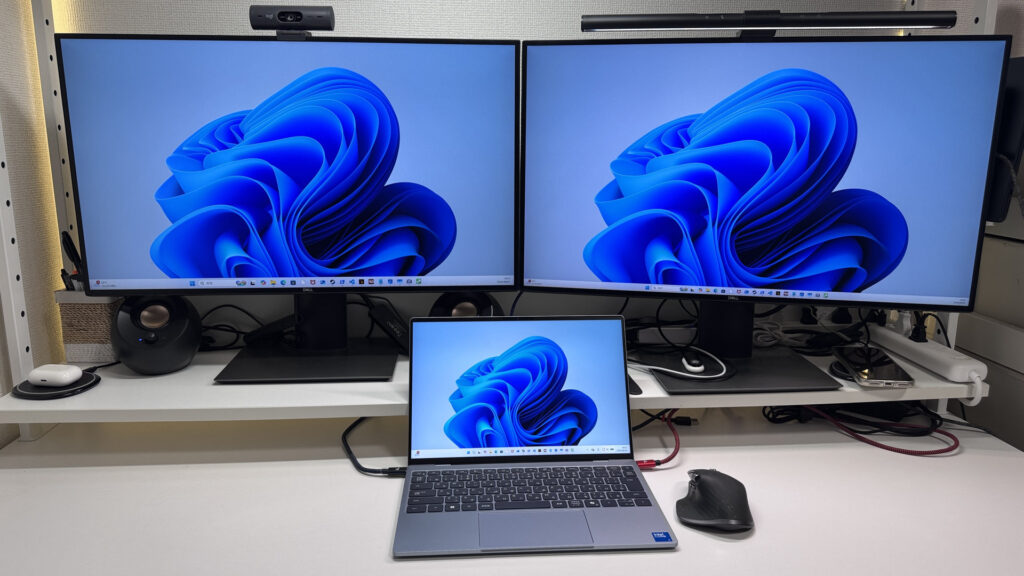 Successfully drove two 4K monitors at the same time
If the limited USB-C ports bother you, grabbing a single USB-C hub solves the problem. It's not something you need to stress over too much.
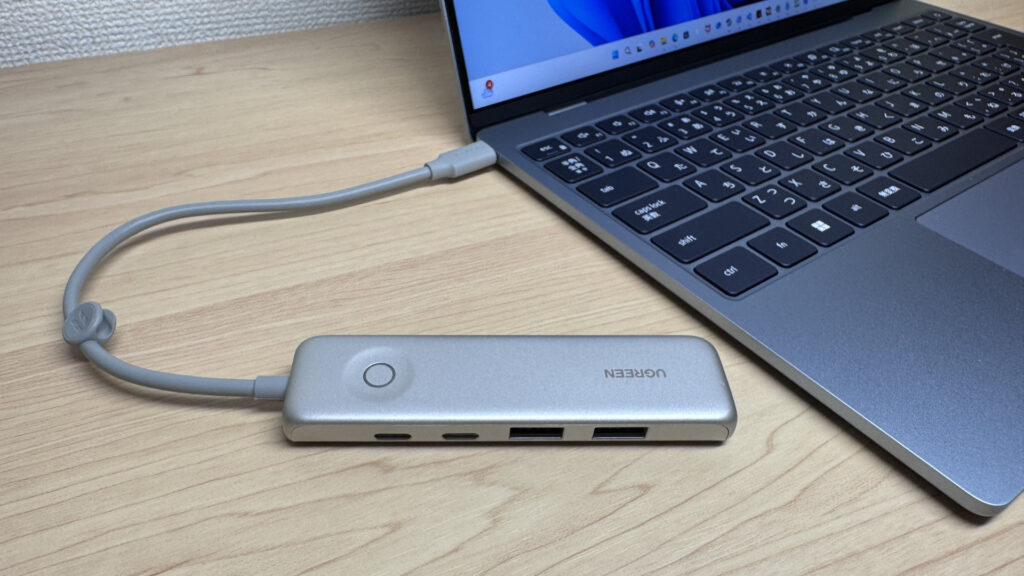 One hub is basically all you need to erase any expansion worries
Webcam
The webcam is a 2.07-megapixel FHD unit. I snapped some photos with the camera app and honestly, the image quality surprised me.
 That 2.07-megapixel sensor delivers a surprisingly sharp shot
The built-in camera alone is more than good enough for video calls. There's no privacy shutter built in, though, so if that matters to you, plan on picking up an external one.
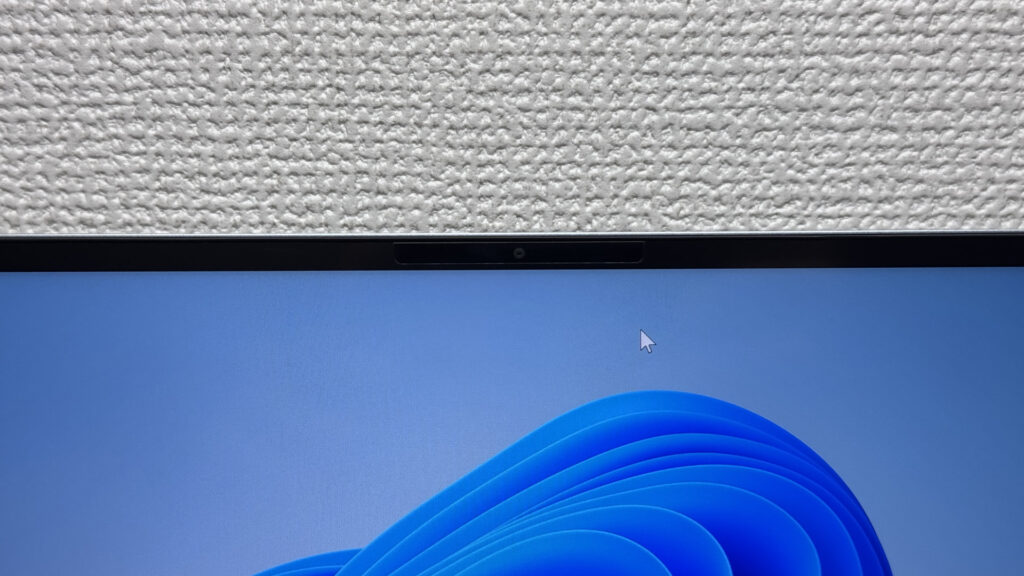 The bezel around the camera is pretty slim, so finding an off-the-shelf shutter that fits might take some trial and error
Speaker Quality
Let's talk speakers. This is a quad-speaker setup, and the bass hits harder than you'd expect from a chassis this thin.
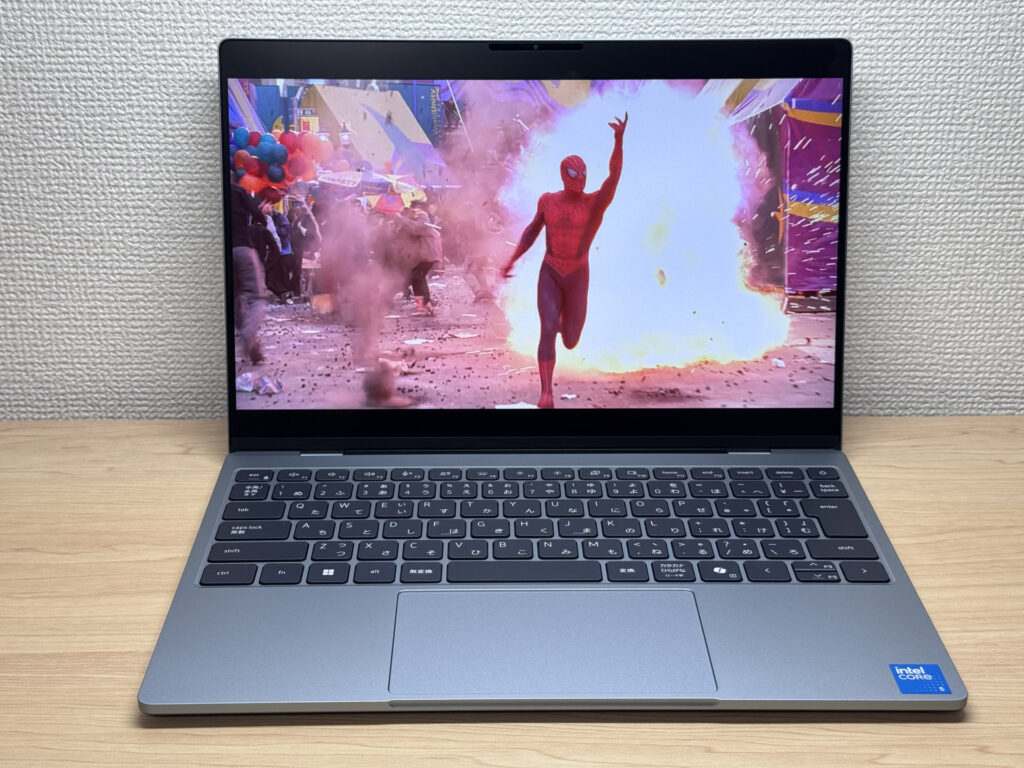 Surprisingly punchy bass for how thin this thing is
Subjectively, I'd give the sound quality around a 9 out of 10. The speaker slits are also spaced generously, which gives the audio a nice sense of width.
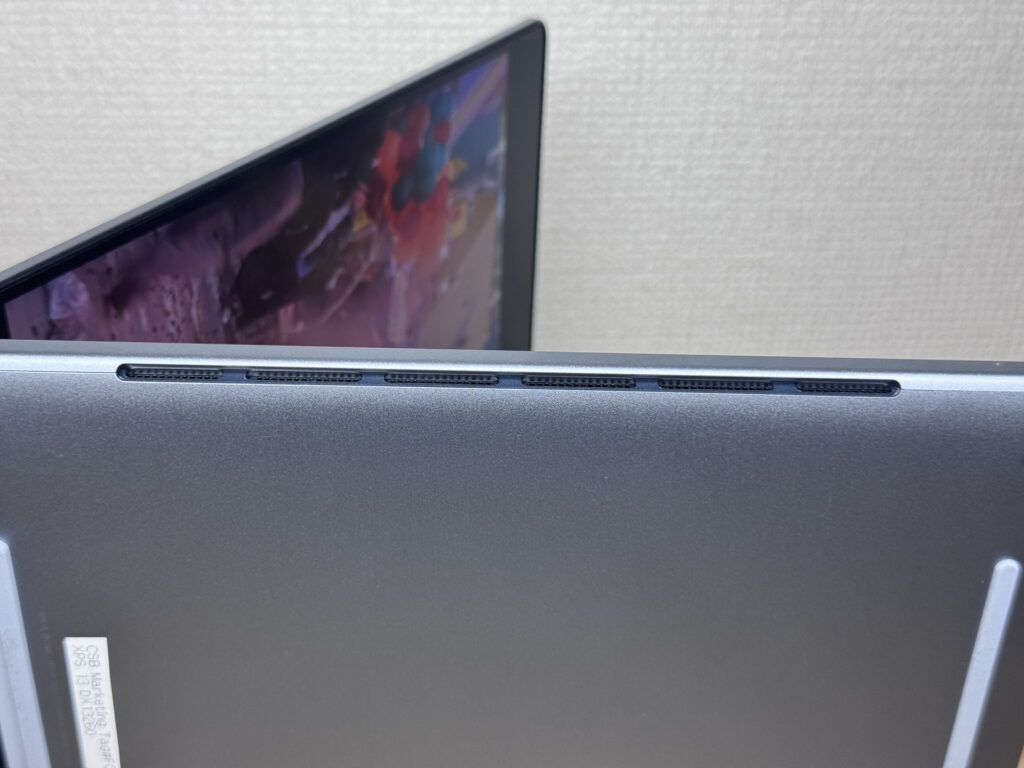 The wide speaker slits help the sound feel more spread out
Security
On security, it supports facial recognition. With two IR cameras on board, recognition felt accurate and unlocked the laptop almost instantly.
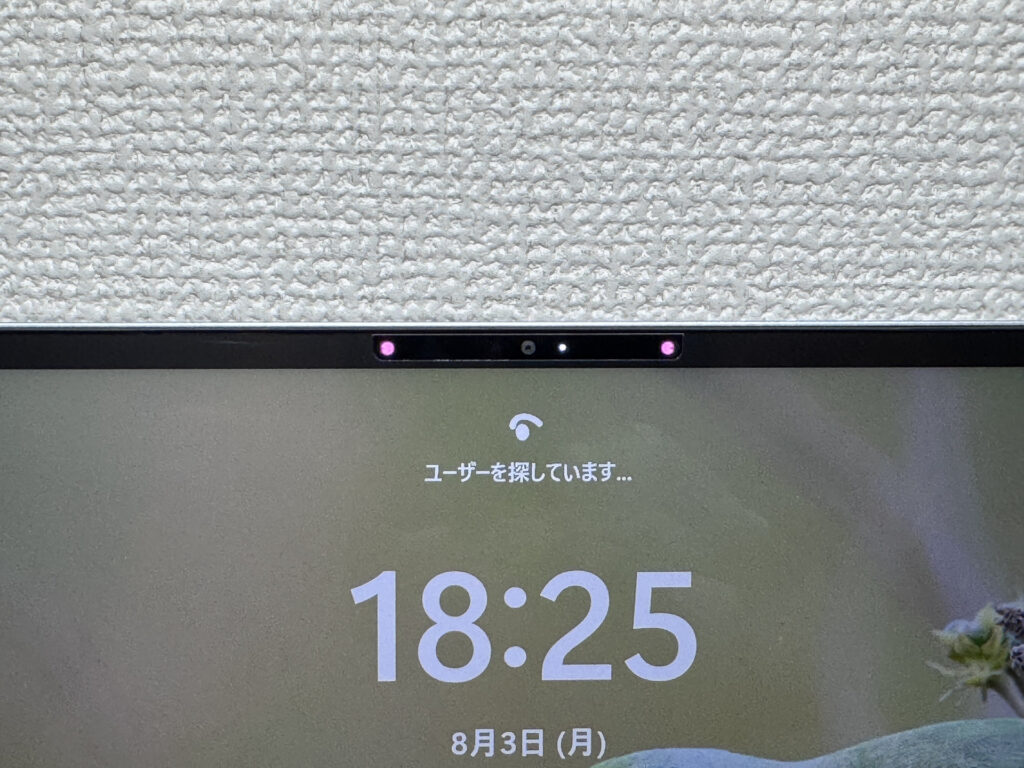 Having two IR cameras seems to make unlocking nearly instant
It doesn't support fingerprint recognition, so keep that in mind if you were hoping for a Touch ID-style setup.
Price
A quick word on price. International models start around $699, which is a solid deal for what you're getting. US pricing runs a bit higher thanks to the weaker yen, but even at $699.00, considering the build quality and that display, I'd call it a fair price.
Final Verdict
Honestly, this turned out to be a more polished laptop than I expected. The machined build quality, the gorgeous 2.5K display, and coming in at right around 1 kg (2.2 lbs) — you can tell Dell built this to go head-to-head with the MacBook Neo. The 8GB RAM ceiling and USB-C-only port selection are worth keeping in mind, but you can go with the 16GB config and lean on a USB-C hub to work around both. Weigh those trade-offs against everything it gets right, and there's still plenty to like about owning this one. I'd say it's a great fit for college students and anyone picking out their first laptop.
This build quality and display are worth seeing in person
Where to Buy
* Prices may vary. Please check each store for the latest price and availability.
About the author