ZippyScore
ZippyScore is a proprietary rating based on 6 criteria: performance, portability, display, battery, value, and connectivity.
See rating criteria
- Performance: CPU / GPU performance
- Portability: Screen size & weight
- Display: Panel type, aspect ratio & refresh rate
- Battery: Rated battery life
- Value: Specs-to-price balance
- Connectivity: Port types & count
Pros & Cons
Pros
- At 1045g on our scales, it's light enough to carry to lectures every day without noticing
- Slim InfinityEdge bezels plus a 2.5K, 120Hz panel make for surprisingly vivid colours
- Near-silent at idle, so it's comfortable to use even in a quiet room
- The clicky backlit keyboard makes typing out long documents genuinely comfortable
- The 2.07MP webcam delivers a sharp, clear picture for video calls
Cons
- Only one USB-C port on each side — a hub will sort that out
- 8GB RAM struggles with heavier multitasking — go for the 16GB configuration instead
- With Function Lock on, the arrow keys get stuck acting as Page Up/Down
Specs Summary
| OS | Windows 11 Home |
|---|---|
| CPU | Intel Core 5 320 (PassMark: 15,482) |
| RAM | 8GB / 16GB |
| Storage | 512GB |
| Display | 13.4" IPS (Touchscreen, 120Hz) 2560x1600 (16:10) |
| Weight | 1.00 kg (2.20 lbs) |
| Ports | USB-C × 2 (10Gbps/PD/Video out) |
| GPU | Intel Graphics (G3D Mark: 3,183) |
| Biometrics | Face Recognition |
| Battery | Up to 17 h (Capacity: 52 Wh) |
| Camera | 2.1 MP |
| Dimensions | Approx. 296.9 × 200.66 × 12.7 mm (W × D × H) |
| Wi-Fi | Wi-Fi 7 |
| Bluetooth | Bluetooth 6.0 |
| Color | Sky |
Configurations vary by retailer, region, and availability.
Hands-on Review
So, here's my hands-on review of the XPS 13 (DX13260, 2026). The unit I tested came in this configuration:
| Spec | Review unit configuration |
|---|---|
| CPU | Intel Core 5 320 |
| Memory | 8GB |
| Storage | 512GB SSD |
| Display | 13.4in IPS (2560x1600, 120Hz) |
| Graphics | Intel Graphics |
| Colour | Sky |
Note: configurations may vary depending on when and where you buy it.
Design
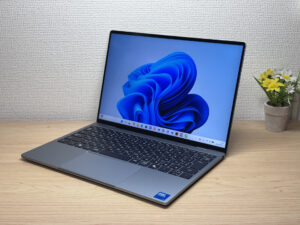
First up, the design. My first impression looking at it head-on was just how thin the bezels are. The InfinityEdge display trims the frame right down, so even at 13.4in it feels roomier than the number suggests.
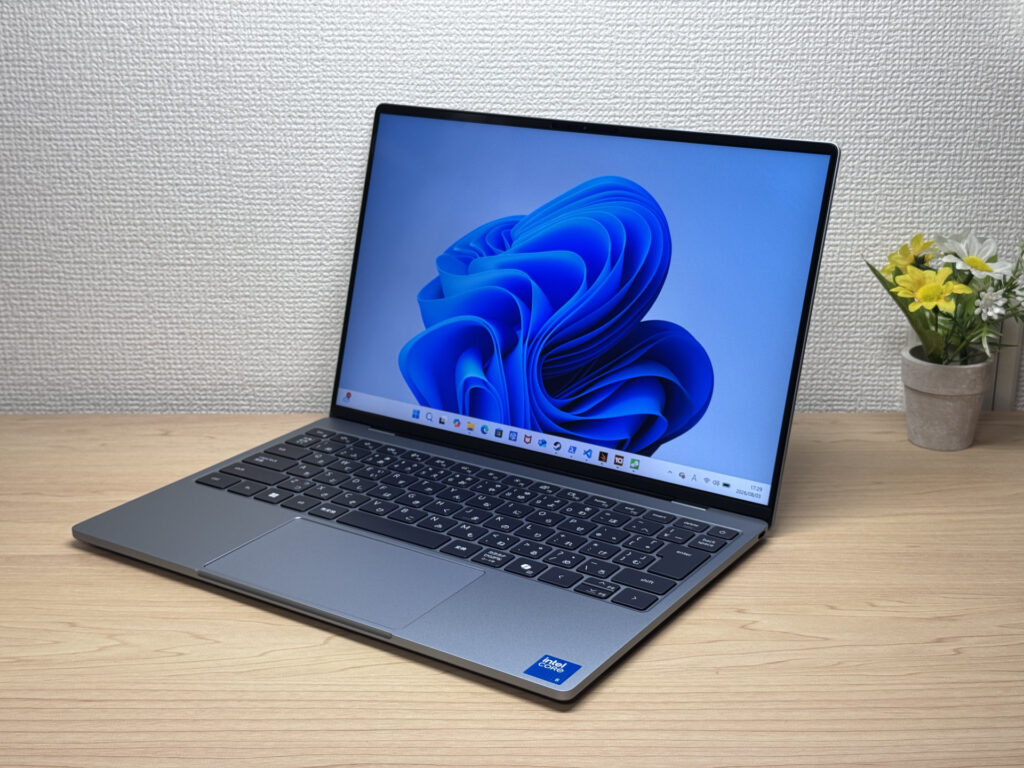 Those slim InfinityEdge bezels make for a genuinely striking front-on look
Thanks to the milled unibody construction, the overall build quality feels seriously high, with the sort of finish you'd expect from the XPS line. For a 13in laptop at this price point, it's put together with more care than I was expecting.
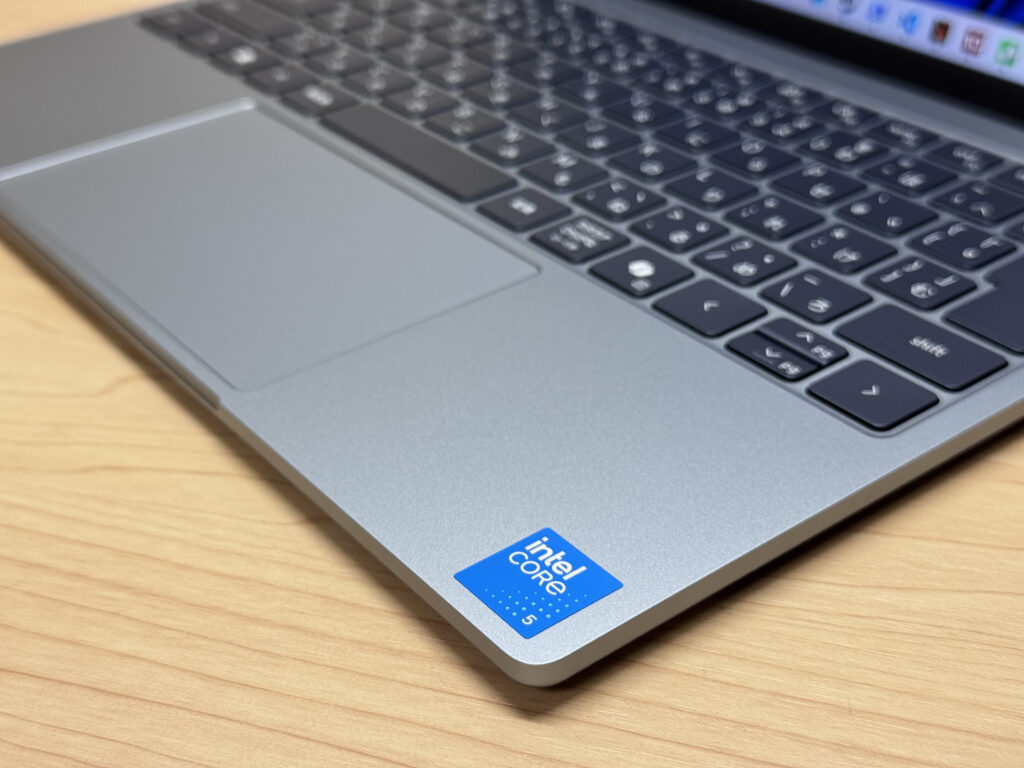 The palm rest has a smooth, matte finish that doesn't show fingerprints easily
Lay the lid next to a MacBook Neo and the sizing is almost identical — genuinely surprised me. It's clear this was designed with that comparison very much in mind.
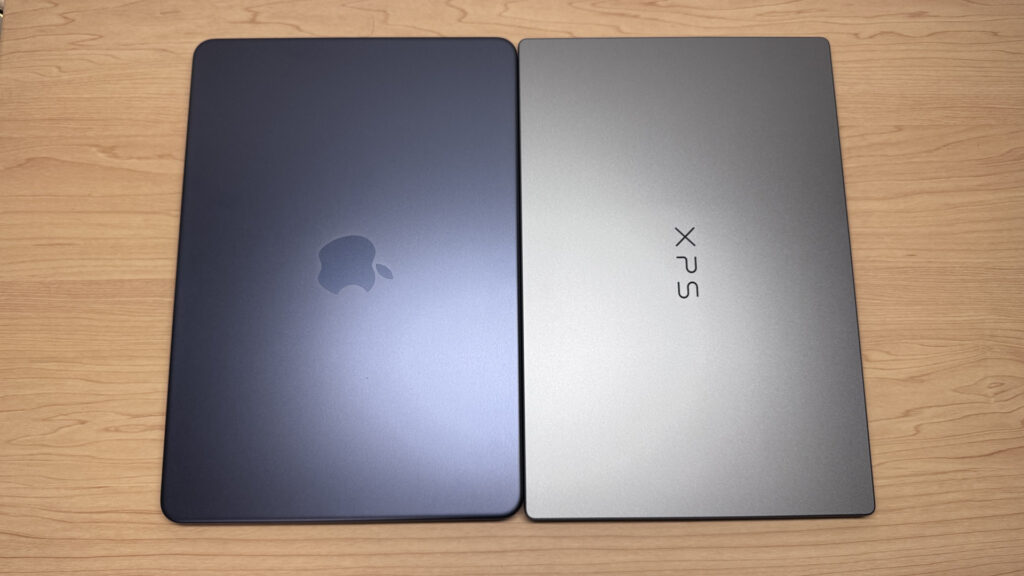 Sat next to a MacBook Neo, the sizing looks right at home
Flip it over and the lid carries a simple XPS logo — understated enough that it wouldn't look out of place in an office.
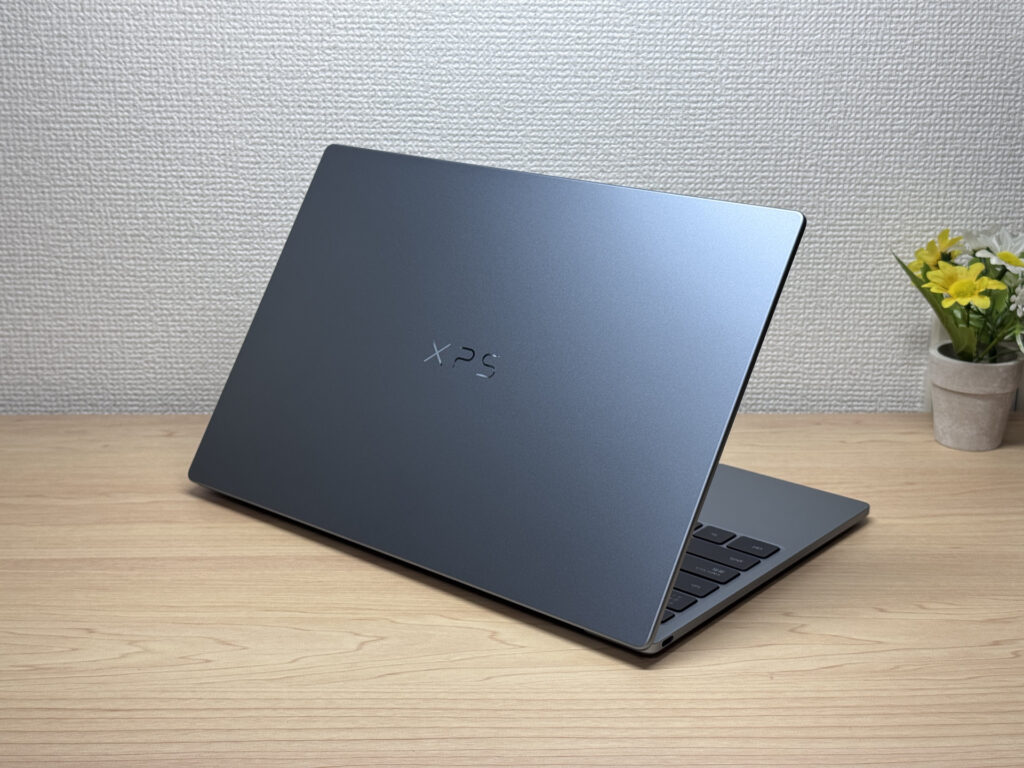 Even at an angle, the quality of the finish is obvious
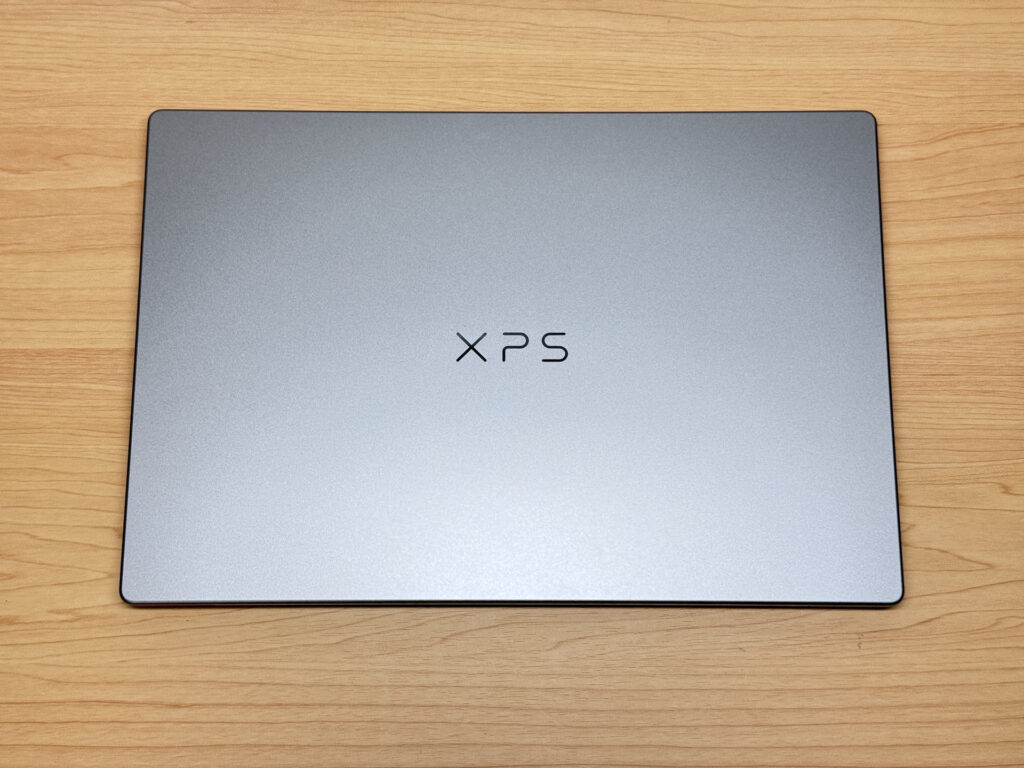 The understated XPS badge actually looks better for not shouting about itself
At 12.7mm thick, it's properly slim. Pick it up and you can tell straight away it won't take up much room in a bag.
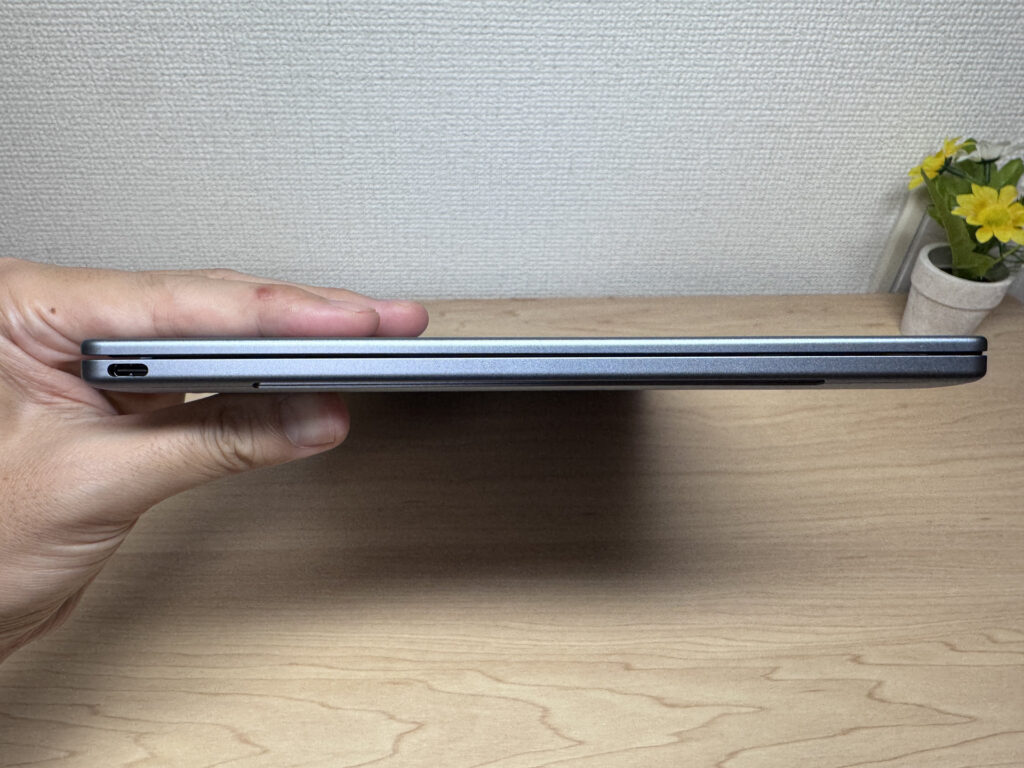 12.7mm thin — you notice it the moment you pick it up one-handed
Compare the thickness against a MacBook Neo and they're nearly indistinguishable. It's fair to say a lot of thought went into matching that benchmark.
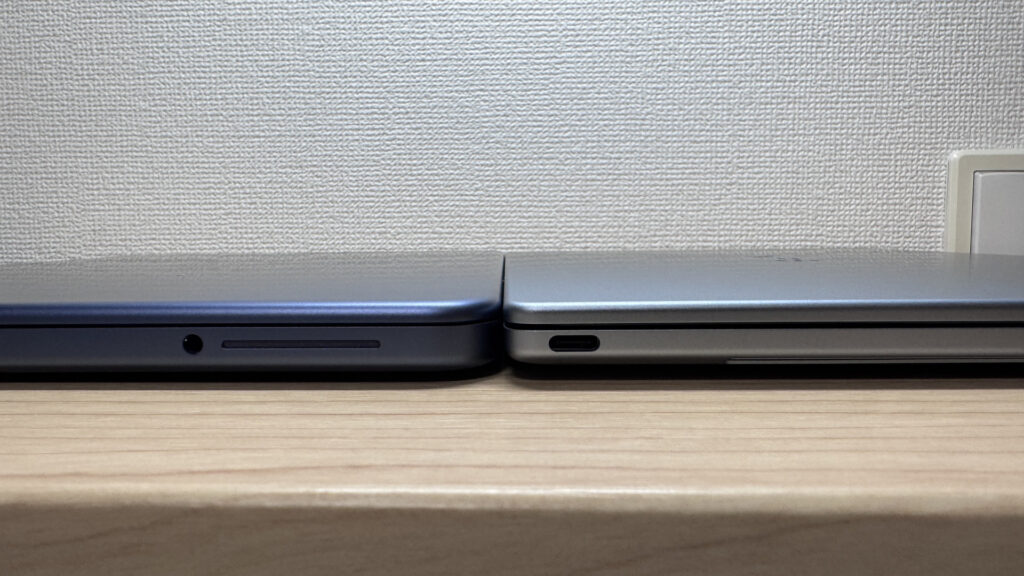 Side by side with a MacBook Neo, the thickness is nearly identical
The base is refreshingly simple, with just four screws visible. The rubber feet are firm enough that the laptop doesn't shift about while you're typing.
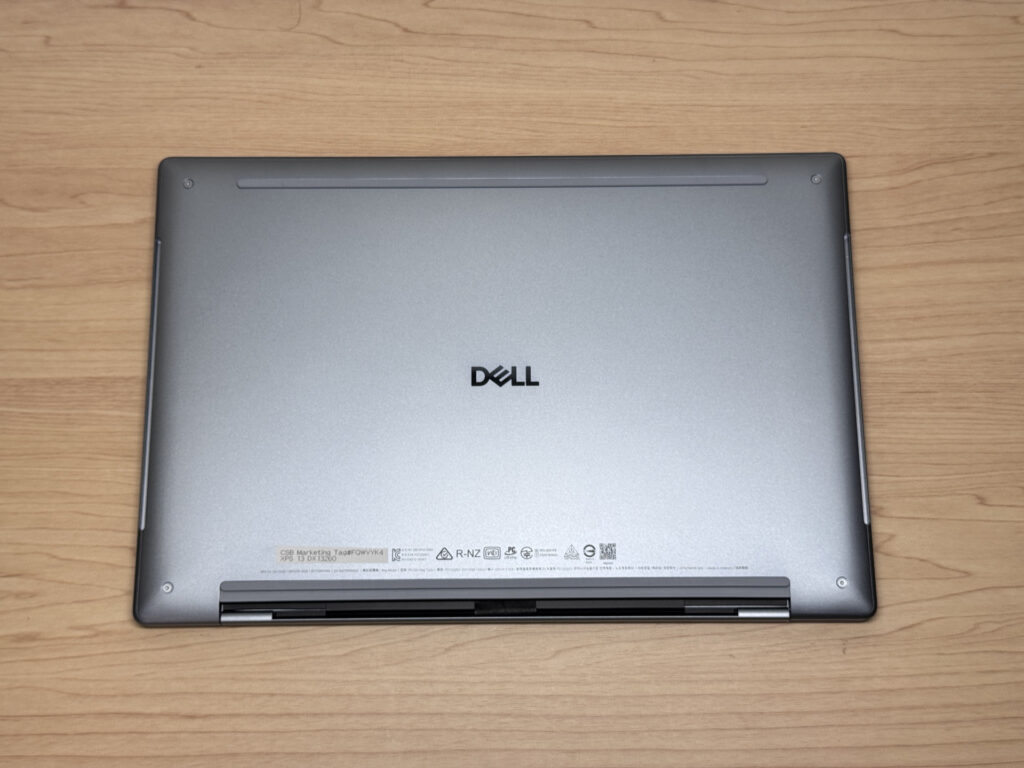 A minimalist base with just four screws, and the rubber feet hold firm
The hinge is well engineered too — you can lift the lid with a single finger, no awkward two-handed prising required. Like the MacBook line, it doesn't open all the way to 180 degrees.
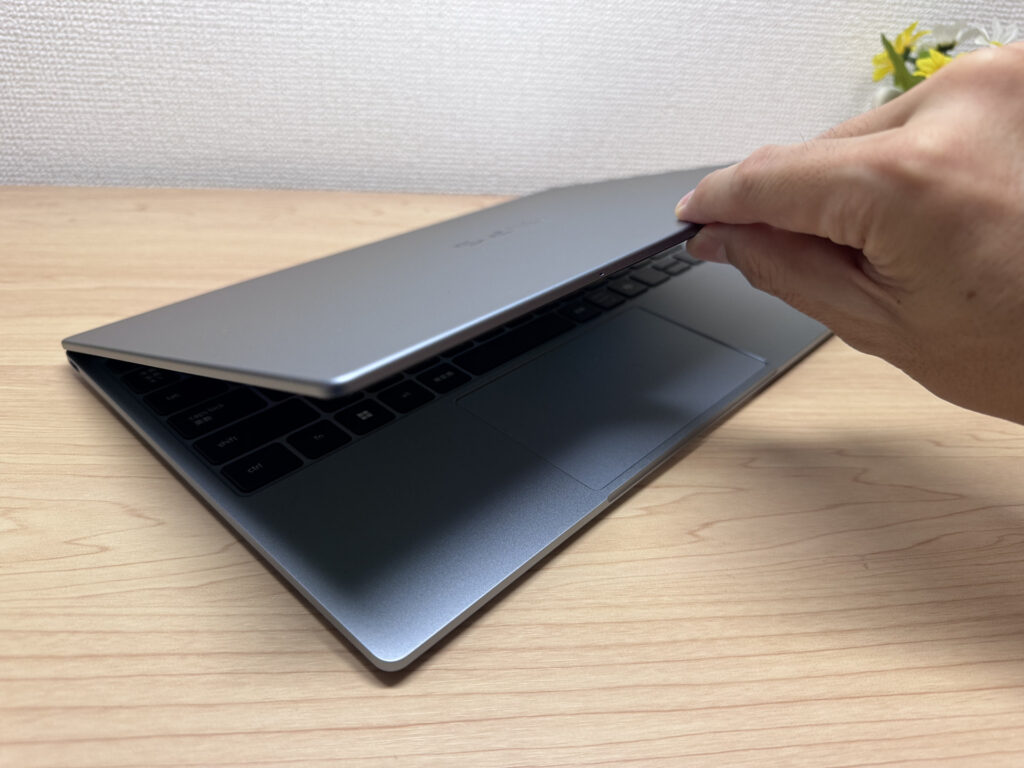 Opens smoothly with a single finger — the hinge quality here is genuinely impressive
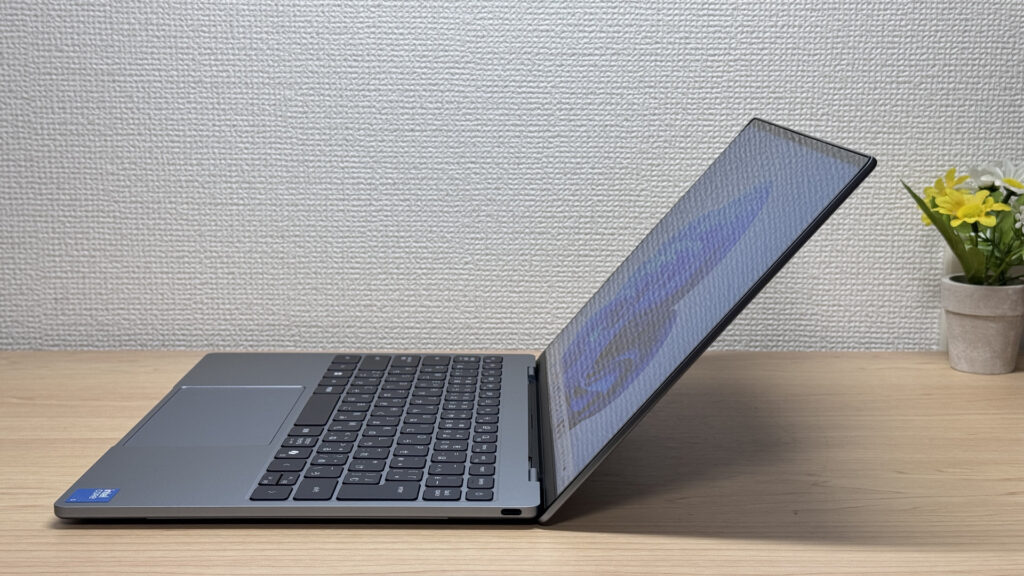 The opening angle is modest, but it's never actually a problem in practice
Portability
Next, how easy it is to carry around. Dell lists it at around 1kg, and my own scales had it at 1045g — properly light.
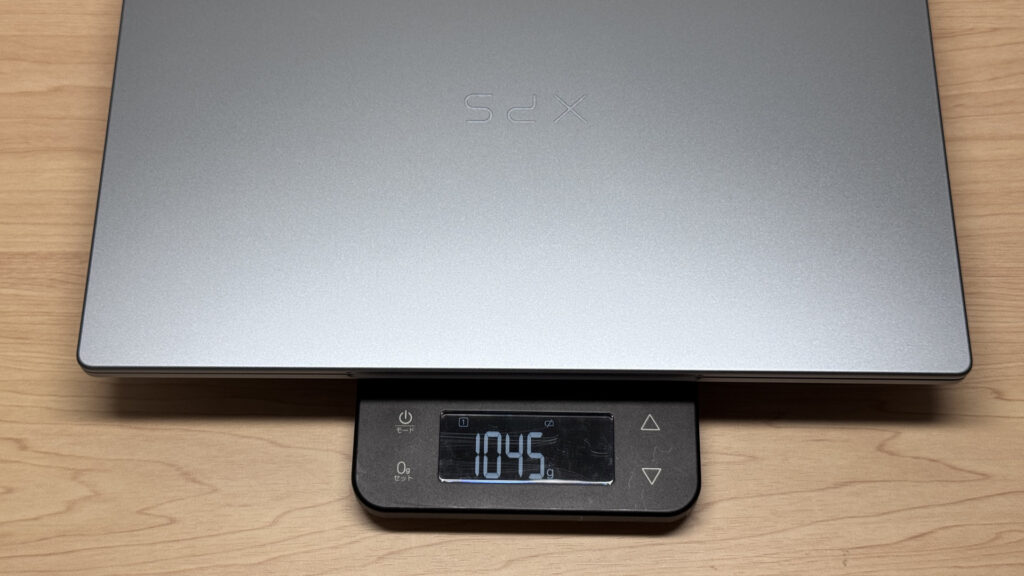 1045g on my scales — that's a genuinely impressive weight
The bundled charger is remarkably light too — just 170g on my scales, while still pushing out a full 65W.
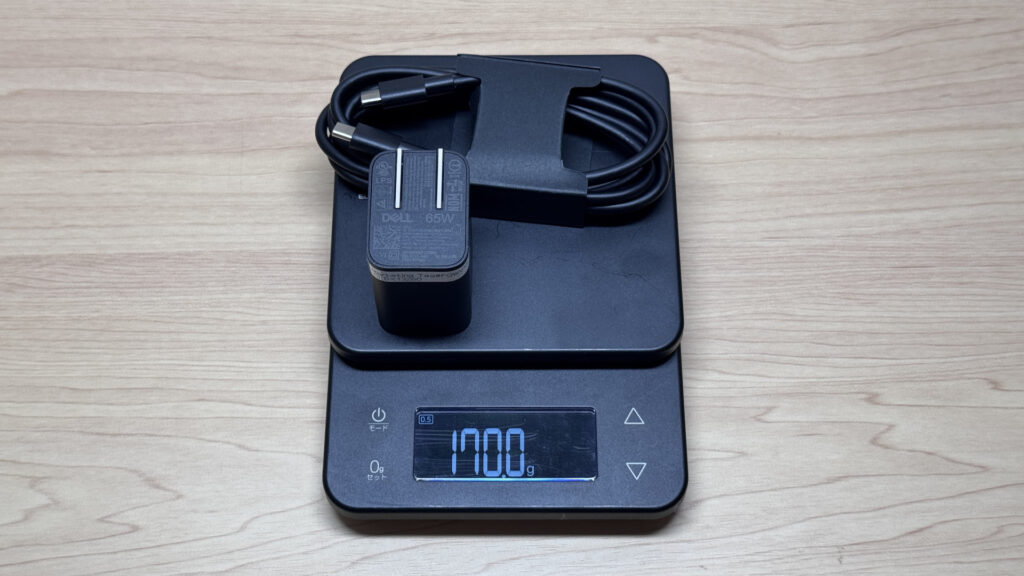 170g for a 65W charger — that's genuinely impressive
It's light enough that there's no real need to buy a smaller third-party USB-C charger, so you can skip that extra expense on an Anker or similar.
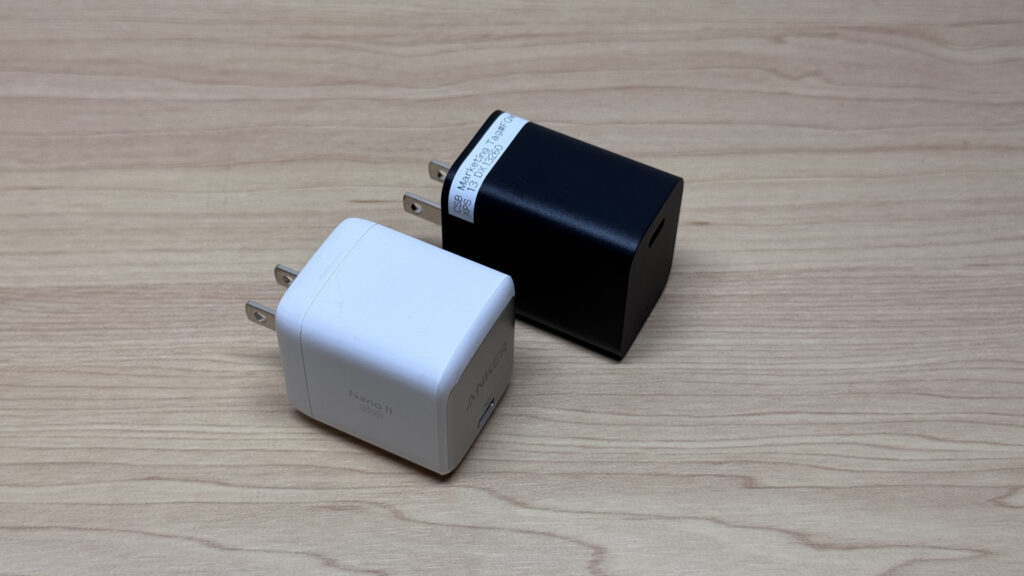 At this size, there's no need to swap in a compact charger like the one on the left
Pick it up one-handed and it barely registers. Carrying it between meeting rooms, or just moving to a different spot at home, isn't a chore at all.
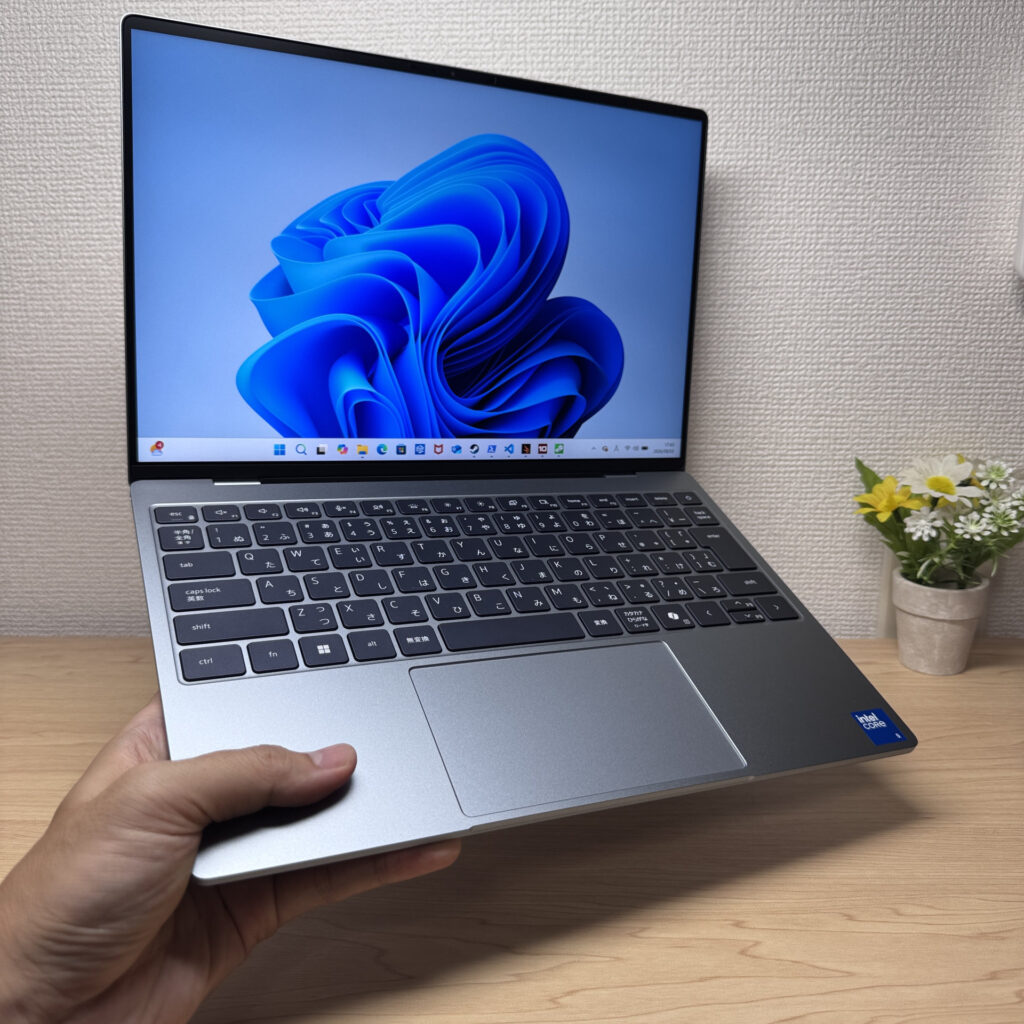 Easy enough to lift with one hand — that lightness really pays off day to day
Display quality
Onto the display. It's a 13.4in IPS panel at 2560×1600 (2.5K), and honestly, I wasn't expecting the colours to be this good.
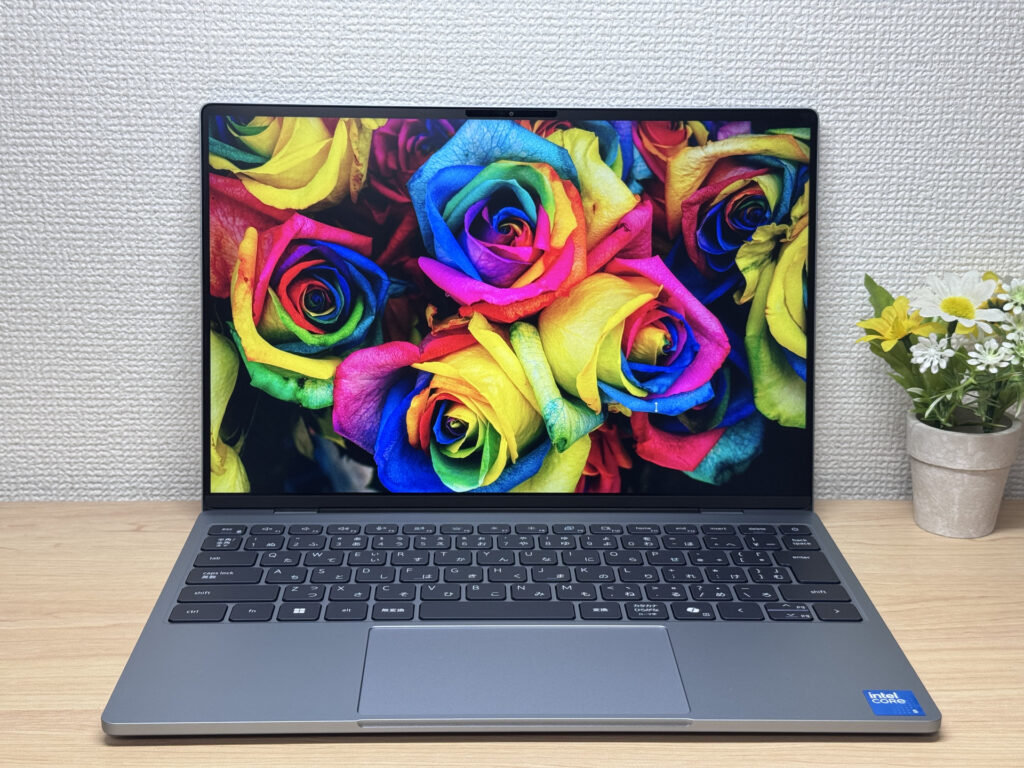 Colours punchy enough that you'd mistake it for OLED — properly caught me off guard
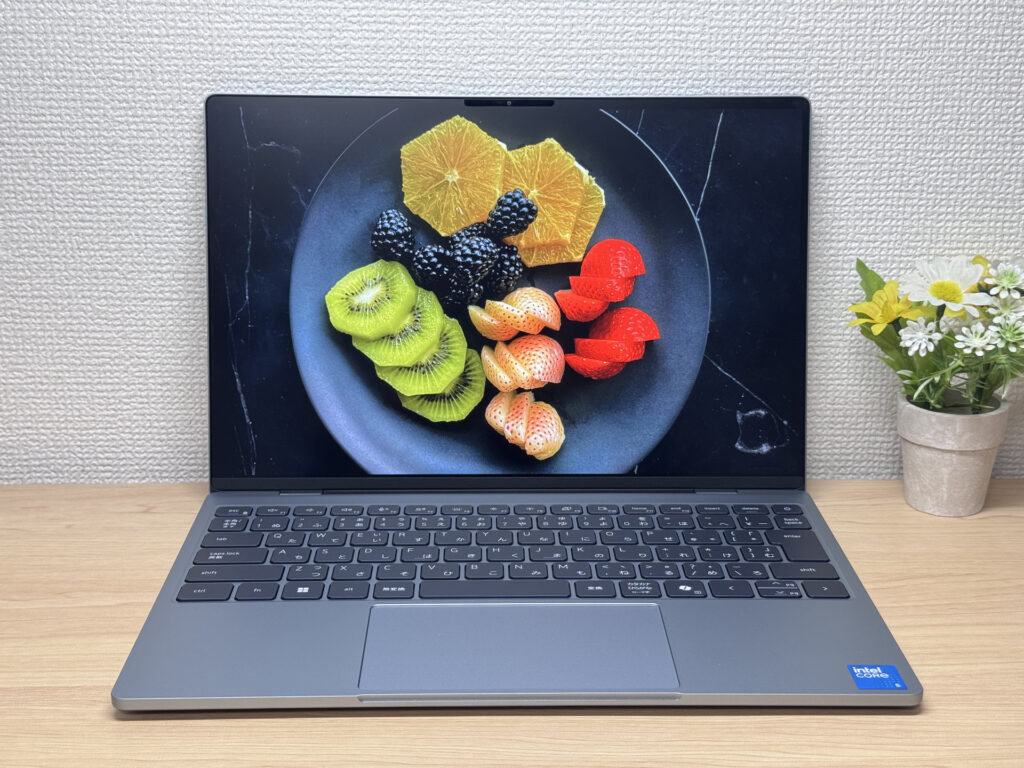 You can practically feel the freshness of the fruit in this shot
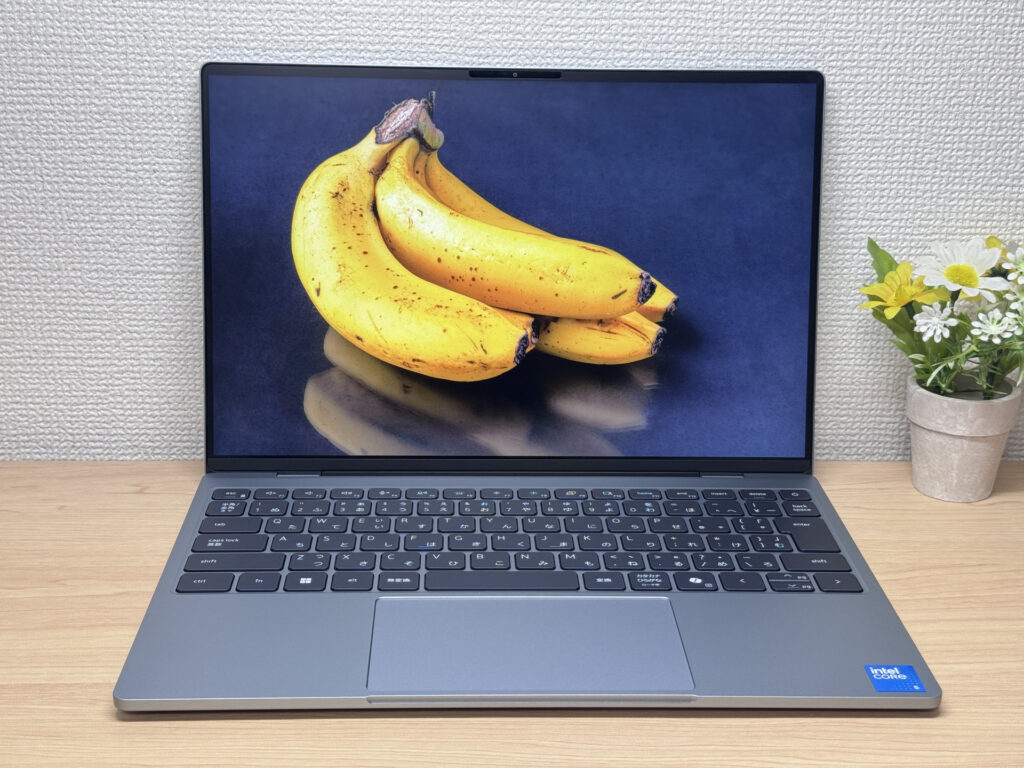 Black levels hold up well too, so textures come through nicely
On top of that, it runs a variable refresh rate up to 120Hz, so scrolling feels really smooth. And where the MacBook Neo sticks to a flat 13in, this one's 13.4in, which is a welcome bit of extra room — InfinityEdge earning its keep again.
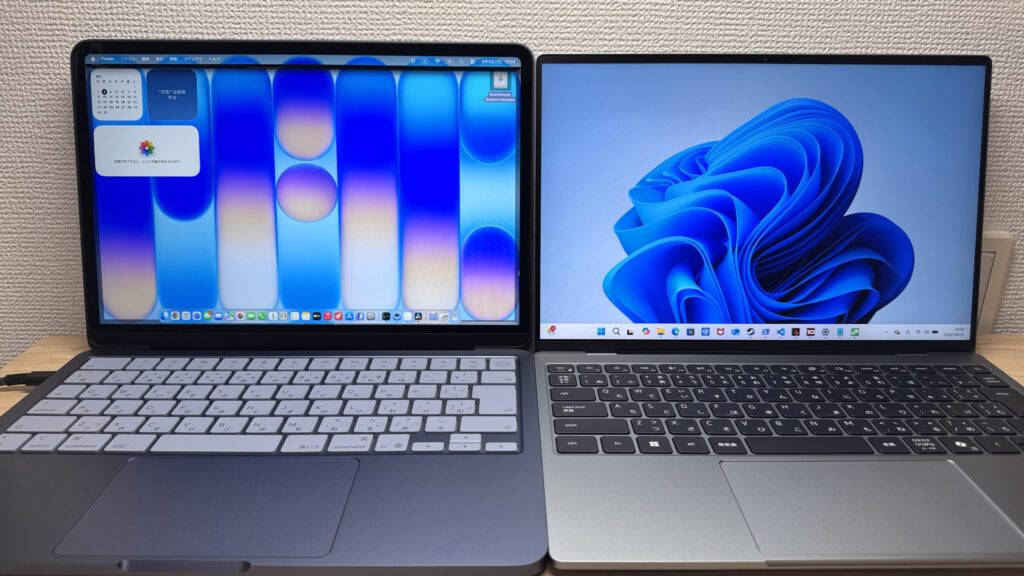 Sat next to a MacBook Neo, the Dell is slightly smaller overall yet still shows a good 0.4in more screen
Viewing angles are strong as well — colours hold up even when you're looking at it from quite a sharp angle.
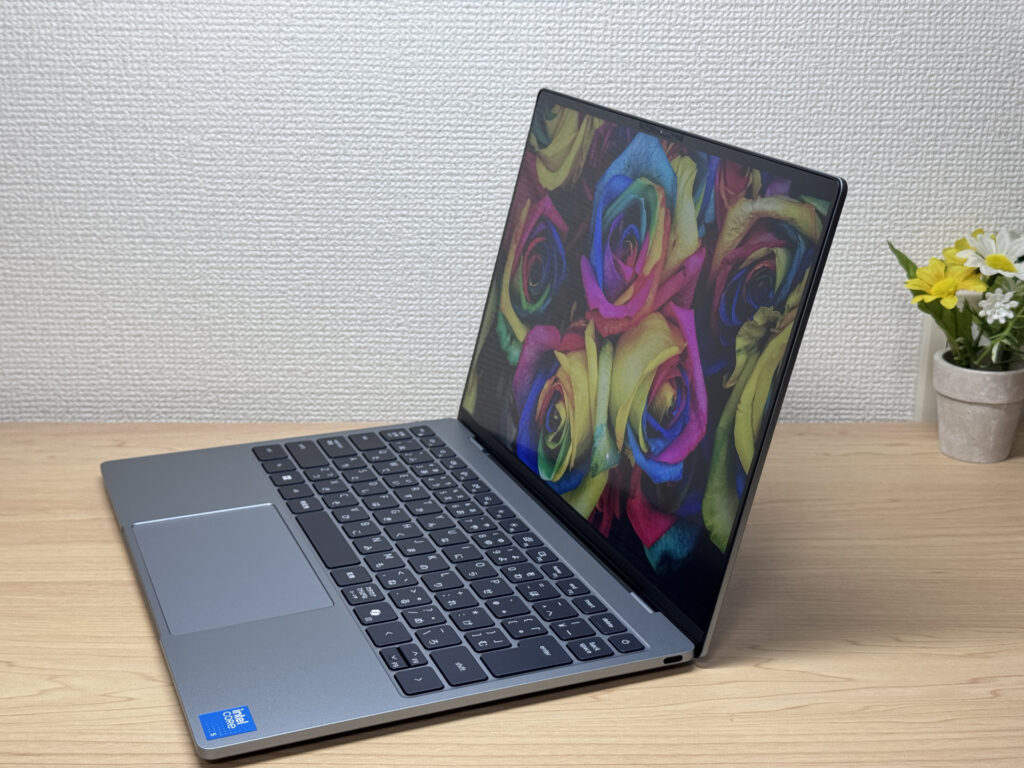 Still clear even from an angle like this
It supports touch too, so you can tap around like you would on a phone — something the MacBook Neo simply can't do. That's a genuinely nice touch for anyone new to laptops.
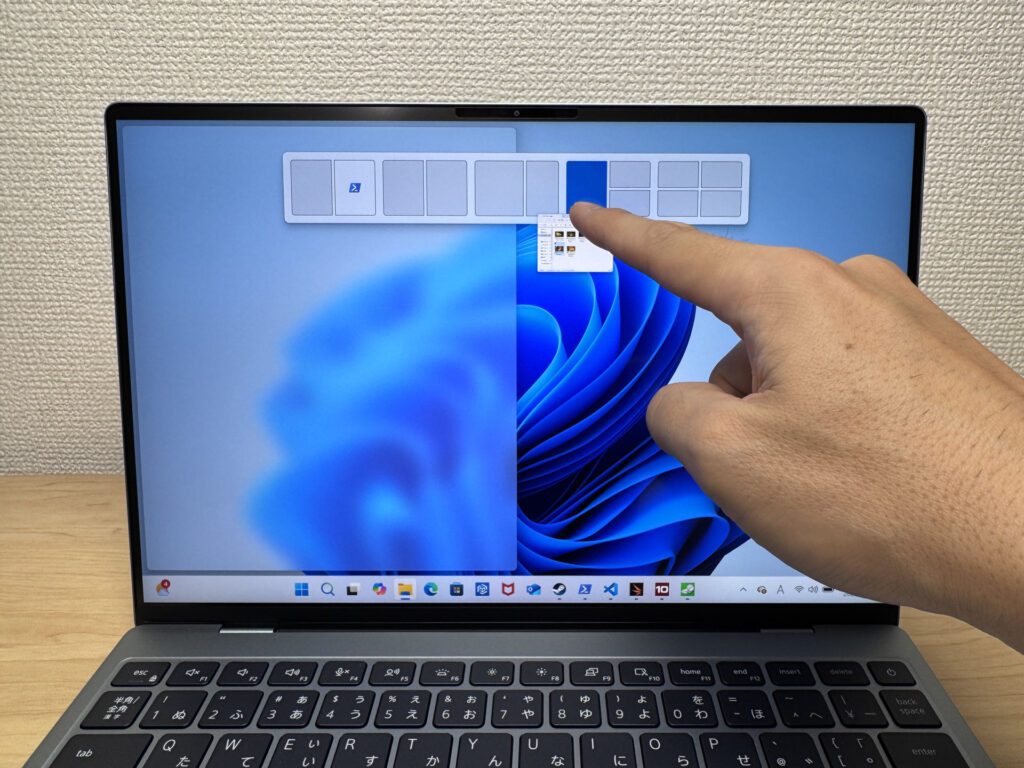 Tapping directly with a finger feels intuitive and just works
Being 16:10 rather than 16:9 gives you more vertical space to work with, so you'll be scrolling through web pages less.
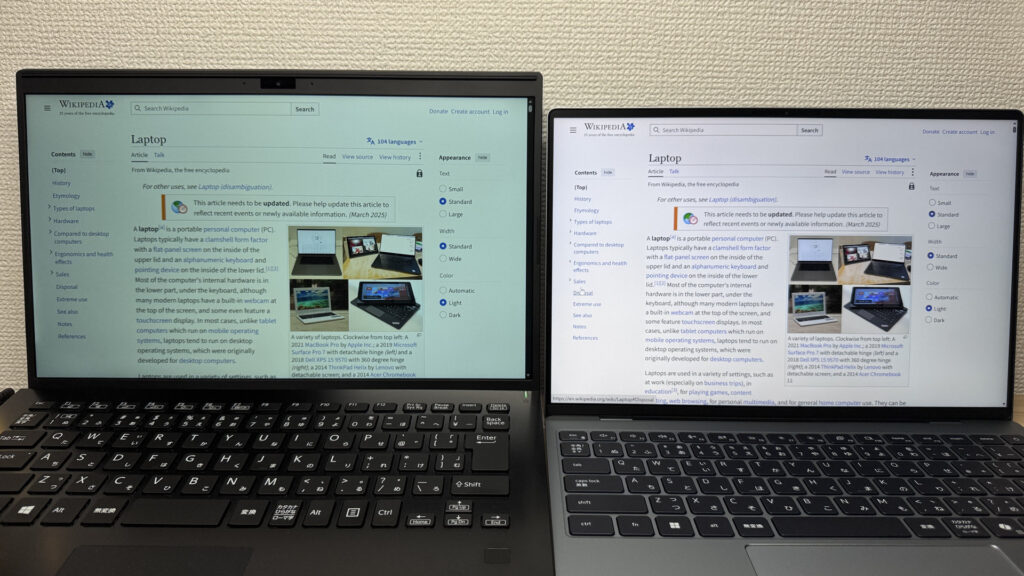 That 16:10 ratio gives enough vertical room that even a long Wikipedia page is easy to read
Brightness tops out at 500 nits, so it's plenty punchy, and the matte, non-glossy finish means you shouldn't get much glare under office lighting.
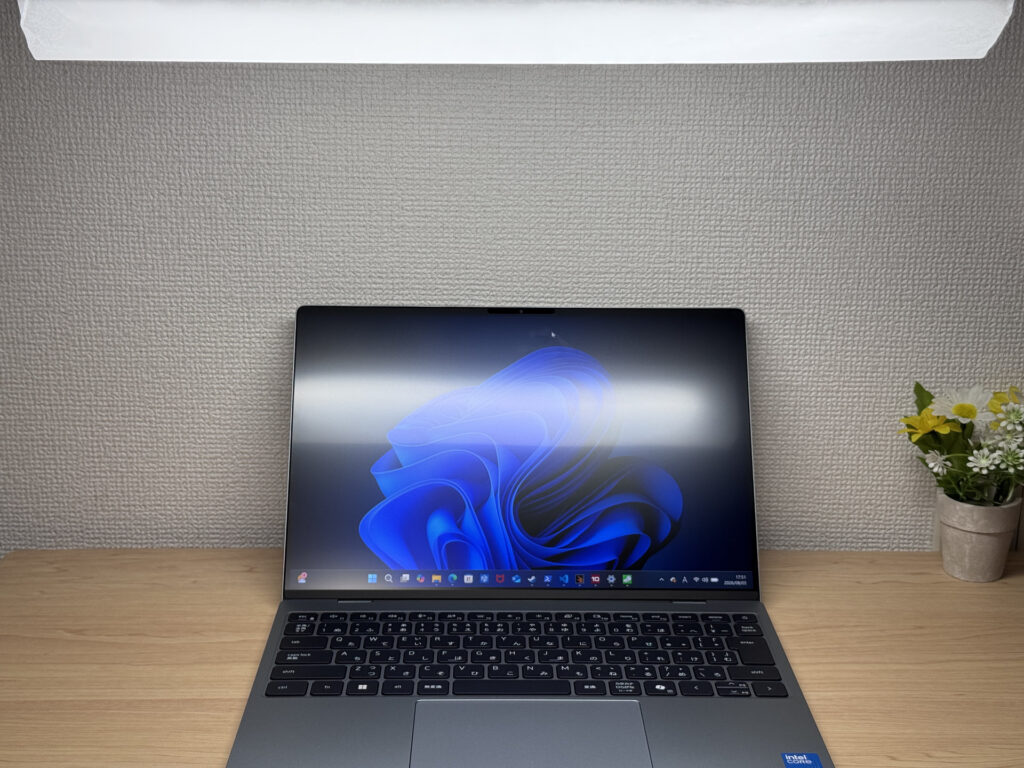 Being matte, it doesn't reflect much under fluorescent lighting — a glossy panel would show far more
Typing experience
Next, the keyboard. The review unit came with a Japanese layout, isolated keys, and each one is easy to make out and comfortable to press.
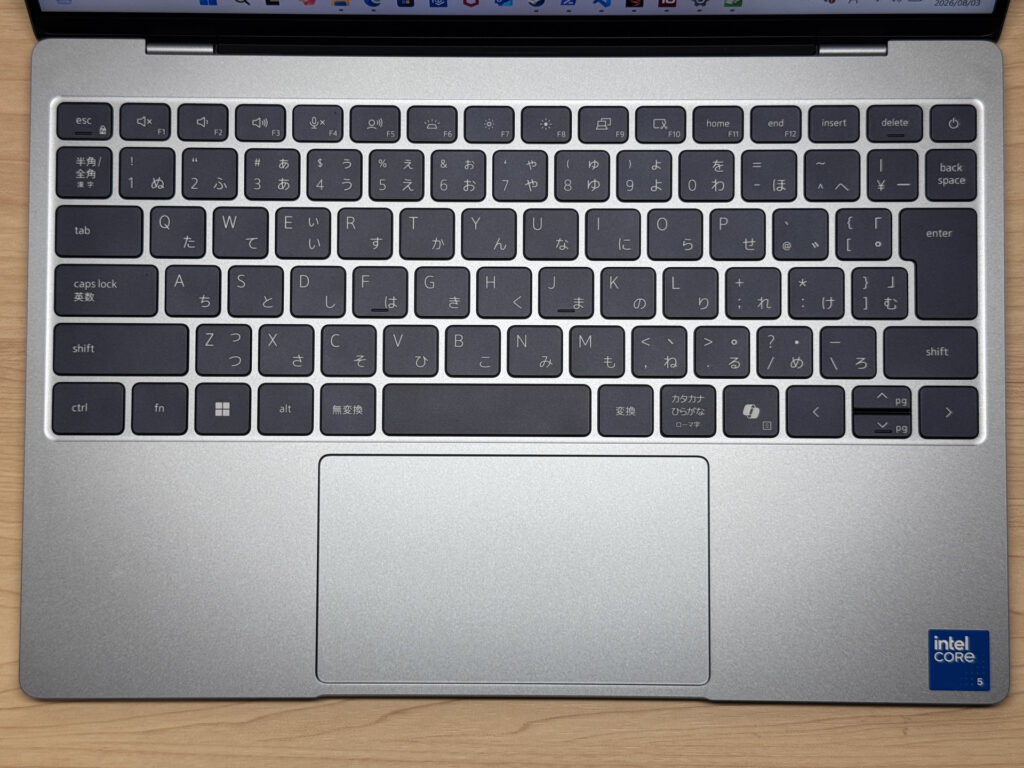 Genuinely impressive how well thought out this is for something this compact
That said, I did spot one odd quirk. With Function Lock switched on, pressing the up or down arrow keys triggers Page Up and Page Down instead — for some reason. It's a bit of a nuisance in practice. Dell, is this actually meant to happen?
 Fn + Esc toggles Function Lock
 With Function Lock on, the arrow keys switching to Page Up/Down does catch you out
The typing feel has a shallow, clicky quality to it, not unlike Apple's Magic Keyboard — which happens to be exactly my sort of thing. Long typing sessions don't tire your fingers out.
 That light, clicky feel makes it a decent fit for coding too
Keyboard backlighting is on board as well, which the MacBook Neo can't say. Handy if you're working somewhere dim.
 Perfectly visible in a dark room thanks to the backlighting
Quick heads-up: these photos are the Japan-market unit, so the keyboard shown is the Japanese layout. UK models ship with the standard UK (ISO) layout.
Touchpad
On to the touchpad. It's generously sized relative to the keyboard, and the glass surface glides really nicely.
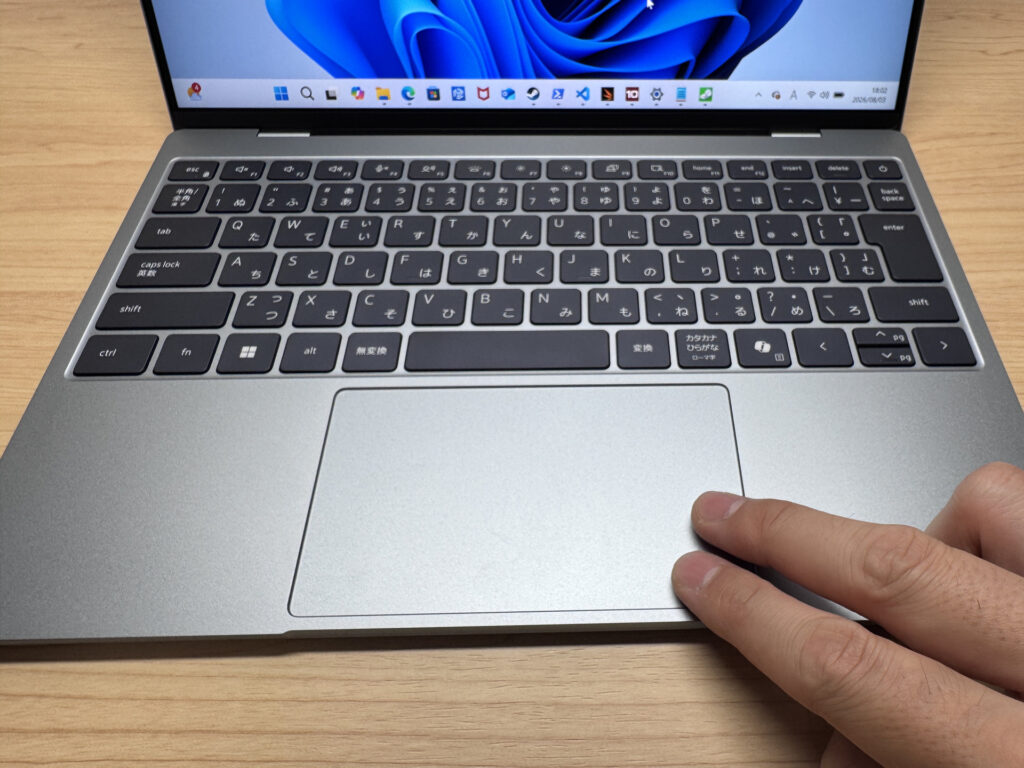 That glass finish is smooth enough that you barely miss having a mouse
Compare it against the MacBook Neo's and the size is more or less a match.
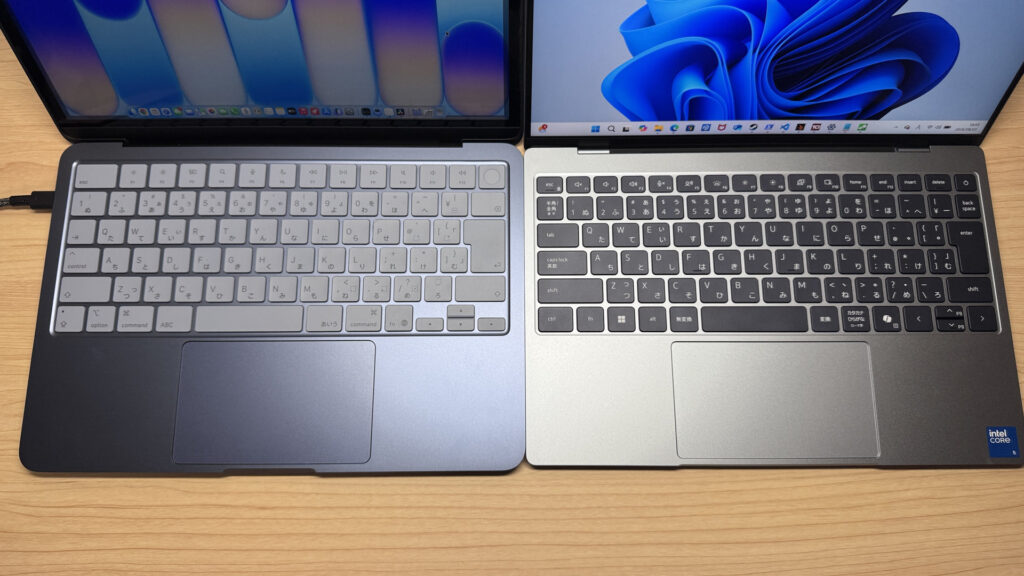 Nearly the same footprint as the MacBook Neo's touchpad
Three-finger gestures work smoothly too, which is handy in a café or on the train where there's not much room to swing a mouse about.
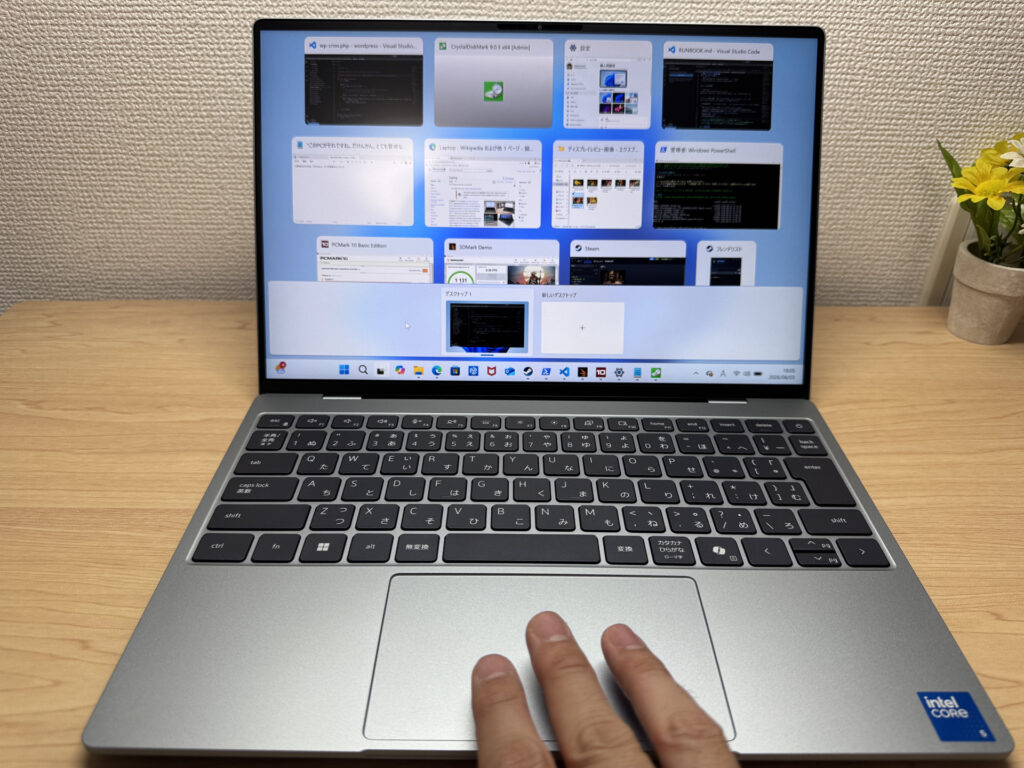 Three-finger gestures register without a hitch
One thing though — unlike the MacBook Neo, you can't physically press down near the top of the pad, so that's a small win for Apple. Then again, that's the norm for most laptops; the MacBook Neo is just the exception.
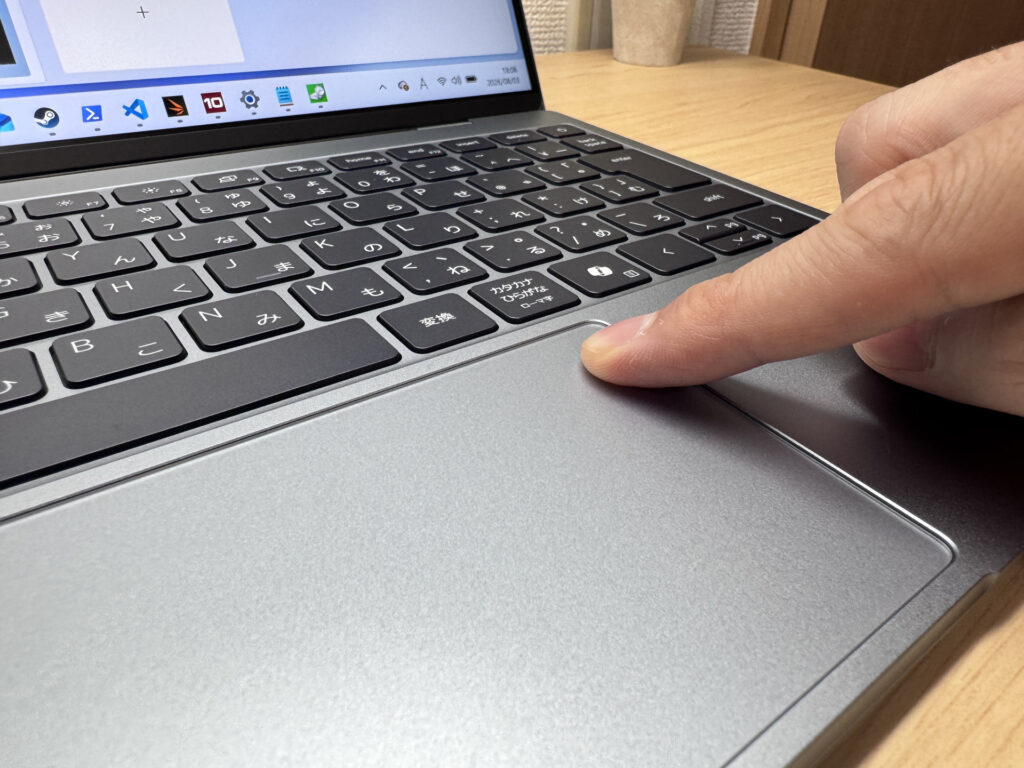 Clicking near the top of the pad doesn't register well
Performance
Let's look at performance. It scored 6154 in PCMark 10, which is plenty for everyday office work and browsing, even in a chassis this thin.
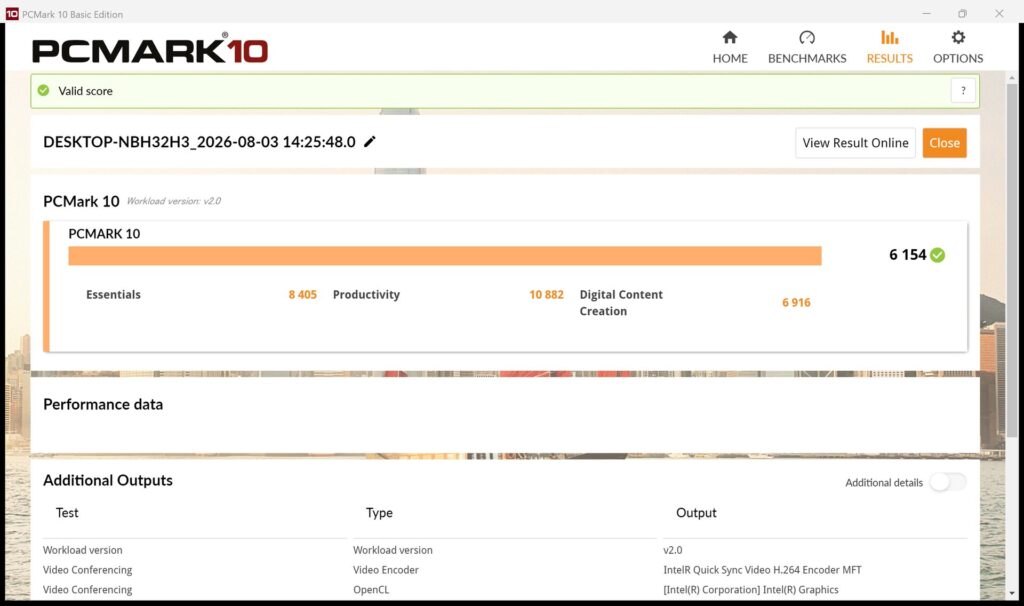 6154 in PCMark 10 — office tasks run without any fuss
| Total Score | Rating | What it feels like in real use |
|---|---|---|
| ~4,000 | Bare minimum | Web browsing and simple tasks work, but multitasking or many tabs feels sluggish. |
| 4,000–5,000 | Light use | Daily tasks are doable, but running multiple apps means waiting around. |
| 5,000–6,500 | Comfortable (mainstream) This PC | Handles most work without stress — fine for office, school, video calls. |
| 6,500–8,000 | High performance | Plenty of headroom. Light photo editing and programming feel snappy. |
| 8,000+ | Very high performance | Tackles video editing and heavy workloads. Long-lasting performance. |
*PCMark 10 reflects overall comfort. Actual feel depends on CPU, RAM, and SSD speed.
Cinebench 2026 came in at 1637 points multi-core, a fairly average result. Light editing, YouTube-style clips and the like are fine, but 4K video editing is asking a bit much.
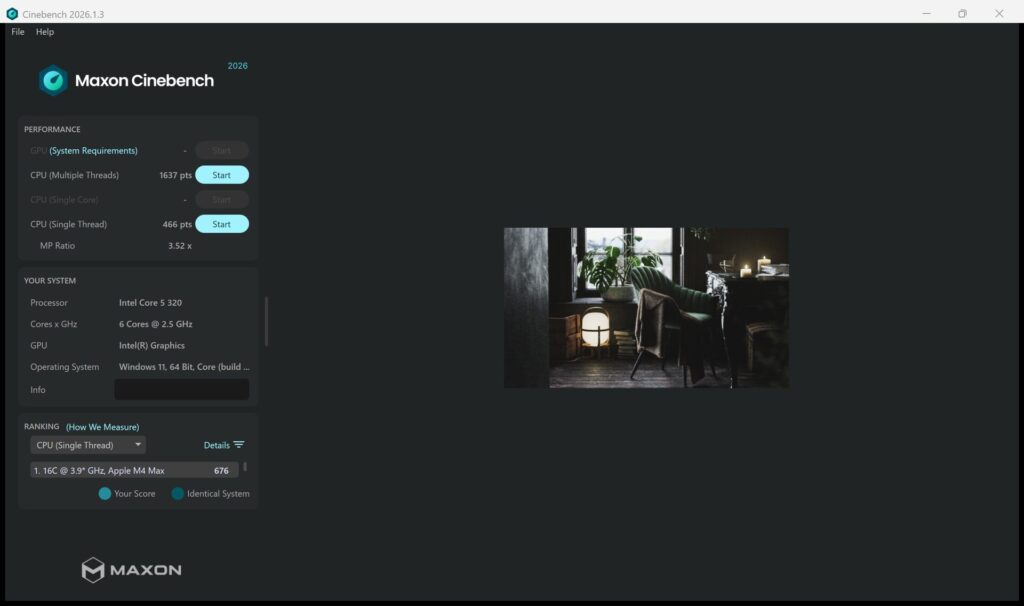 1637 in Cinebench 2026 — multitasking sits at a fairly average level
| Score | Rating | What it feels like in real use |
|---|---|---|
| Up to 1,000 | Bare minimum | Light tasks work, but heavier processing or multitasking feels constrained. |
| 1,000–2,000 | Standard (power-efficient) This PC | Handles daily tasks, but heavier loads create waiting. |
| 2,000–3,000 | Comfortable (mainstream) | Office, school, video calls all work comfortably. Plenty for most users. |
| 3,000–4,000 | High performance | Comfortable for multitasking, light/medium editing, and dev work. |
| 4,000+ | Very high performance | Handles video editing and heavy workloads with room to spare. |
*Cinebench 2026 is the latest CPU multi-core benchmark. Scores trend lower than R23, so direct comparison isn't valid.
Worth flagging that the review unit had 8GB of RAM, and running several things at once did start to feel a bit sluggish. If you're buying one, I'd go for the 16GB configuration.
3DMark's Steel Nomad Light test scored 1131. Light gaming is fine, but anything more demanding is out of reach.
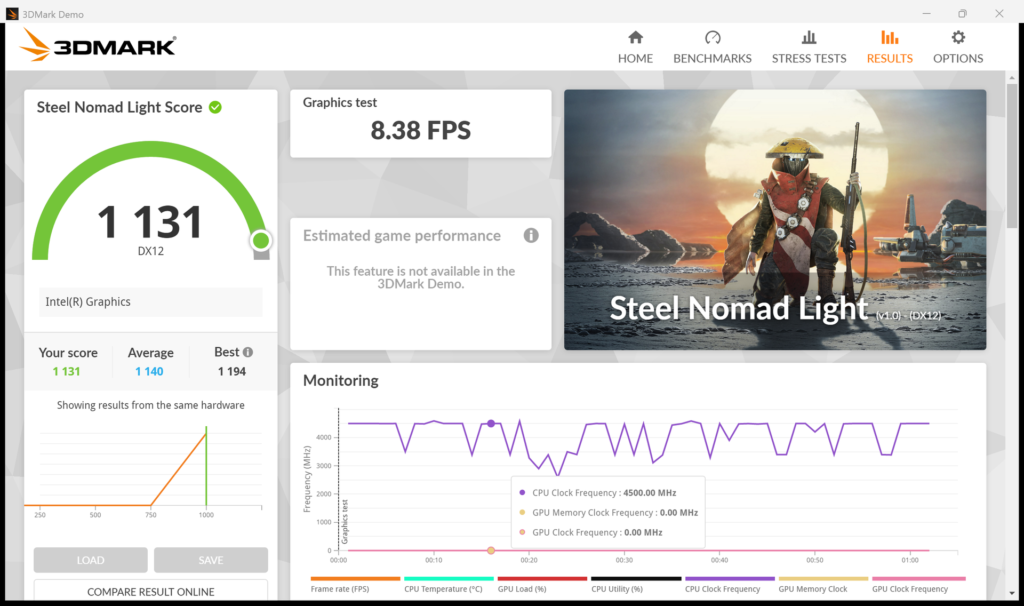 1131 in 3DMark Steel Nomad Light — realistic for lighter games only
| Score | Rating | What it feels like in real use |
|---|---|---|
| Up to 400 | Bare minimum | 3D performance is quite limited. Not really suited for gaming. |
| 400–900 | Light 3D | Lighter games and low-load 3D processing work. |
| 900–1,500 | Average (mainstream) This PC | Standard for integrated GPUs. Light to medium games playable with right settings. |
| 1,500–2,200 | High performance | Strong for an integrated GPU. Games and 3D work feel comfortable. |
| 2,200+ | Very high performance | Top-tier 3D performance for thin laptops. Real graphics headroom. |
*3DMark Steel Nomad Light targets thin laptops and integrated GPUs. Score range differs from Time Spy, so direct comparison isn't valid.
Storage speeds were properly quick — 7081.76MB/s sequential read and 5832.81MB/s write. You won't be sat waiting around for files to open or save.
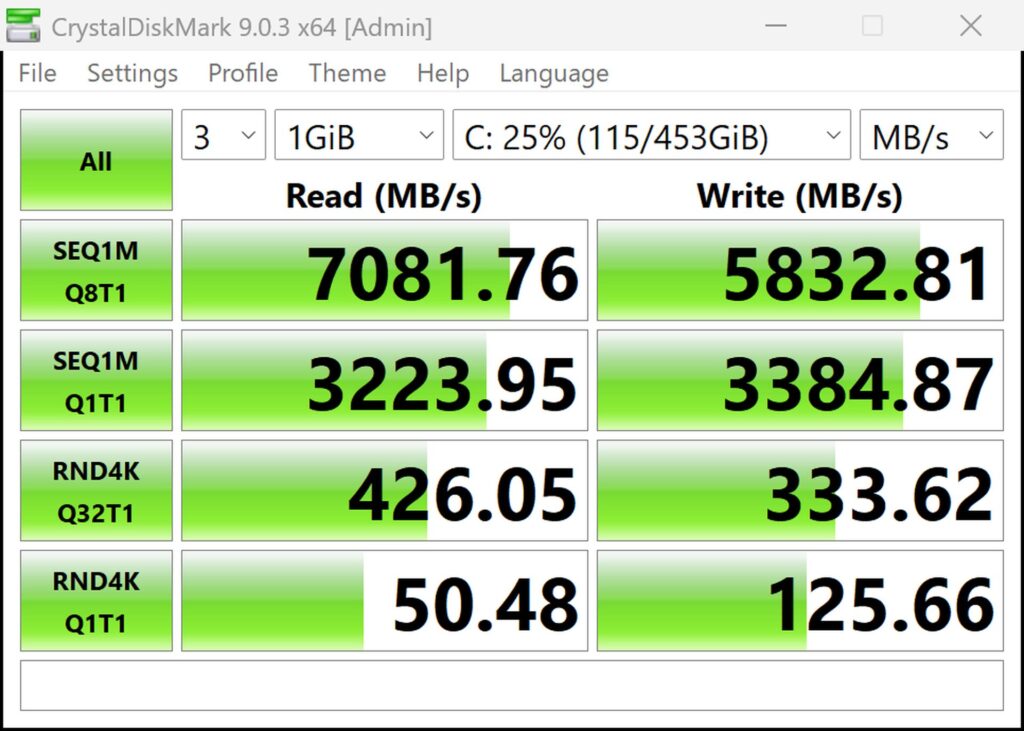 7081MB/s read, 5832MB/s write — properly quick, I have to say
| Score | Rating | What it feels like in real use |
|---|---|---|
| Up to 600 MB/s | Bare minimum | Faster than HDD, but slow for modern SSDs. App launches feel slightly slow. |
| 600–1,500 MB/s | Average | Fine for daily use, though loading is noticeably slower than top-tier SSDs. |
| 1,500–3,500 MB/s | Comfortable (mainstream) | App launches and file loading feel smooth. No real complaints in daily use. |
| 3,500–5,500 MB/s | Fast | Loads large data and apps quickly. Definitely upper-tier SSD speed. |
| 5,500+ MB/s | Very fast This PC | High-end NVMe territory. Heavy data work without waiting. |
*CrystalDiskMark measures SSD speed. It mainly affects app launch and file loading speed, not overall PC performance.
Battery life
Battery rating: average
The battery is rated at 52Wh, with Dell claiming up to 17 hours. That's more headroom than the MacBook Neo's 37Wh, though a chassis this thin can only fit so much cell capacity in.
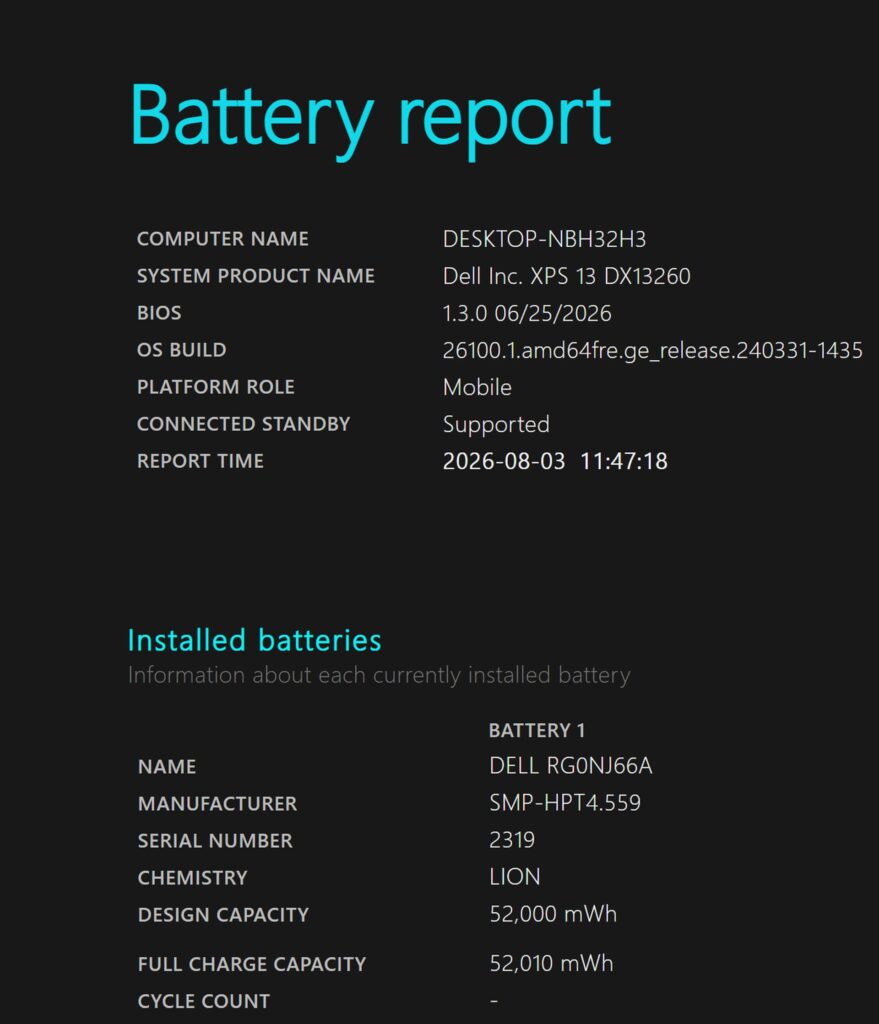 52Wh capacity — pretty standard for this class
That said, with both the laptop and charger being so light, packing a spare compact USB-C charger for the day out should see you through without worrying about the socket. Push the brightness and refresh rate up, though, and you may find it drains a bit faster than the official figure suggests.
Fan noise and heat
Fan noise and heat are worth checking too. At idle it's genuinely close to silent — I couldn't hear the fan at all from the chassis.
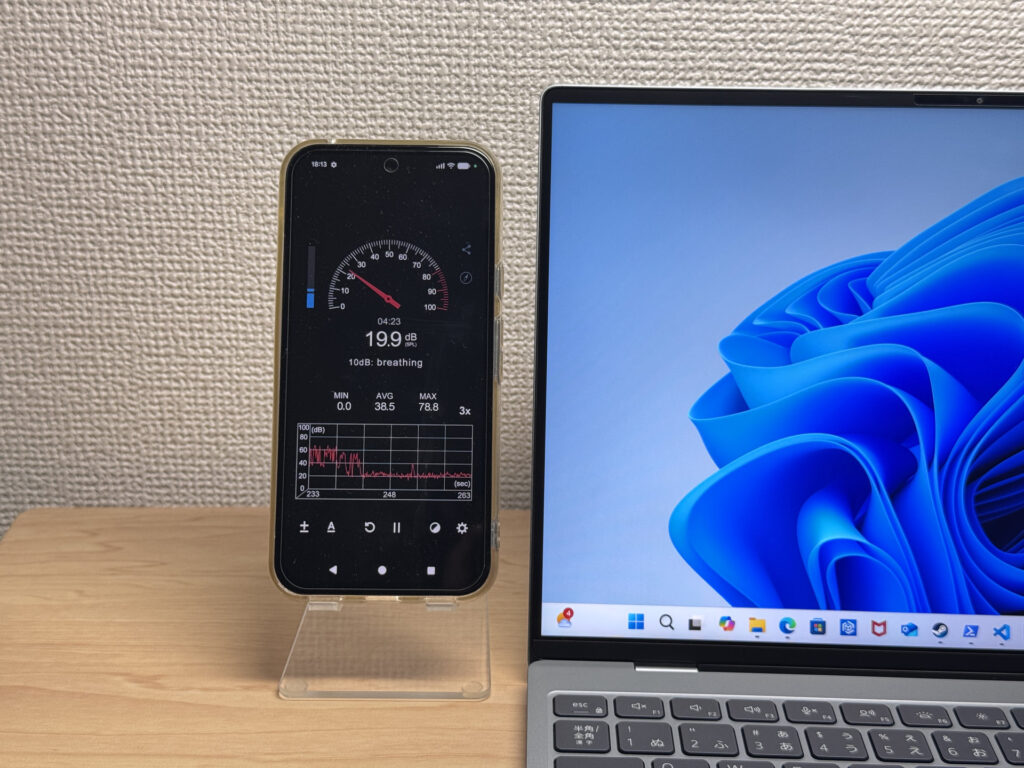 Practically silent at idle — quiet and comfortable to work with
Push the CPU to 100% and you do get a faint whirring, but even under full load it stayed under 40dB, which isn't an unpleasant sound. A genuine plus point here.
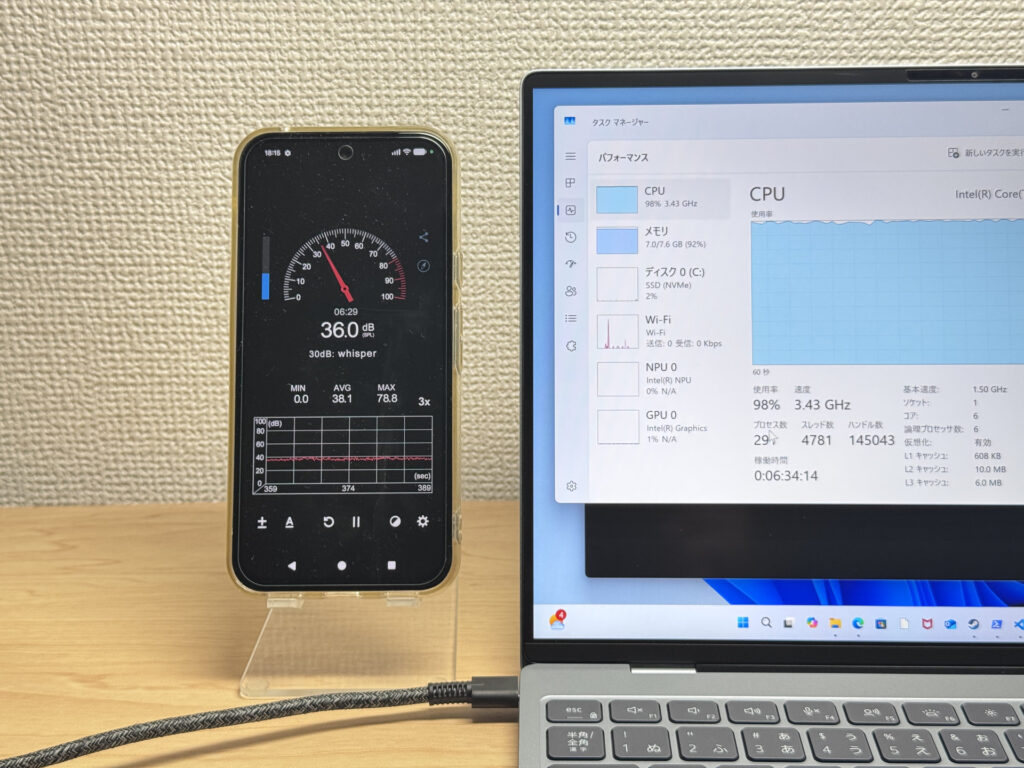 Around 40dB even under load — quieter than I expected
| Noise Level | Rating | Feel |
|---|---|---|
| Under 30 dB | Near-silent Idle | Fan noise is barely perceptible — library-quiet and ideal for focused work. |
| 30–35 dB | Quiet | Faintly audible but non-distracting. Easy to work in a quiet room. |
| 35–40 dB | Noticeable Load | You can tell the fan is spinning, but it rarely interrupts work. |
| 40–45 dB | Somewhat loud | Can become distracting in quiet environments. Headphones start to help. |
| 45–50 dB | Loud | Noticeable stress over extended use. Cooling is clearly prioritized. |
| 50 dB+ | Very loud | Prominent fan noise under load — gaming/high-performance thermal design. |
The exhaust vents are grouped at the back of the unit, so if you've got a mouse under your right hand, you won't feel warm air blowing on it. The cooling here seems well thought through.
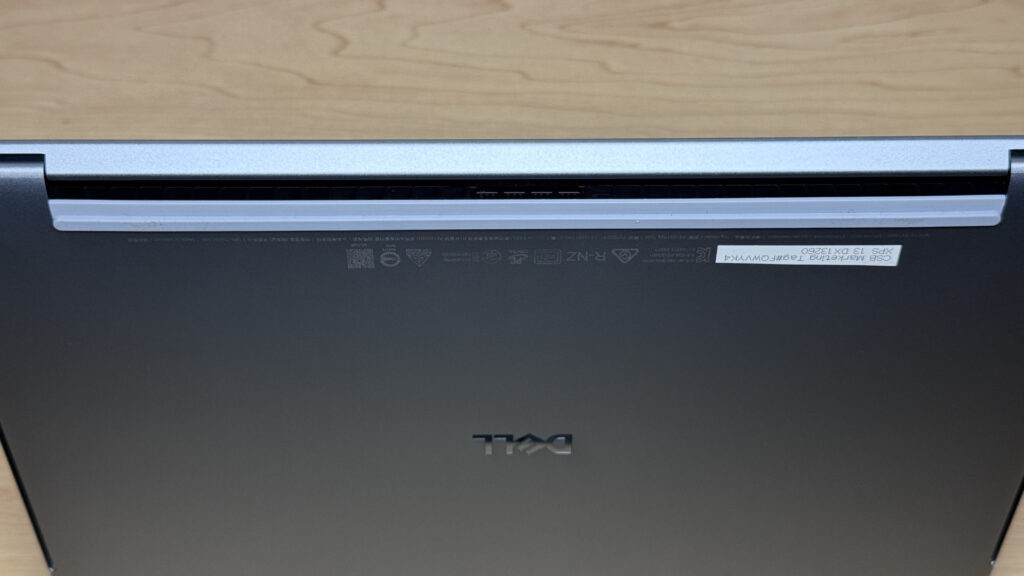 Vents are grouped at the rear, so warm air doesn't blow towards your hands
Ports and expandability
Let's look at the ports. There's one USB-C on each side, which does feel like a bit of corner-cutting in the name of a slim chassis.
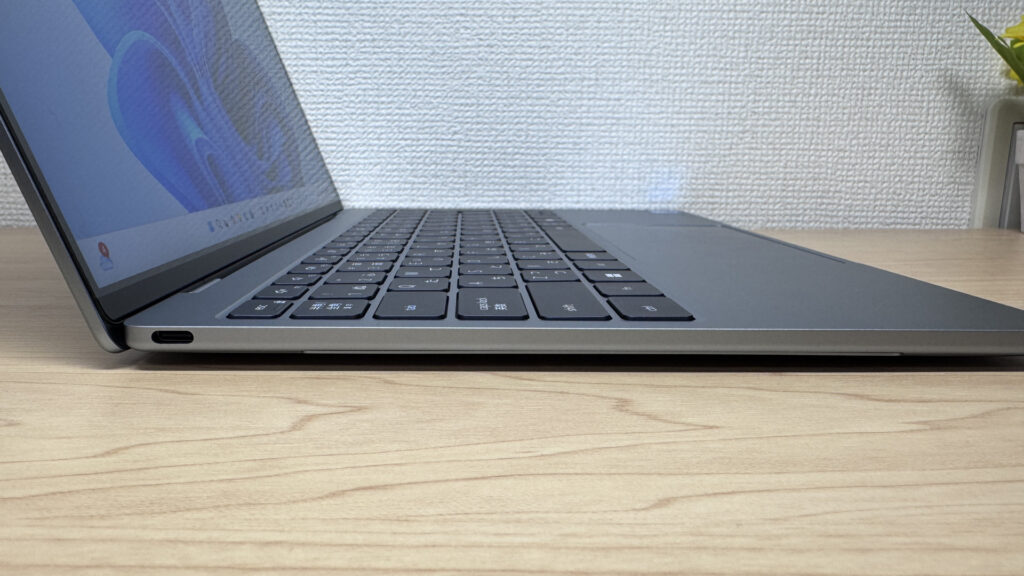 One USB-C on the left — expandability is on the limited side
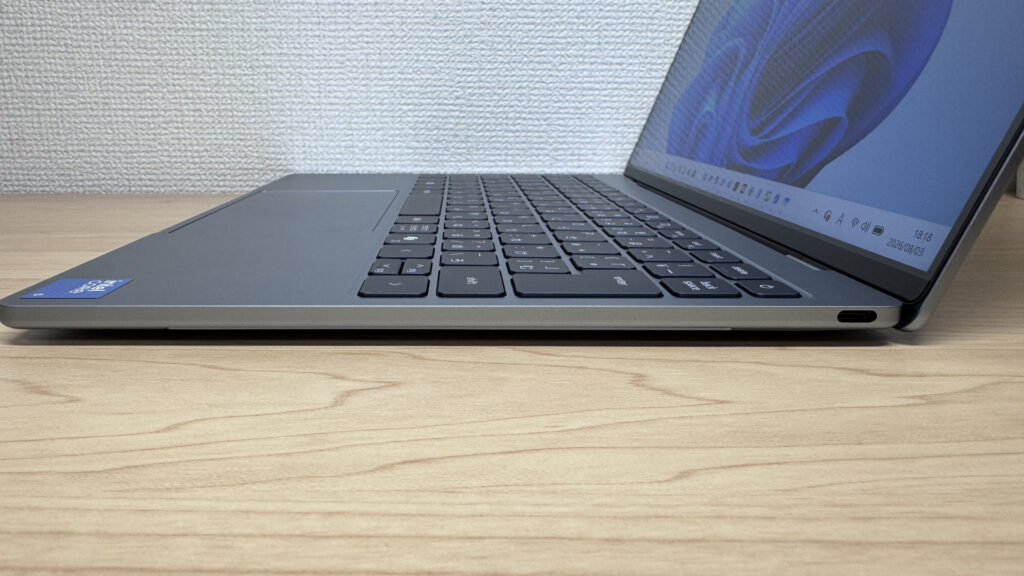 A matching USB-C on the right too
Worth noting there's no headphone jack. If you want to use wired earphones with a mic for video calls, you'll need a USB-C adapter or a pair of wireless ones.
Through a USB-C hub, external monitor output works fine — HDMI to a single display is no trouble at all.
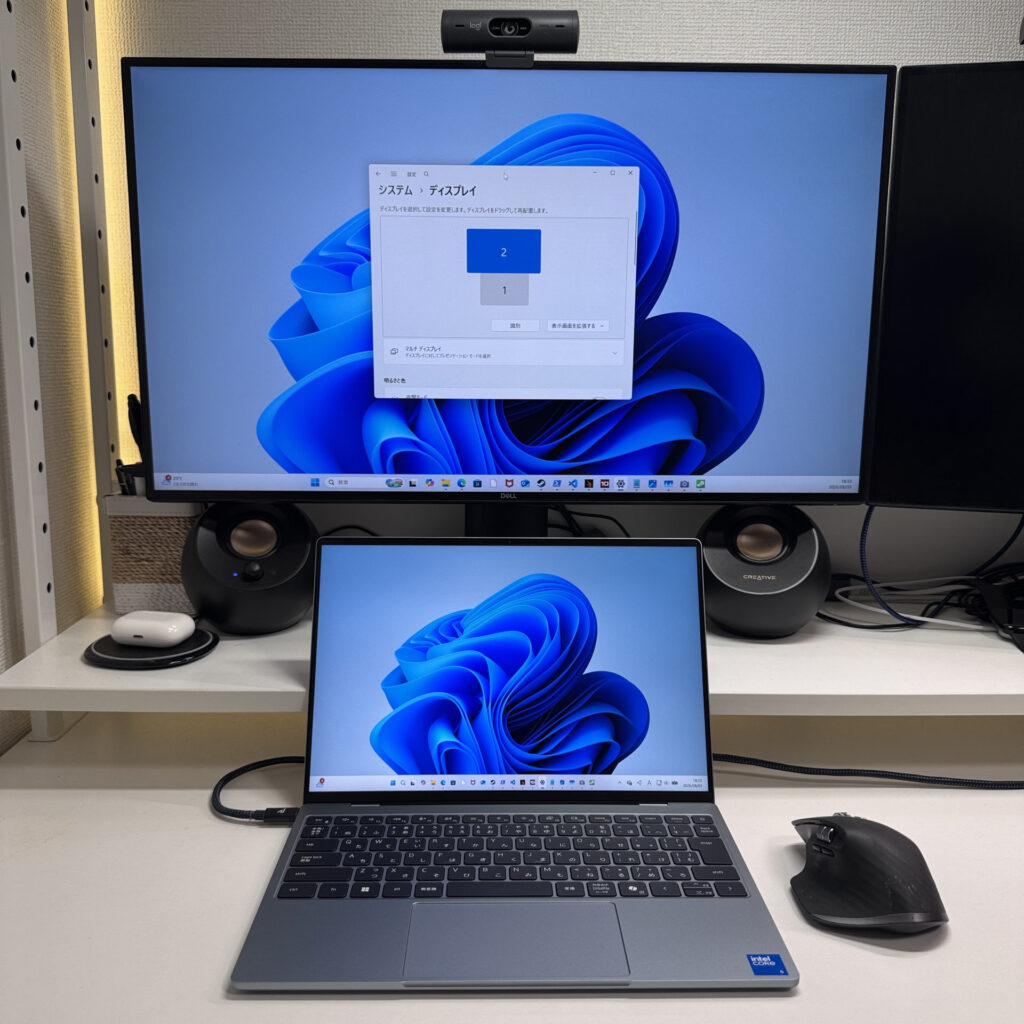 Single-display HDMI output via the hub works without any issues
I also managed dual-display output straight from USB-C. The MacBook Neo only supports one video output, so this is a genuine point of difference.
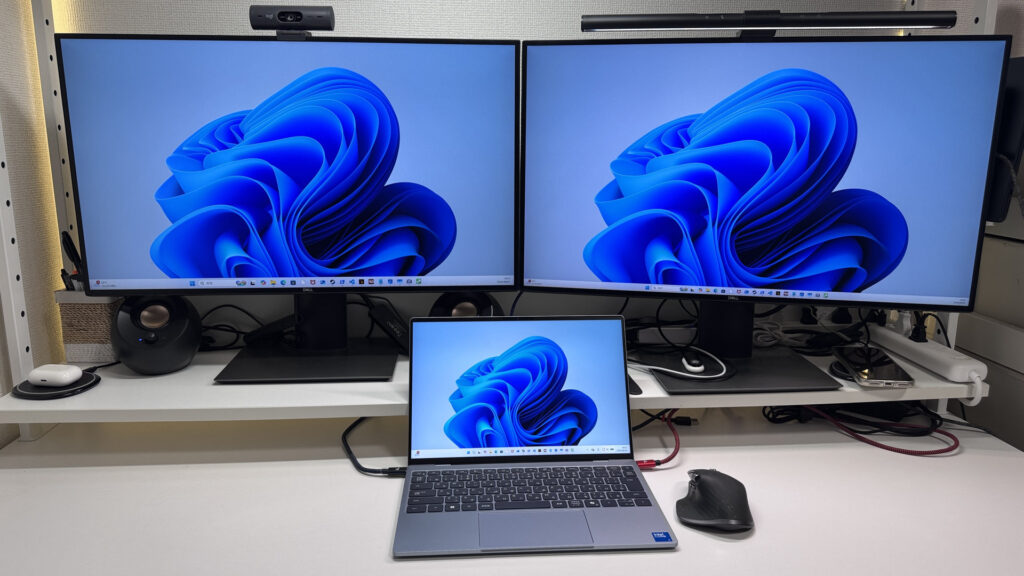 Driving two 4K monitors at once worked without a hitch
If the port count feels a bit tight, picking up a USB-C hub sorts it out easily enough — not really something to get too worried about.
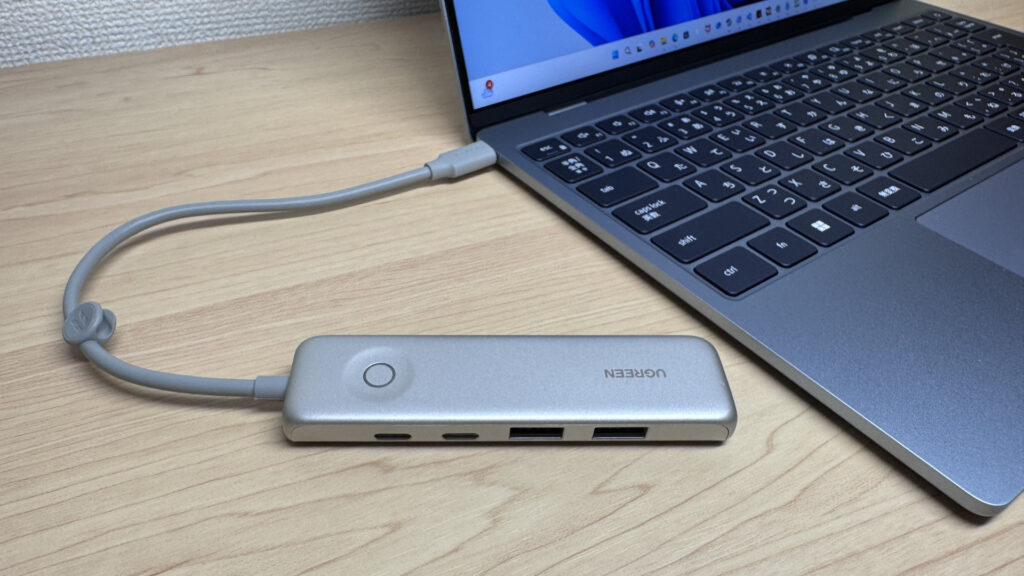 Keep one hub handy and expandability worries mostly disappear
Webcam
The webcam is a 2.07-megapixel FHD unit. I took some test shots with the camera app and was genuinely impressed with how clean the image came out.
 2.07 megapixels goes a long way — the detail here is genuinely sharp
The built-in camera alone is more than good enough for video calls. There's no physical privacy shutter though, so if that matters to you, you'll want to fit a third-party one.
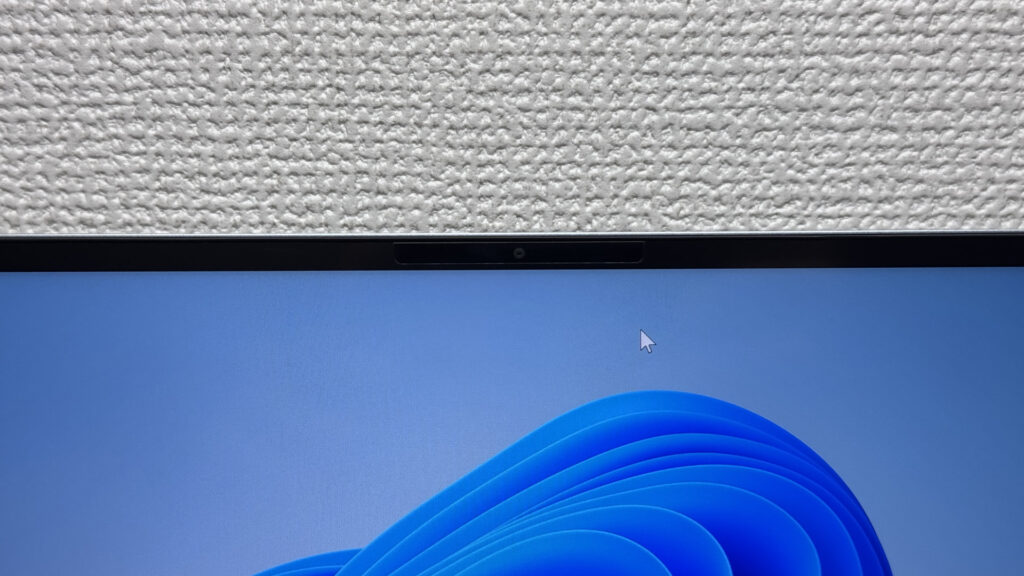 The bezel around the camera is quite narrow, so a standard shutter might be tricky to fit
Speaker quality
Let's have a listen to the speakers too. With a quad-speaker setup, the bass is more convincing than you'd expect from such a slim chassis.
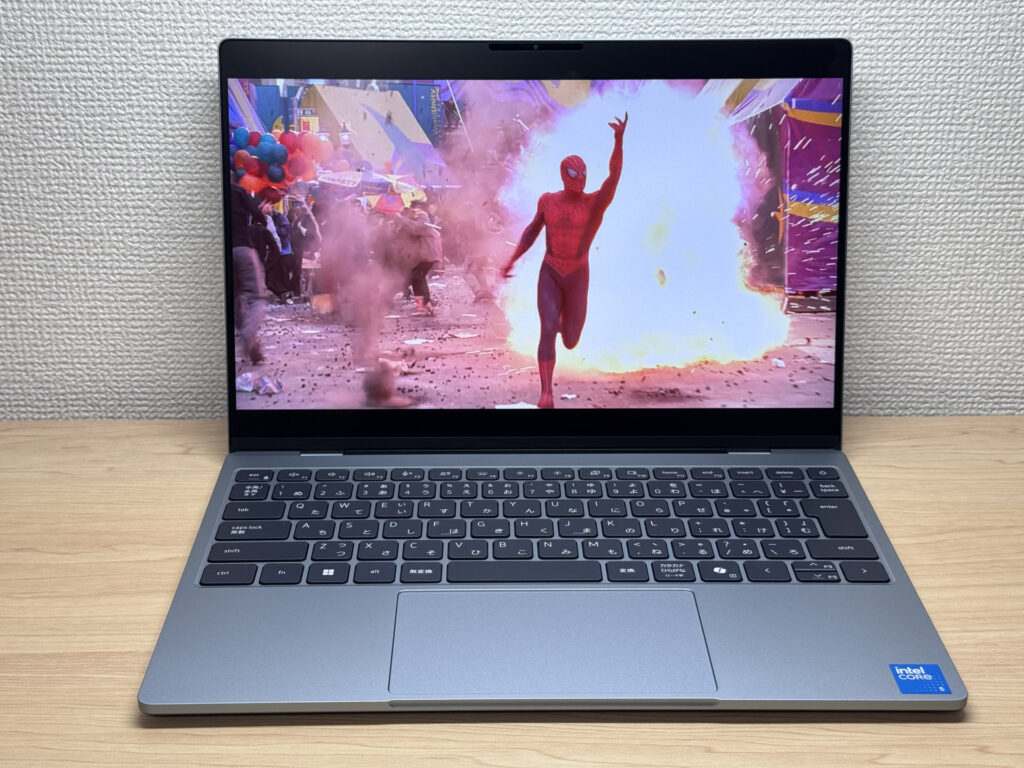 Impressive amount of bass for something this thin
Subjectively I'd rate it around 9 out of 10. The speaker grilles are spaced generously too, so the sound feels like it fills the room a bit more.
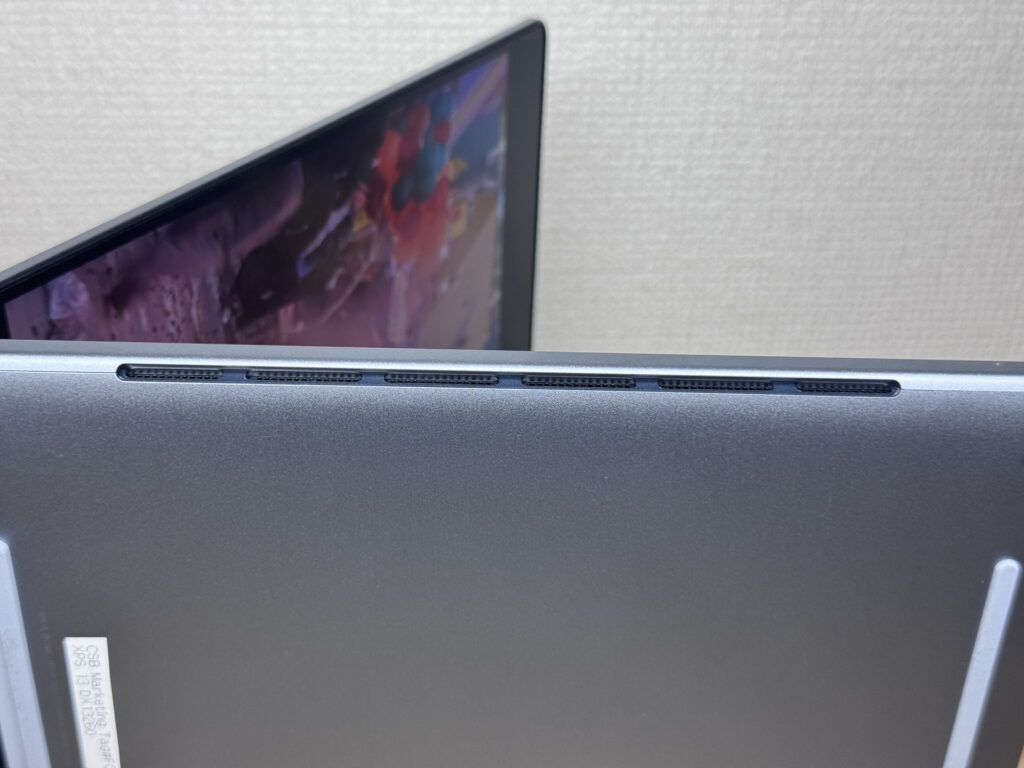 Those wider grilles help the sound feel a bit more spread out
Security
On security, it supports facial recognition. With two IR cameras on board, accuracy is good and it unlocked without any fuss.
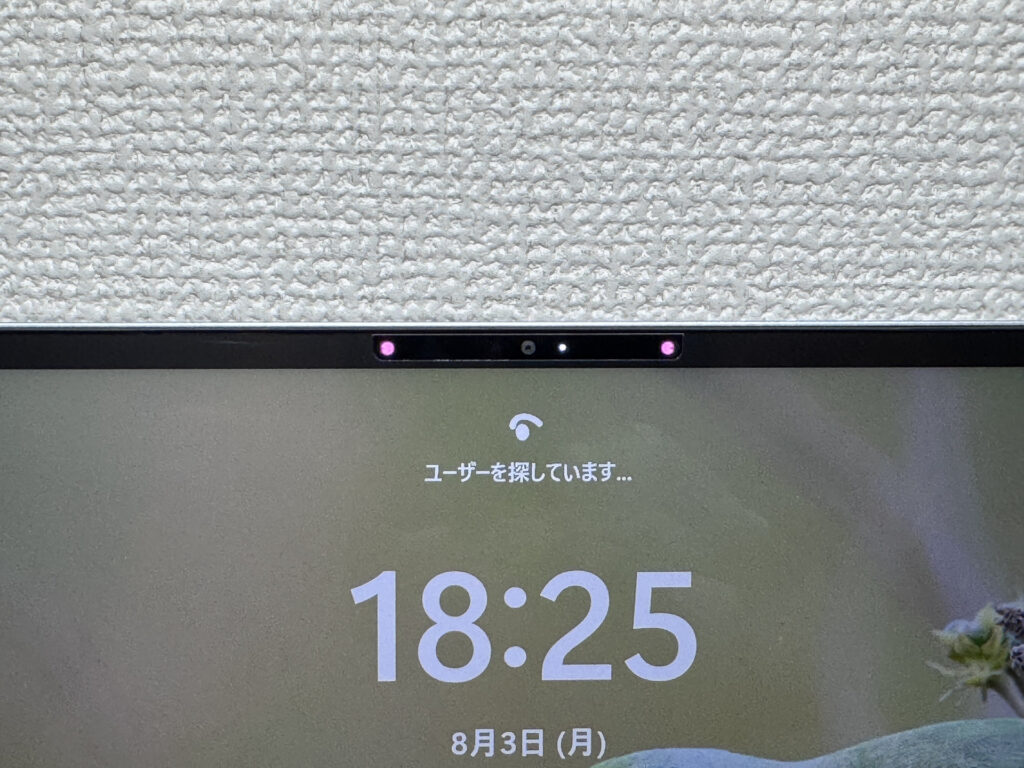 Likely down to the twin IR cameras, but recognition is quick every time
There's no fingerprint sensor, so if you were hoping for something Touch ID-like, that's worth keeping in mind.
Price
A word on price. Overseas models start from around $699, which is decent value for what you get. The Japanese model runs a bit higher thanks to the exchange rate, but even so, at £769.00 it still feels like a fair price given the build and the display.
Overview
Honestly, this turned out better than I expected. The milled build, that gorgeous 2.5K display, and a weight around 1kg — it's clear this was built as a serious rival to the MacBook Neo. The 8GB RAM struggling with heavier tasks and the USB-C-only port selection are fair criticisms, but there's a 16GB option and a USB-C hub sorts out the ports easily enough. Weigh that against everything it gets right, and there's still plenty to like about owning one. I'd say it's a genuinely good fit for uni students or anyone picking up their first laptop.
Well worth seeing that build quality and display in person
Where to Buy
* Prices may vary. Please check each store for the latest price and availability.
About the author