ZippyScore
ZippyScore is a proprietary rating based on 6 criteria: performance, portability, display, battery, value, and connectivity.
See rating criteria
- Performance: CPU / GPU performance
- Portability: Screen size & weight
- Display: Panel type, aspect ratio & refresh rate
- Battery: Rated battery life
- Value: Specs-to-price balance
- Connectivity: Port types & count
Pros & Cons
Pros
- 16GB of RAM keeps multitasking smooth, even with plenty on the go
- Wired LAN and a Kensington lock slot — proper business-grade connectivity
- Whisper-quiet day to day (17dB idle) and still under 40dB under full load
- Face and fingerprint login both on board, so signing in takes a second
Cons
- At around 1.8 kg (4 lb), it's on the heavier side — worth pairing with something lighter if you're carrying it daily
- No keyboard backlight, so working in the dark means relying on the screen's glow instead
Specs Summary
| OS | Windows 11 Pro |
|---|---|
| CPU | AMD Ryzen AI 5 430 (PassMark: 13,437) AMD Ryzen AI 7 445 (PassMark: 20,770) |
| RAM | 16GB |
| Storage | 512GB |
| Display | 16" IPS (Anti-glare) 1920x1200 (16:10) |
| Weight | 1.74 kg (3.84 lbs) |
| Ports | USB-A × 2 (5Gbps), USB-C × 2 (20Gbps/PD/Video out), HDMI × 1 (ver.2.1), Headphone jack × 1 |
| GPU | AMD Radeon 840M (G3D Mark: 3,805) |
| Biometrics | Fingerprint, Face Recognition |
| Battery | (Capacity: 68 Wh) |
| Camera | 5.0 MP |
| Dimensions | Approx. 359.4 × 251.0 × 17.5 mm (W × D × H) |
| Wi-Fi | Wi-Fi 6E |
| Bluetooth | Bluetooth 5.3 |
Configurations vary by retailer, region, and availability.
Hands-on Review
Alright, let's get into the hands-on review of the HP ProBook 4 G2a 16 AI PC. Here's the configuration I tested:
| Spec | Review unit configuration |
|---|---|
| CPU | AMD Ryzen AI 7 450 |
| Memory | 16GB |
| Storage | 512GB SSD |
| Display | 16-inch IPS (1920 x 1200) |
| Graphics | AMD Radeon 840M |
Note: configurations may vary depending on when and where you buy it.
Design
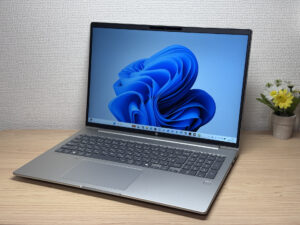
Let's start with the look. The unit I got is only available in silver, and it's got that cool, premium feel to the touch — fingerprints barely show up on it. It's got the sturdy build the ProBook line is known for, and honestly, it looks exactly like what it is: a PC built to sit on an office desk.
 That office-ready silver finish — fingerprints really don't stick to this thing
 Solid, no-nonsense build around the keyboard deck — very ProBook
Flip it over and check out the lid — the mirror-finished HP logo is simple but sharp, set against an all-matte silver lid. It's not flashy, but it nails that classic corporate look that never feels out of place in an office.
 The mirror-finished HP logo is a subtle touch that works
 Simple but sharp — that mirror logo has real presence
Let's talk thickness. For a 16-inch machine, it's built pretty slim, and it feels plenty manageable for carrying around the office.
 Slim for a 16-incher — thin enough for moving around the office
What about the underside? There's a big mesh vent cut out to help the fans breathe, and the rubber feet are grippy enough that the laptop won't slide around while you're typing. The screw count is kept to a minimum too, which felt like a nice bit of attention to detail from a global manufacturer.
 Minimal screws, no clutter — a clean, simple underside
Next up, opening the lid. I wanted to pop it open one-handed, but the hinge is on the stiffer side, so the whole base tends to lift off the desk with it. Honestly, that's a bit of a minus for me. That said, you'd normally have your other hand holding the base down anyway, so it's not really a dealbreaker in practice.
 The hinge is stiff enough that the whole base lifts up with it one-handed
 There's a clear notch to get your fingers under, at least
True to its business roots, this is one of the rare HP models that opens all the way flat to 180 degrees. Being able to just tip the screen over and show it to whoever's sitting across from you in a meeting is exactly the kind of business-laptop convenience that quietly comes in handy.
 Opens all the way flat, so you can turn the screen straight toward someone across the table
Portability
Now let's talk portability. On my scales, it came in at 1.8 kg — about 4 lb. Some of that's just the cost of a 16-inch screen, but I'll be honest, it's not light. Carrying it round the office is no bother, but tossing it in a bag for the daily commute feels like a stretch.
 1.8 kg (about 4 lb) on my scales — typical for a 16-incher, but a lot to carry every day
The included charger is worth a look too. It's a 65W USB-C brick, and it weighed in at 346 g — also on the heavier side. But since this laptop is really built to live on a desk, you probably won't be hauling the charger around much anyway.
 The charger weighs 346 g — not a big deal if it's staying put on a desk
Just to test it, I plugged in a compact Anker USB-C charger I already had, and it charged without a hitch. Swap in a small charger like that for travel days and your bag gets noticeably lighter.
 My Anker charger worked just fine — a nice surprise
Picking it up with one hand, you really feel that 16-inch heft — enough to make your arm shake a little. Two hands and it's fine, but it's another reminder that this isn't meant to be a grab-and-go laptop.
 It's a real handful one-handed — this is desk-bound weight
Display Quality
On to the display. It's a 1920x1200, 16:10 IPS panel, and the colour came out looking better than I expected. It's not OLED-level black, but blacks are still nicely deep — one of the less washed-out IPS panels I've used.
 Colours popped way more than I expected, and blacks held up well too
 Colour accuracy is solid — photos genuinely look good on this thing
 Natural IPS colour with none of that washed-out look
Let's check viewing angles too. As you'd expect from IPS, they're wide — colours barely shift even from an angle. Colours staying consistent when a few people are crowded around the screen in the office is a genuinely useful perk.
 Barely any colour shift from the side — good for showing the screen to a few people at once
That 16:10 aspect ratio also means more vertical space to work with, which is great. You can fit more of a spreadsheet or a webpage on screen at once, so you end up scrolling a lot less.
 That 16:10 ratio really does cut down on scrolling
Last thing on the display: it's matte, not glossy, and glare under office fluorescent lighting is a non-issue. For a business laptop, that matte finish is a genuinely appreciated touch.
 Barely any glare under fluorescent lights — easier on the eyes
Keyboard Feel
Now the keyboard. My review unit is the Japan-market model, so it's got a JIS layout, with the Enter and Backspace keys each getting their own dedicated space — makes for a really comfortable typing experience.
 Each key gets its own clearly separated space, so mis-typing is rare
It's got a proper number pad too, and hitting the calculator key instantly pops open the Calculator app — a small thing, but genuinely handy. This should come in useful for anyone doing accounting work with a lot of number entry.
 One tap on the calculator key and Calculator's up — a nice touch if you type a lot of numbers
As for the typing feel, the big 16-inch screen makes it easy to see what you're working on even while coding, and the key texture and travel both feel just right. It's a great match for something like writing code in VS Code.
 The big screen makes code easy to read, and the typing feel is great too
 Plenty comfortable to type on — no fatigue even during long writing sessions
As for backlighting, my review unit doesn't have one. Honestly, that's a bit of a bummer. Working in a dim room means relying entirely on the screen's own glow, so you'll need to make peace with that in a pitch-dark setting. That said, you're probably not typing away in total darkness that often on a business laptop, so it's an understandable place to cut costs.
 No backlight, so working in low light is a bit rough
Quick heads-up: these photos are the Japan-market unit, so the keyboard shown is the Japanese layout. UK models ship with the standard UK (ISO) layout.
Touchpad
Next, the touchpad. On a lot of 16-inch laptops with a number pad, the touchpad ends up centred and you accidentally brush it while typing — but here it sits right below the home row, so mis-touches are rare. It's a decently large pad too, and it tracks smoothly.
 Sitting right below the home row keeps accidental touches to a minimum, and it tracks well
It also supports three-finger gestures, so you can flip between windows without ever touching a mouse. Being able to work efficiently without a mouse really pays off on a screen this big, and it's a nice perk to have.
 A three-finger swipe pulls up Task View instantly — smooth, no mouse needed
Performance
Let's check performance. My review unit runs an AMD Ryzen AI 7 450 with a Radeon 840M GPU, and it scored 7093 in PCMark 10. That's a score comfortable enough for everyday use and then some.
 7093 in PCMark 10 — plenty of headroom from everyday tasks up to heavier work
| Total Score | Rating | What it feels like in real use |
|---|---|---|
| ~4,000 | Bare minimum | Web browsing and simple tasks work, but multitasking or many tabs feels sluggish. |
| 4,000–5,000 | Light use | Daily tasks are doable, but running multiple apps means waiting around. |
| 5,000–6,500 | Comfortable (mainstream) | Handles most work without stress — fine for office, school, video calls. |
| 6,500–8,000 | High performance This PC | Plenty of headroom. Light photo editing and programming feel snappy. |
| 8,000+ | Very high performance | Tackles video editing and heavy workloads. Long-lasting performance. |
*PCMark 10 reflects overall comfort. Actual feel depends on CPU, RAM, and SSD speed.
On the GPU side, it scored 1977 in 3DMark Steel Nomad Light at 14.64 FPS. That's pretty strong for integrated graphics — enough to run lighter PC games. Realistically nobody's gaming much on a business laptop, though, so this extra headroom is more likely to show up as faster video encoding for things like editing.
 1977 in 3DMark Steel Nomad Light — strong for integrated graphics
| Score | Rating | What it feels like in real use |
|---|---|---|
| Up to 400 | Bare minimum | 3D performance is quite limited. Not really suited for gaming. |
| 400–900 | Light 3D | Lighter games and low-load 3D processing work. |
| 900–1,500 | Average (mainstream) | Standard for integrated GPUs. Light to medium games playable with right settings. |
| 1,500–2,200 | High performance This PC | Strong for an integrated GPU. Games and 3D work feel comfortable. |
| 2,200+ | Very high performance | Top-tier 3D performance for thin laptops. Real graphics headroom. |
*3DMark Steel Nomad Light targets thin laptops and integrated GPUs. Score range differs from Time Spy, so direct comparison isn't valid.
I also ran CrystalDiskMark to check storage speeds: 4,335 MB/s sequential read and 4,070 MB/s write, which is typical for a modern SSD. Compared to an old-school HDD it's a massive leap, and it definitely feels snappy in day-to-day use.
 4,335 MB/s read, 4,070 MB/s write — right in line with a modern SSD
| Score | Rating | What it feels like in real use |
|---|---|---|
| Up to 600 MB/s | Bare minimum | Faster than HDD, but slow for modern SSDs. App launches feel slightly slow. |
| 600–1,500 MB/s | Average | Fine for daily use, though loading is noticeably slower than top-tier SSDs. |
| 1,500–3,500 MB/s | Comfortable (mainstream) | App launches and file loading feel smooth. No real complaints in daily use. |
| 3,500–5,500 MB/s | Fast This PC | Loads large data and apps quickly. Definitely upper-tier SSD speed. |
| 5,500+ MB/s | Very fast | High-end NVMe territory. Heavy data work without waiting. |
*CrystalDiskMark measures SSD speed. It mainly affects app launch and file loading speed, not overall PC performance.
Battery Life
Let's talk battery life.
Battery rating: Average
Since this is designed to live on a desk, the battery itself is a pretty standard size. Powering that big 16-inch screen also draws more juice, so it doesn't really feel built for long stretches away from an outlet. It's best thought of as an office machine you'll keep plugged in most of the time. If you know you'll be out and about for a while, bring a power bank or a USB-C charger along just in case.
 Checking in on battery health
Fan Noise & Heat
Let's get into fan noise and heat, since that's always top of mind. At idle it's basically silent — my meter measured 17.2 dB, which is genuinely quiet.
 17.2 dB at idle — close enough to silent
I also measured it under a 100% CPU load, and it topped out at 36.2 dB — still under 40 dB. Cooling that stays unobtrusive even under heavy load is a well-engineered touch.
 36.2 dB under full load — staying under 40 dB is genuinely impressive
| Noise Level | Rating | Feel |
|---|---|---|
| Under 30 dB | Near-silent Idle | Fan noise is barely perceptible — library-quiet and ideal for focused work. |
| 30–35 dB | Quiet | Faintly audible but non-distracting. Easy to work in a quiet room. |
| 35–40 dB | Noticeable Load | You can tell the fan is spinning, but it rarely interrupts work. |
| 40–45 dB | Somewhat loud | Can become distracting in quiet environments. Headphones start to help. |
| 45–50 dB | Loud | Noticeable stress over extended use. Cooling is clearly prioritized. |
| 50 dB+ | Very loud | Prominent fan noise under load — gaming/high-performance thermal design. |
The exhaust vent sits at the back near the hinge, so warm air blows up and out past the display. There's nothing venting from the sides, so you don't have to worry about the area near your mouse hand heating up.
 Exhaust only near the hinge, so your mousing hand stays cool
Ports & Expandability
Port selection is genuinely solid too. On the left, you've got HDMI, USB-A, two USB-C ports, and a headphone jack — and having that headphone jack built in means you're not stuck hunting for a dongle.
 The left side is stacked: HDMI, USB-A, two USB-C ports, and a headphone jack
The right side has a Kensington lock slot, a wired LAN port, and another USB-A. Having a Kensington lock and wired LAN built right in is exactly the kind of connectivity you'd expect from a business laptop. Being able to plug straight into the office's wired network is a genuine plus for office use.
 Kensington lock and wired LAN built in — proper business-grade equipment
I also tested it with external monitors. First up, my 27-inch 4K monitor over HDMI — it drove it perfectly at 60Hz.
 HDMI worked flawlessly, with a clean 60Hz image
The USB-C ports also handle video output over Power Delivery, and I tested that too — same clean output. Running two 27-inch monitors as a desktop setup lets you spread windows out across way more screen real estate, which is a real boost to productivity. Personally, I've landed on two 27-inch monitors being more useful than one 34-inch ultrawide, and this laptop drove that setup without a hitch.
 Rock-solid dual-monitor output over USB-C — I personally prefer two 27-inch screens over one big one
Webcam
Let's check out the webcam. It's a 5-megapixel camera, and the actual footage looks quite good. The sensor quality seems solid too — I got a bright, clear image.
 5 megapixels goes a long way — a genuinely good built-in camera
It's also got an AI-boosted CPU, so it qualifies as a Copilot+ PC — background blur and auto-framing both work during video calls. Making solid use of AI features like that is one of this machine's real strengths.
There's also a privacy shutter, so you can cover the lens instantly whenever you don't want to be seen. Because it's a physical hardware shutter, it blocks the camera reliably no matter what your software settings say, which is reassuring.
 A physical shutter you can flip shut instantly — reassuring, since it doesn't rely on software
Speakers
Let's check the speakers too. I played some video over Amazon Prime Video, and rather than pumping out deep bass, these lean toward clear mids. Fitting for a business laptop — the tuning seems geared toward making voices easy to hear on video calls and meetings.
 Tuned for clear mids — speakers built for video calls, not bass
Security
Let's cover security features. It supports facial recognition — just look at the screen from the lock screen and it unlocks.
 Just look at it and it unlocks — response is quick too
There's a fingerprint sensor too, so if you're wearing a mask and face unlock isn't cooperating, you can still get in with a fingerprint. Being able to unlock via face, fingerprint, or passcode gives you a flexible set of login options, which is genuinely convenient for office use.
 A fingerprint sensor too — handy for unlocking smoothly even with a mask on
Price
As for pricing, there's a noticeable gap between list price and sale price. Full price feels a bit steep, but when it's on sale it drops to around £1,067.00, which is a lot easier to justify. For this spec and this much gear, that's genuinely solid value.
Final Verdict
And that wraps up my hands-on with the HP ProBook 4 G2a 16 AI PC. It's built through and through for the corporate world, but I think it's also a genuinely good fit for self-employed people and remote workers after a serious work machine. The easy number-pad entry, the roomy 16:10 screen, and the quiet running are all things that quietly add up if you're staring at a laptop all day. There are a few things to weigh up — the weight, the stiff hinge, no backlight — but even so, this feels like a solid machine that'll go the distance. For office workers this is an easy recommendation, and it's just as good a fit for freelancers and self-employed people working from a home office.
Built solid and made for the office — that's the ProBook 4 G2a 16 in a nutshell
Where to Buy
* Prices may vary. Please check each store for the latest price and availability.
About the author