ZippyScore
ZippyScore is a proprietary rating based on 6 criteria: performance, portability, display, battery, value, and connectivity.
See rating criteria
- Performance: CPU / GPU performance
- Portability: Screen size & weight
- Display: Panel type, aspect ratio & refresh rate
- Battery: Rated battery life
- Value: Specs-to-price balance
- Connectivity: Port types & count
Pros & Cons
Pros
- Weighs in at around 1kg, so carrying it every day doesn't feel like a chore
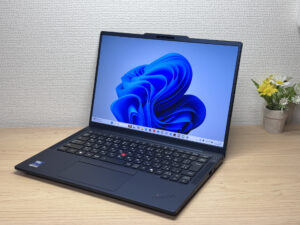
- The classic ThinkPad TrackPoint makes cursor control easy
- A generous port selection means you can skip the dongles
- A sharp 5MP webcam makes video calls look great
- Speakers with real bass mean this laptop alone handles video watching just fine
Cons
- The stock charger is a bit heavy at 260g — swap in a compact USB-C charger to lighten your load
- The OLED/32GB config runs pricey — if you're on a budget, consider the FHD/16GB option instead
Specs Summary
| OS | Windows 11 Pro |
|---|---|
| CPU | Intel Core Ultra 5 325 (PassMark: 21,039) Intel Core Ultra 7 365 (PassMark: 21,371) |
| RAM | 16GB / 32GB |
| Storage | 256GB / 512GB / 1TB |
| Display | 14" IPS (Anti-glare, 60Hz) 1920x1200 (16:10) |
| Weight | 1.07 kg (2.36 lbs) |
| Ports | USB-C × 3 (Thunderbolt 4/40Gbps/PD/Video out), USB-A × 1 (5Gbps), HDMI × 1, Headphone jack × 1 |
| GPU | Intel Graphics (G3D Mark: 3,183) |
| Biometrics | Fingerprint, Face Recognition |
| Battery | Up to 19.6 h (Capacity: 58 Wh) |
| Camera | 5.0 MP |
| Dimensions | Approx. 313 × 219.4 × 10.7 mm (W × D × H) |
| Wi-Fi | Wi-Fi 7 |
| Bluetooth | Bluetooth 6.0 |
| Color | Black / Cosmic Blue / Eclipse Black |
Configurations vary by retailer, region, and availability.
Hands-on Review
Now let's get into the hands-on review of the ThinkPad T14s Gen 7. Here's the exact configuration I tested:
| Spec | Review unit configuration |
|---|---|
| CPU | Intel Core Ultra 7 356H |
| Memory | 32GB |
| Storage | 512GB SSD |
| Display | 14-inch OLED (2880x1800, 120Hz) |
| Graphics | Intel Arc Graphics |
| Color | Blue |
Note: configurations may vary depending on when and where you buy it.
Design
Let's start with the design. This blue finish is something you don't really see in the ThinkPad lineup, and honestly it felt refreshing right out of the box. The matte texture hides fingerprints well, and while it keeps that classic ThinkPad silhouette, it comes across as sleek and a bit more grown-up.
 That new blue finish gives the front a fresh look
 The ThinkPad logo adds a crisp accent to the corner
The lid looks great in this blue too — sleek and a little bit cool. The red dot on the ThinkPad logo only lights up when the laptop's powered on, a fun little touch you don't see on other machines.
 The new blue really pops on the lid
 The ThinkPad logo glows red when powered on!
 The side Lenovo logo is subtly classy too
Picking it up, it feels notably thin, and being a business machine, it slides into a bag really easily. At around 1kg (2.2 lbs), that combination of thinness and weight puts it in pretty elite territory.
 Thin enough to slide right into a bag
The bottom panel is a bit unusual — instead of vents spread across the whole underside, they're concentrated into a single fan-sized mesh, which keeps things looking clean. The rubber feet are solid too, so I wasn't worried about the laptop sliding around while typing.
 A tidy, compact vent layout
Opening and closing the lid is super smooth — you can hook a finger on the little webcam bump and pop it open with one hand. And true to ThinkPad tradition, it opens all the way flat to 180 degrees, which comes in handy when you want to turn the screen around to show someone across the table.
 A smooth hinge that opens easily one-handed
 It opens all the way flat to 180 degrees
Portability
Next up, portability. I actually weighed it myself, and it comes in just over 1kg (roughly 2.2 lbs) — that's genuinely light, and it makes carrying it around way less of a hassle.
 Weighed in at almost exactly 1kg
The stock charger weighed in at 260g, and honestly, that felt a bit bulky to me. But since it charges over USB-C, you can swap in a compact charger from a brand like Anker and lighten your load considerably. My recommendation: keep a small charger in your bag for everyday use and leave the stock brick at home or at the office.
 The stock charger weighed in at 260g
 A compact USB-C charger keeps your bag light
Picking it up with one hand, I barely felt the weight — it just lifts right up. That makes it really convenient for moving around the house or office. Light really is right.
 Light enough to lift with one hand, no problem
Display quality
Let's talk display quality. My test unit came with a 2880x1800, 120Hz OLED panel, and the colors are vivid. Photos of fruit and flowers came through looking really lively, and black levels felt tight too.
 Vivid colors that show off what OLED can do
 Fruit colors look fresh and lifelike
 Even busy, colorful shots stay crisp
Viewing angles are wide too — even peeking in from a sharp angle, the colors hold up well.
 Colors stay consistent even off-angle
It's a 16:10 panel, so compared to a 16:9 screen you get more vertical room to work with — less scrolling, easier workflow. Wikipedia pages render with crisp, readable text, and it seems like a solid match for coding work too.
 16:10 gives you extra room to work with
 Code in VS Code is easy to read too
Glare is minimal too — it's a non-glare panel, so I rarely had trouble with reflections even under fluorescent lighting.
 Minimal glare even under fluorescent lights
Keyboard feel
Next, the keyboard. Lenovo's a global brand, so keyboards can sometimes feel like an afterthought outside their home market, but this one's well laid out — keys are properly spaced with basically no crowding, which is a nice touch.
 A clean layout with well-spaced keys
I tried writing some code in VS Code to get a feel for it — the keys don't have quite the soft, cushioned feel of the Yoga line, but it's snappy and easy to fall into a rhythm with. The classic red TrackPoint is still here too, and if you're used to it, it's genuinely handy for getting around without a mouse in tight spots — like working on your lap on a train.
Snappy typing makes coding comfortable
 Typing feels quick and responsive
There's also a backlight, and it lights things up well enough in dark rooms that you shouldn't have any trouble working.
 Backlighting keeps things visible in the dark
Heads-up: these photos are the Japan-market unit, so the keyboard shown is the Japanese layout. US models ship with the standard US (ANSI) layout.
Trackpad usability
Let's check out the trackpad. There's a generously sized trackpad below the keyboard, and true to ThinkPad tradition, the physical left-click, right-click, and center-scroll buttons are still here. Personally, I don't think you need the physical buttons since you can already click the trackpad itself, but a lot of TrackPoint fans use them together, so that's a nice touch for anyone who's into it.
 A large, smooth-gliding trackpad
It glides smoothly, and gesture support feels quite comfortable — it honestly felt close to using a MacBook trackpad.
 Gestures feel close to the MacBook experience
Performance
Let's check out CPU performance. This configuration runs an Intel Core Ultra 7 356H, and it scored 7689 in PCMark 10. Everyday tasks are a total non-issue — if anything, it feels snappy.
 A strong score in PCMark 10!
| Total Score | Rating | What it feels like in real use |
|---|---|---|
| ~4,000 | Bare minimum | Web browsing and simple tasks work, but multitasking or many tabs feels sluggish. |
| 4,000–5,000 | Light use | Daily tasks are doable, but running multiple apps means waiting around. |
| 5,000–6,500 | Comfortable (mainstream) | Handles most work without stress — fine for office, school, video calls. |
| 6,500–8,000 | High performance This PC | Plenty of headroom. Light photo editing and programming feel snappy. |
| 8,000+ | Very high performance | Tackles video editing and heavy workloads. Long-lasting performance. |
*PCMark 10 reflects overall comfort. Actual feel depends on CPU, RAM, and SSD speed.
The Cinebench multi-core score came in at a solid 3291, meaning it's got enough muscle to handle heavier work like video editing.
 Multi-core performance is nothing to complain about
| Score | Rating | What it feels like in real use |
|---|---|---|
| Up to 1,000 | Bare minimum | Light tasks work, but heavier processing or multitasking feels constrained. |
| 1,000–2,000 | Standard (power-efficient) | Handles daily tasks, but heavier loads create waiting. |
| 2,000–3,000 | Comfortable (mainstream) | Office, school, video calls all work comfortably. Plenty for most users. |
| 3,000–4,000 | High performance This PC | Comfortable for multitasking, light/medium editing, and dev work. |
| 4,000+ | Very high performance | Handles video editing and heavy workloads with room to spare. |
*Cinebench 2026 is the latest CPU multi-core benchmark. Scores trend lower than R23, so direct comparison isn't valid.
GPU-wise, it scored 2183 in Steel Nomad Light — enough for lighter PC games. Honestly, I doubt many people are picking this up specifically to game on, so take that as more of a reference point, but that extra graphics muscle should come in handy for things like video rendering.
 A solid score for integrated graphics
| Score | Rating | What it feels like in real use |
|---|---|---|
| Up to 400 | Bare minimum | 3D performance is quite limited. Not really suited for gaming. |
| 400–900 | Light 3D | Lighter games and low-load 3D processing work. |
| 900–1,500 | Average (mainstream) | Standard for integrated GPUs. Light to medium games playable with right settings. |
| 1,500–2,200 | High performance This PC | Strong for an integrated GPU. Games and 3D work feel comfortable. |
| 2,200+ | Very high performance | Top-tier 3D performance for thin laptops. Real graphics headroom. |
*3DMark Steel Nomad Light targets thin laptops and integrated GPUs. Score range differs from Time Spy, so direct comparison isn't valid.
I also tested storage speed and got 7008.42MB/s read and 5787.10MB/s write — seriously fast. That should be a real productivity boost if your work involves moving large files around a lot.
 Blazing-fast storage means basically zero wait time
| Score | Rating | What it feels like in real use |
|---|---|---|
| Up to 600 MB/s | Bare minimum | Faster than HDD, but slow for modern SSDs. App launches feel slightly slow. |
| 600–1,500 MB/s | Average | Fine for daily use, though loading is noticeably slower than top-tier SSDs. |
| 1,500–3,500 MB/s | Comfortable (mainstream) | App launches and file loading feel smooth. No real complaints in daily use. |
| 3,500–5,500 MB/s | Fast | Loads large data and apps quickly. Definitely upper-tier SSD speed. |
| 5,500+ MB/s | Very fast This PC | High-end NVMe territory. Heavy data work without waiting. |
*CrystalDiskMark measures SSD speed. It mainly affects app launch and file loading speed, not overall PC performance.
Battery life
Battery rating: Average
It packs a 58Wh battery, which is pretty standard for a modern laptop. That said, this config's OLED panel and 120Hz refresh rate will drain it faster, so I wouldn't take the manufacturer's rated 19.6 hours at face value. If you're running the brightness and refresh rate high, getting through a full day without a charger might be a stretch.
 Checking in on battery health
If you're doing long work sessions away from a desk, I'd bring a power bank or a USB-C charger along just in case.
Fan noise and heat
Let's check the fan noise and heat, since that's always a concern. It's nearly silent when idle, and the measured idle noise level was low too.
 Basically silent at idle
| Noise Level | Rating | Feel |
|---|---|---|
| Under 30 dB | Near-silent | Fan noise is barely perceptible — library-quiet and ideal for focused work. |
| 30–35 dB | Quiet Idle | Faintly audible but non-distracting. Easy to work in a quiet room. |
| 35–40 dB | Noticeable Load | You can tell the fan is spinning, but it rarely interrupts work. |
| 40–45 dB | Somewhat loud | Can become distracting in quiet environments. Headphones start to help. |
| 45–50 dB | Loud | Noticeable stress over extended use. Cooling is clearly prioritized. |
| 50 dB+ | Very loud | Prominent fan noise under load — gaming/high-performance thermal design. |
Even under load it rarely crossed 40dB, and honestly, keeping fan noise this controlled in such a thin chassis is genuinely impressive.
 Stays relatively quiet even under heavy load
The exhaust vents are on the underside, so hot air doesn't blow directly at your hands — a nice design choice if you're using a mouse next to it.
 Bottom-mounted exhaust keeps your hands comfortable
Ports and expandability
Let's go over the ports. On the left side you'll find HDMI, a USB-C port (with power delivery), and a headphone jack, so you can plug in wired earbuds without needing an adapter.
 HDMI and USB-C on the left side
The right side has a Kensington lock slot, another USB-C, and a USB-A port, giving you enough flexibility to hook up all kinds of peripherals from this one machine. That's a business laptop for you.
 USB-A and Kensington lock support on the right
I hooked up an external monitor over HDMI, and it displayed just fine.
 Single-monitor output over HDMI works great
Using both USB-C ports, I was able to drive two 4K monitors at once, so I'd recommend setting it up as a desktop replacement with external monitors at home or in the office. Working across multiple screens beats working off just the laptop display, no contest.
 Two 4K monitors driven from the two USB-C ports
A USB-C hub can add even more ports if you need to expand further — worth pairing one with this if you want more room to grow.
 Add a hub for even more expandability
Webcam quality
Let's look at the webcam. It's a 5-megapixel camera, and the image quality on video calls is genuinely good. Honestly, seeing a camera with this much resolution at this price point is pretty rare.
 The built-in camera looks bright and clear
There's also a physical privacy shutter, so you can cover the lens in a second — no need to dig into software settings, which is reassuring if you need to block it in a hurry.
 A physical shutter you can flip shut in an instant
Speaker quality
Let's check the speakers. I watched a movie on it, and honestly, I was surprised by how loud it got for such a thin chassis. The sound is clear with real bass behind it — you'd barely need external speakers for watching videos on this thing.
 Movies sound surprisingly punchy
 Sound comes from speakers on both sides of the chassis
Security features
Let's talk security. It supports both face and fingerprint unlock, so even if you're wearing a mask and face unlock isn't cooperating, you can just tap the power button and switch straight to fingerprint.
 Face unlock is smooth and quick
 Fingerprint unlock comes in handy when you're masked up
Pricing
A quick word on price. The unit I tested — 32GB of memory and a Core Ultra 7 356H — sits toward the higher end of the lineup, and combined with the OLED panel, it's not cheap. That said, the entry-level model starts with a Full HD panel, 16GB of memory, and a Core Ultra 5 325, and it still comes with a fingerprint sensor standard, so if you want to keep costs down, that's worth a look too.
Final thoughts
Between the light weight, the build quality, and the peace of mind that comes with both face and fingerprint unlock, this is honestly a business laptop that's genuinely easy to live with. The higher-end OLED config takes a bit of a hit on value, but even so, the light weight, the port selection, and the speaker quality make a strong case for it. I'd say this is a great fit for business folks who grew up on the ThinkPad TrackPoint, or anyone who prioritizes security in their day-to-day work.
If you're used to the classic ThinkPad TrackPoint, this one will feel right at home
Where to Buy
* Prices may vary. Please check each store for the latest price and availability.
Where this laptop ranks

About the author